Creating a Configuration
A configuration defines your entire system. It lists all devices, sub-devices, and drivers, and maps their connections to the device controller. It also determines the operation sequence (recipes) for sub-devices. Creating a configuration is a prerequisite for using your microscopy system with the Inscoper ecosystem.
The interface offers several ways to create and manage your configurations.
Creating a New Configuration
You can create a new configuration using any of the following three methods:
-
Top Menu Bar: Go to File > New.

-
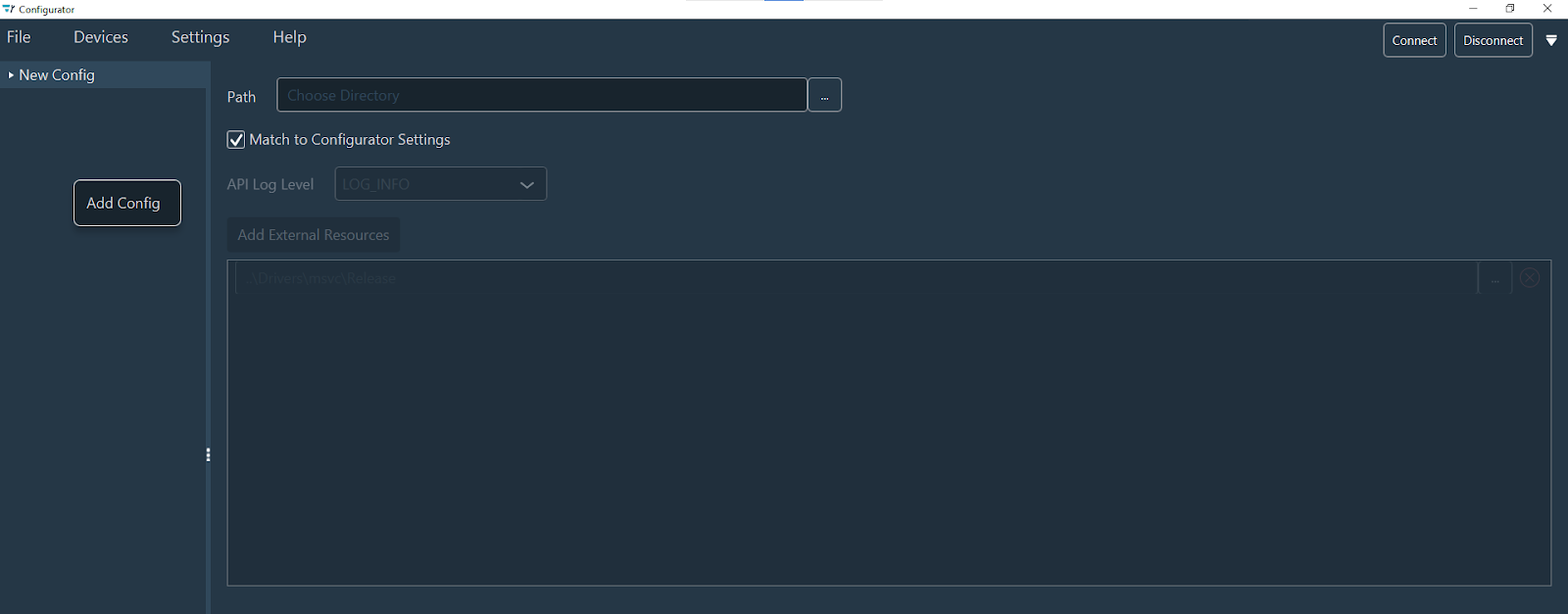
Left Config Menu: Right-click inside the left-hand configuration menu and select the option Add Config.
-
Keyboard Shortcut: Press Ctrl+N .
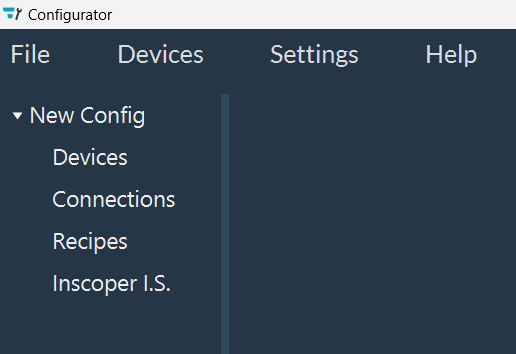
The newly created configuration is added to the left-hand configuration menu with the default name New Config.
Setting up the Configuration
Click the New Config item in the left-hand menu to open the main configuration settings in the central workspace. From here, you can:
- Define the Save Path: Choose the destination folder for your configuration.
- Customize Environment Settings: Uncheck Match to Configurator Settings to:
- Set a specific API log level.
- Point to custom resource folders for driver DLLs.
Saving a Configuration
Saving Methods
To save your work, you can use one of these three methods:
-
Top Menu Bar: Go to File > Save to select a destination folder.
Note
The configuration automatically adopts the name of the folder you select.

-
Left Config Menu: Right-click the configuration name (e.g.,
New Config) and select the option Save. -
Keyboard Shortcut: Press Ctrl+S .
Saving Logic
Folder Selection & Path
The save action depends on whether a target directory is already assigned:
- Undefined Path: A file explorer opens, allowing you to choose a directory. The configuration is saved upon confirmation.
- Defined Path: The configuration saves directly to the specified directory without further prompts.
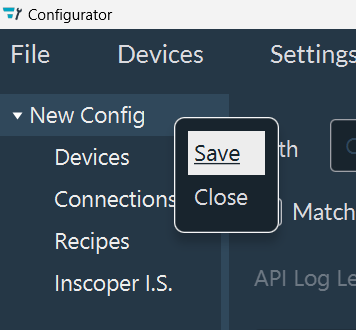
Creating a configuration automatically provisions the system structure in the left-hand menu, namely: Devices, Connections, Recipes, and I.S. Inscoper.
With the configuration saved, you are ready to begin adding devices to build your instrument.