Setting up a Device
This guide details the process of adding devices to your configuration. This step follows the creation of a configuration and is a prerequisite for defining connections and creating recipes.
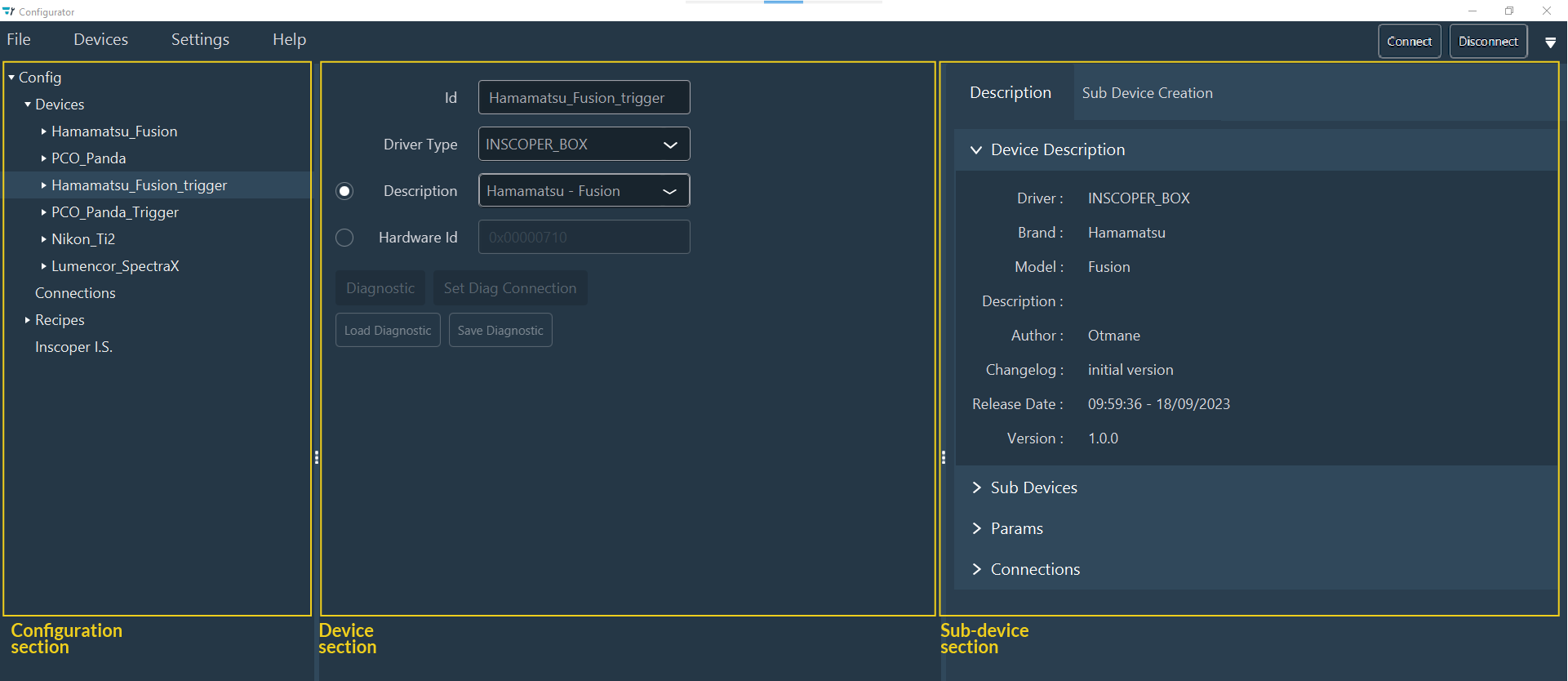
The Devices interface is organized into three distinct regions:
- Left-hand Configuration Menu: Displays the hierarchical tree of your system configuration.
- Central Device Parameters: The main workspace for defining primary drivers and device settings.
- Right-hand Sub-Device Parameters: Dedicated to managing sub-devices and viewing their technical details.
Adding a Device
Start by grouping your device components into the configuration tree.
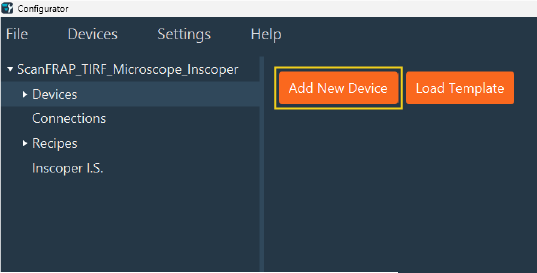
To add a device to your configuration, use one of the following methods:
-
Click the Add New Device button.
-
Right-click Devices in the left-hand configuration menu and select the option Add Device.
As a result, additional fields will appear, prompting you to fill in the parameters for this device and its sub-devices.
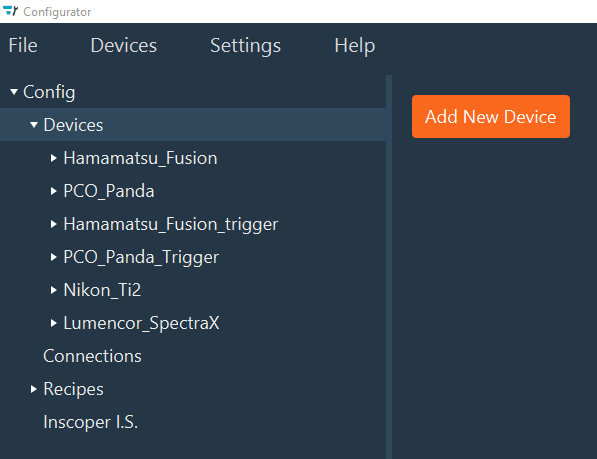
The device is now created in the interface. To make it functional, you must select the appropriate driver.
Configuring Device Details
Define the driver source and identification parameters for the new device.
In the Device Section, define the following:
- Id: Rename your device to a unique identifier.
-
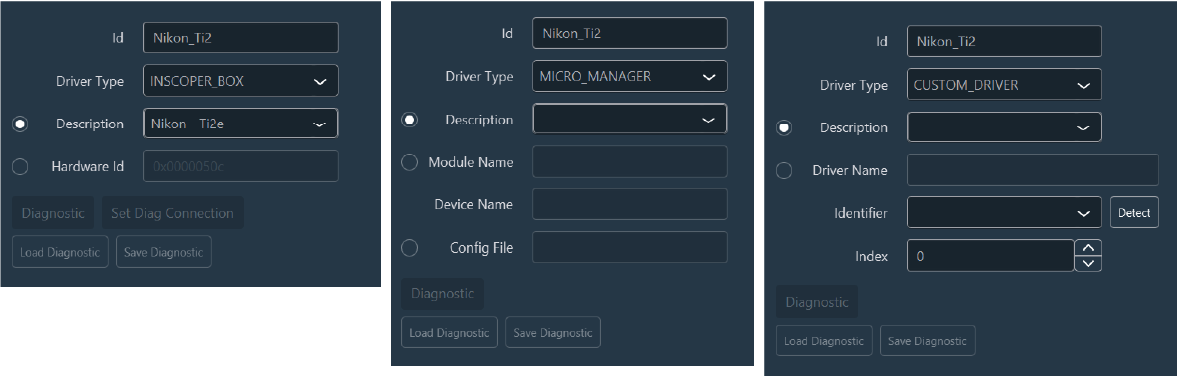
Driver Type: Select the appropriate driver source:
- Inscoper Box: Drivers residing on the hardware box.
- Custom Driver: External or user-defined drivers.
- Micro-Manager: Drivers from the Micro-Manager library.
-
Driver Identification:
- For Custom Drivers: Enter the Description or Driver Name and the Identifier. Use the Detect button to find the identifier automatically. If using multiple identical devices, specify the Index (starting at 0).
- For Inscoper Box: Provide the Description or the Hardware ID.
- For Micro-Manager: Provide the Description (preferred) or the Module Name and Device Name.
-
Description: For the Description, find your device in the drop-down menu.
Identifier vs. Index
In practice, the Identifier and Index fields are only required when multiple units of the same device model are connected. Typically, only one of these fields needs to be utilized.
With these details entered, the system can now attempt to communicate with the hardware.
Running Diagnostics
Establish a connection to verify the device and retrieve its capabilities.
Before clicking Diagnostic, ensure the device is physically connected to the computer or the Inscoper Box.
The Diagnostic function performs the following actions:
- Retrieves metadata (Brand, Model, Author, Changelog).
- Requests a list of properties (for Custom and Micro-Manager drivers).
- Updates the status of sub-devices to Available, Unavailable, or Unknown.
- Refines associated constraints.
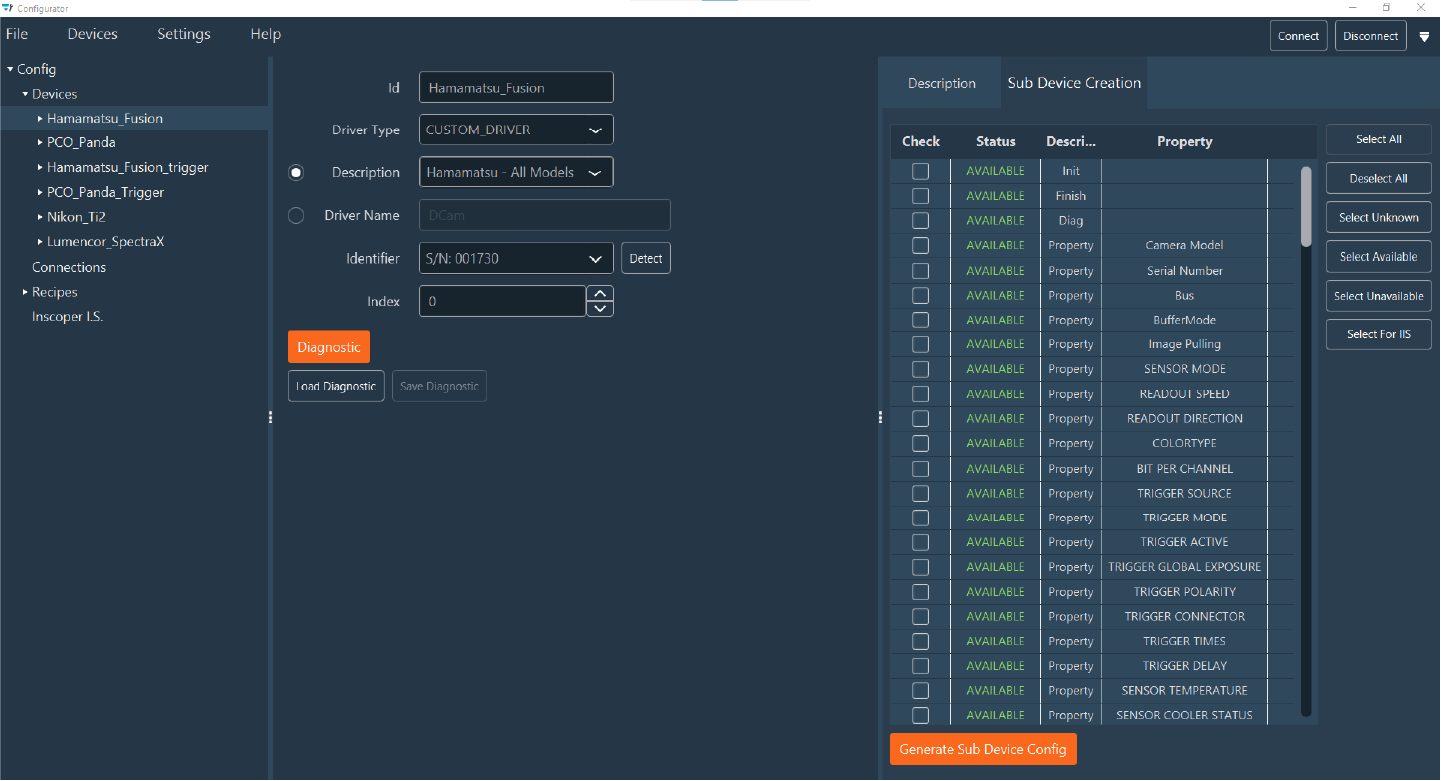
Successful diagnostics populate the list of available sub-devices, ready for selection.
Generating Sub-Device Configurations
Select which specific functions (sub-devices) to include in your active configuration.
After running the Diagnostic, navigate to the Sub Devices tab.
The Sub-Device Table
| Column | Description |
|---|---|
| Check | Checkbox to include the sub-device in the configuration. |
| Status | Indicates whether the sub-device is Available, Unavailable, or Unknown. |
| Description | The functional name of the sub-device. |
| Property | (Custom/Micro-Manager only) The specific property associated with the sub-device. |
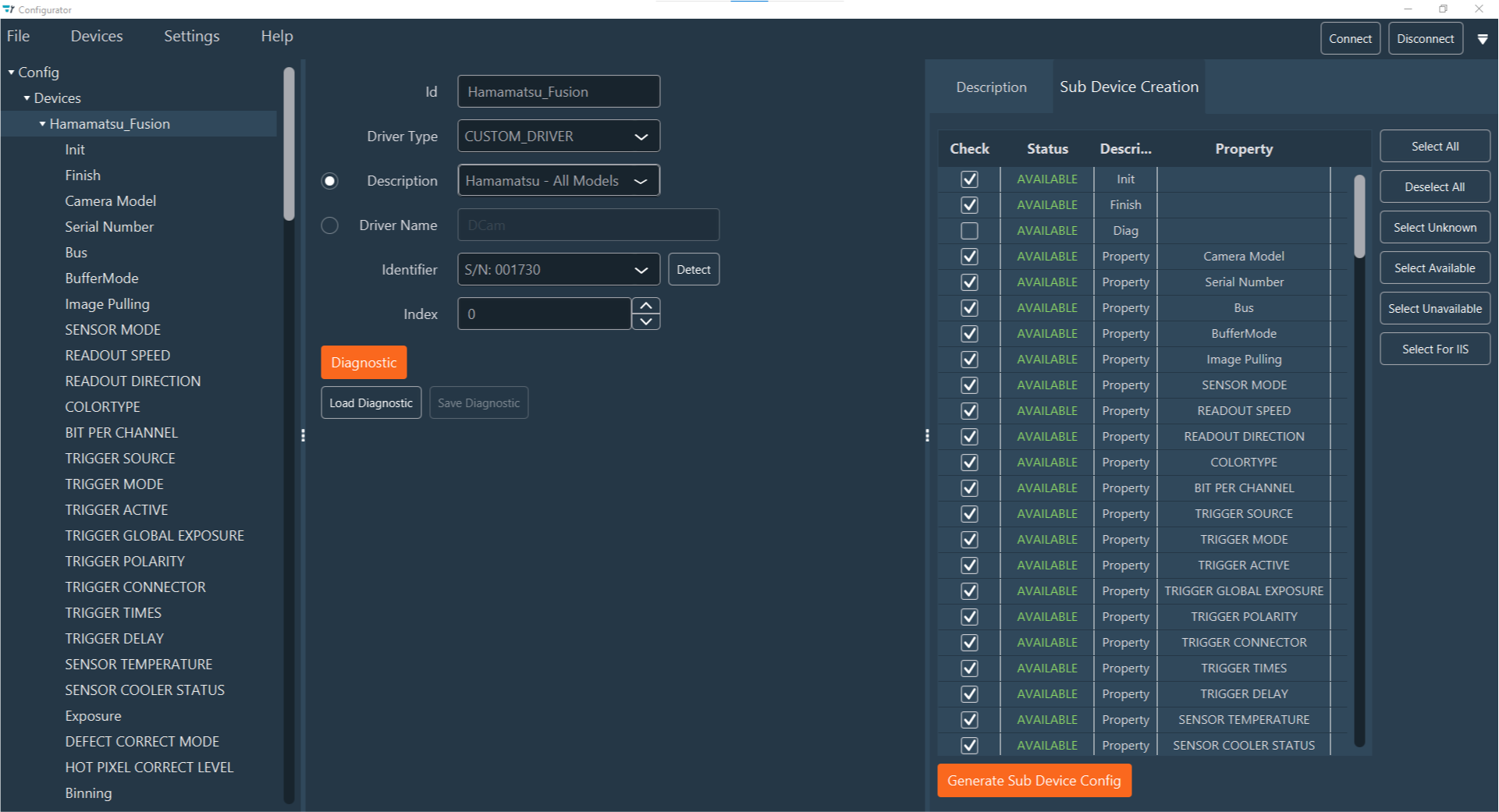
Selection
Use the buttons on the right to filter your selection:
- Select All / Deselect All: Selects or deselects every item in the list.
- Select Unknown / Available / Unavailable: Selects items based on their status.
- Select for IIS: Specifically for camera devices; selects all sub-devices required for the Inscoper interface.
Once selected, click Generate Sub Device Config.
Overriding Configurations
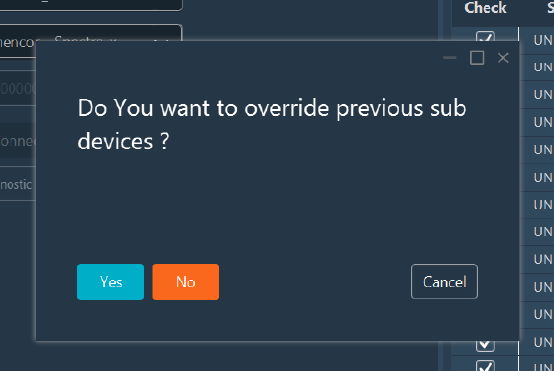
If you regenerate a configuration for a device that already has sub-devices, the system prompts you to choose an override option:
- Yes: Replaces the existing sub-device list with your new selection.
- No: Appends the new selection to the existing list.
Repeat these steps for each device in the microscopy system. Once all devices are added, you can proceed to the connection mapping.
Manual Management & Advanced Options
Manage existing devices or manually refine configurations for advanced control.
Context Menu Actions
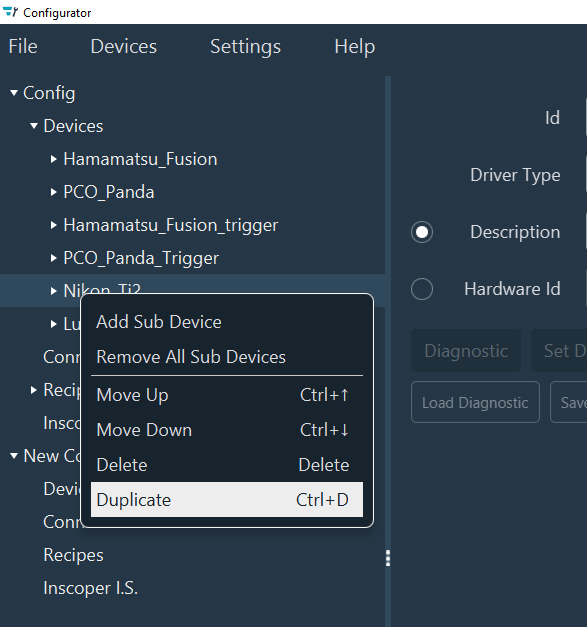
Right-click a device in the Configuration section to perform the following actions:
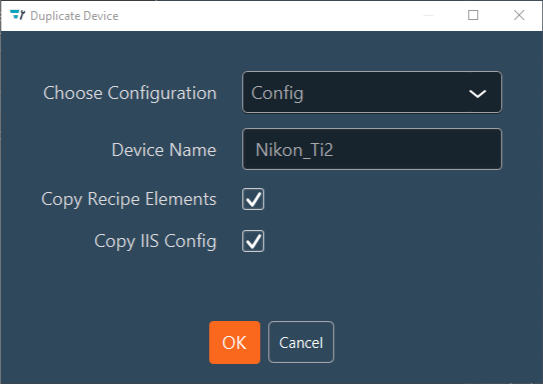
- Duplicate: Copy a device and its complete configuration.
- Note: You cannot duplicate a device with the same name into the same configuration.
- Move Up / Down: Reorder devices in the tree view.
- Delete: Remove the device and all associated sub-devices.
Manual Sub-Device Setup
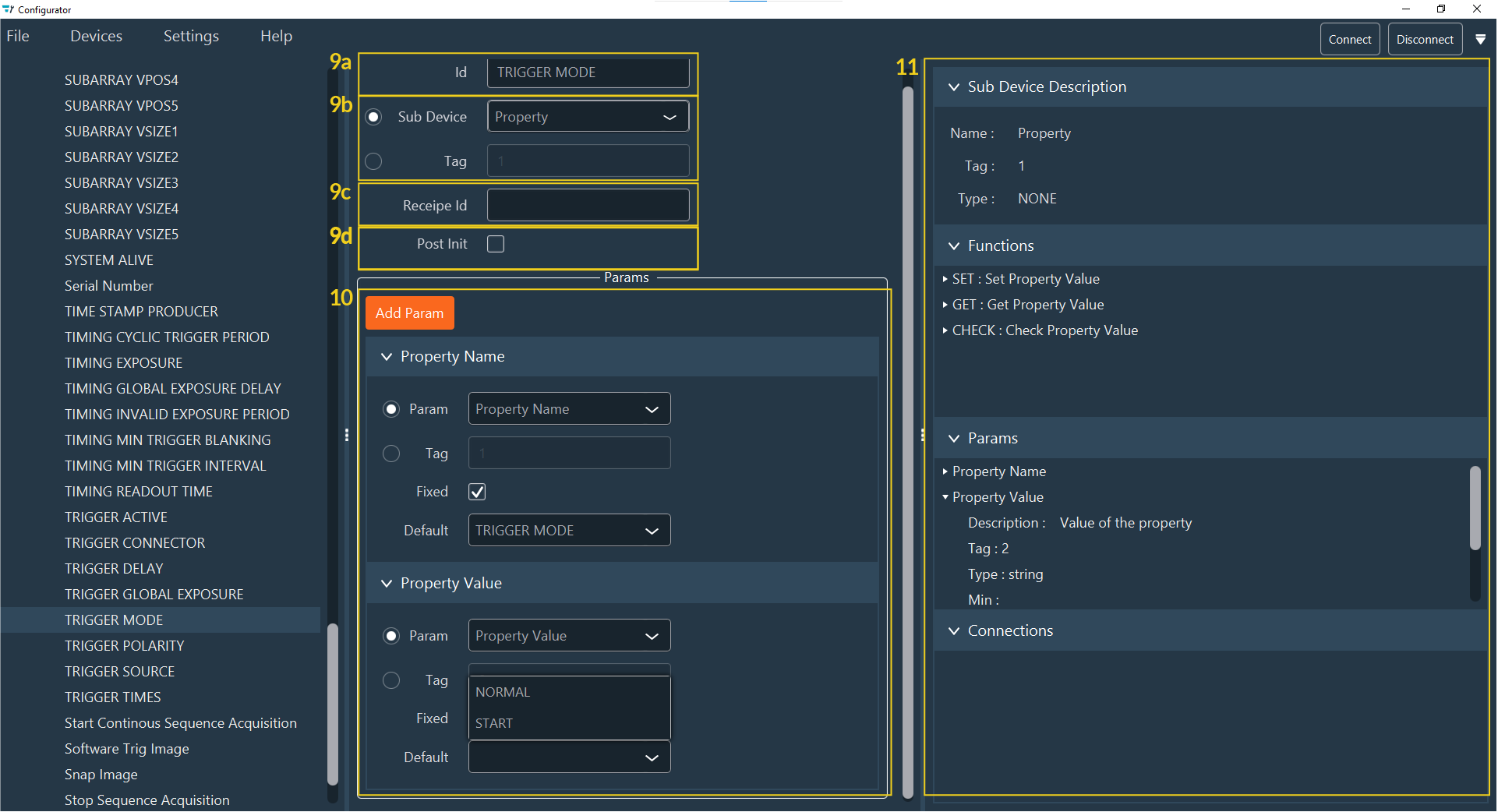
If you add a sub-device manually using the Add Sub Device function, configure the following fields:
- Id: Assign a unique name to the sub-device.
- Description / Tag: Define the functional identifier or tag for the sub-device.
- Recipe Id (Optional): Group multiple sub-devices under a single identifier (e.g., assigning "Shutter" to all shutter sub-devices). This allows you to create one Recipe Element that controls all associated hardware simultaneously.
- Post Init (Optional): If checked, the sub-device is ignored by the Create Recipe, Initialize, and Update Display Data functions. This also forces the sub-device to be called during initialization if the associated SET function has no parameters.
Click any sub-device to view its details, including Description, Function, and Parameters, in the right-hand panel.
Parameters
If a sub-device includes one or more parameters, click Add Param to define default behaviors. Note: The Add Param button is only visible if the sub-device supports parameters.
To configure a parameter: 1. Select the parameter or the corresponding tag from the drop-down menu. 2. Check Fixed to prevent user modifications during operation. 3. Define the Default Value.
In many cases, a sub-device should only carry one editable parameter. If multiple parameters exist, fix the static values to ensure only the intended field remains editable.
Parameter Logic (Custom and Micro-Manager Drivers)
Property sub-devices typically have two parameters: Property Name and Property Value.
- In the Device section, the Property Name is usually fixed (e.g., set to "Exposure").
- By fixing the name, the Property Value becomes the single editable field for the user.
If a required Property Value is missing from the list, click Add Param to select the property and define its non-fixed default value.
Advanced setup provides fine-tuned control over device behavior and restricts user access to critical parameters.
Next Step: Once all devices are configured, proceed to the Connections step.