Confocal MAICO
The Confocal MAICO provides a solution for laser scanning confocal microscopy, designed for integration with microscopes from any manufacturer. It is used for routine fluorescence imaging, functioning as a dedicated benchtop system or as a primary instrument in a core facility.
System Startup
Before launching the Inscoper Software, you must turn on and calibrate the confocal MEMS unit:
- Turn the physical Power key to On. The system LED transitions from solid orange to a blinking green light.
- Wait 5 to 10 minutes for the unit to reach thermal stabilization. The Laser Calibration button in the startup interface turns green once the system is ready.
-
Press the Laser Calibration button to initiate the automated hardware calibration.
Important
You must open the microscope's optical shutter for this step to succeed.
-
The green calibration light turns off upon successful completion.
- You may now safely launch the main Inscoper Software.
Channel Configuration
The Configuration tab provides direct access to the laser and detector hardware parameters, allowing you to finely tune laser excitation power and detector amplification (gain).
- Click Add to apply parameter changes temporarily for the current live experiment session.
- Switch to Expert Mode and click Save to create a new, reusable channel preset or to store your current settings permanently to the database.
Setting up a MAICO Channel
- For multicolor imaging sequences, create a single channel preset that encompasses all required laser lines, even if you perform sequential (line-by-line) acquisition later.
- Adjust the excitation intensity (% power) and detector gain for each wavelength.
-
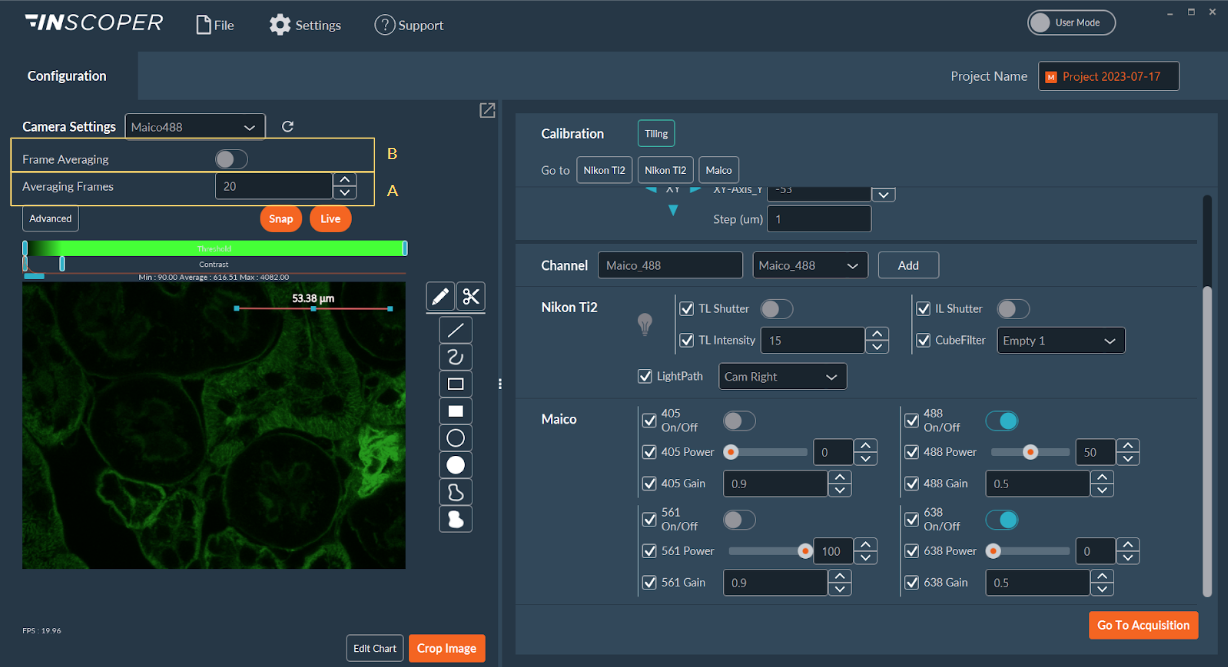
Frame Averaging: Enable frame averaging across all active detectors to improve the image Signal-to-Noise Ratio (SNR):
- Set the number of consecutive frames to average.
- Toggle the averaging feature on.
-
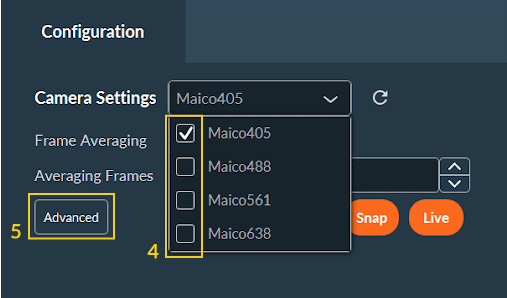
Detection View: Select the detection channels you want to monitor by checking their respective boxes in the interface.
-
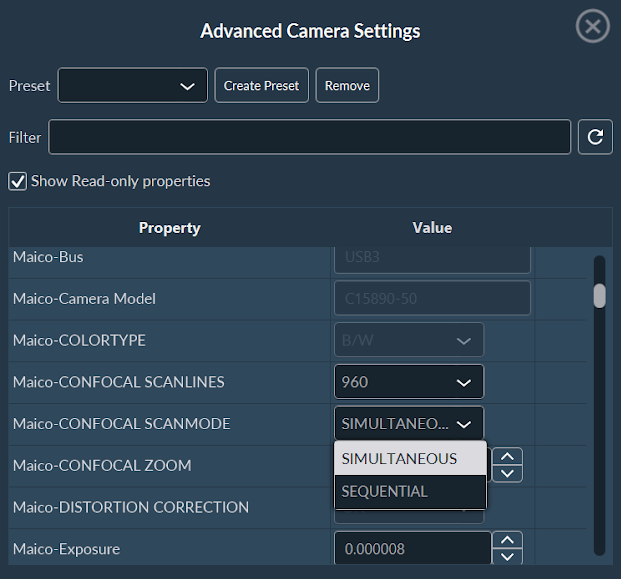
Advanced Options: Access detailed scanning hardware settings by clicking Advanced:
- Scan line: Select the number of vertical scan lines (960, 480, or 240). Lower line counts significantly increase the frame rate but reduce spatial resolution.
- Scan Mode: Choose between Sequential (minimizes spectral bleed-through) or Simultaneous (maximizes acquisition speed) excitation.
- Zoom: Choose between optical Zoom 1 or 2.
-
Click Go to Acquisition to transition to the sequence builder.
Sequence Acquisition
Configure your experimental sequences in the Acquisition tab, following the standard procedures outlined in the global User Guide.
Warning
For MAICO confocal acquisitions, the only procedural deviation from standard widefield imaging occurs within the Multi-Channels dimension setup.
The Multi-Channels Dimension
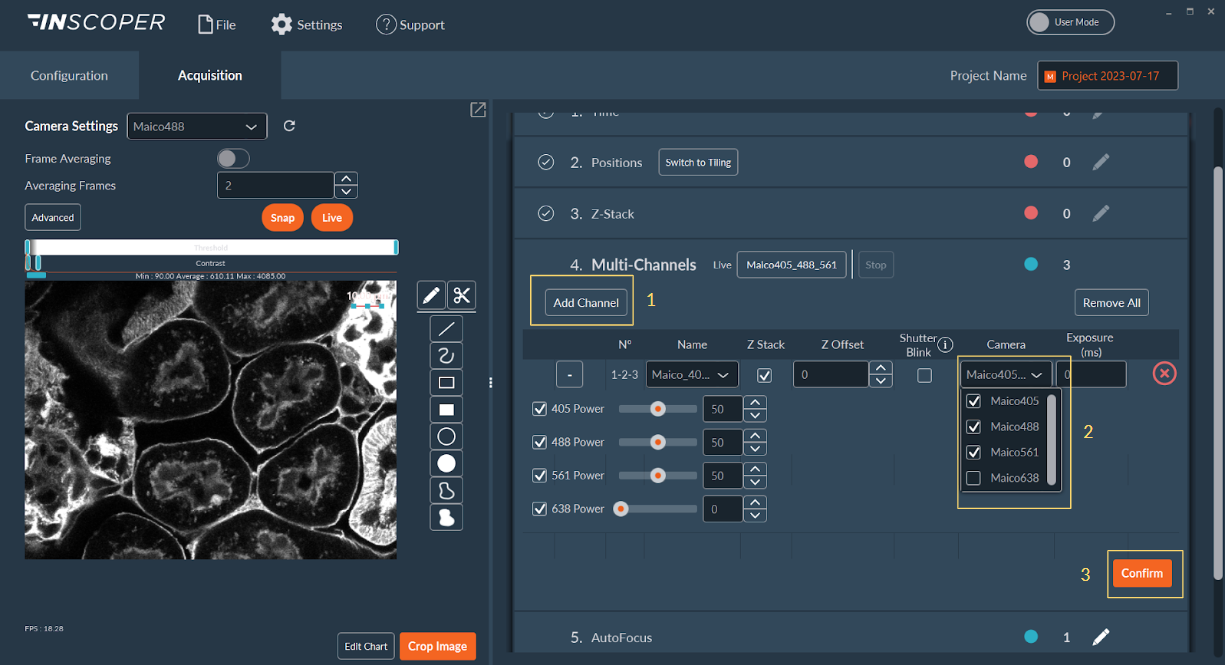
- Click Add Channel to insert your previously configured multi-laser MAICO channel preset into the sequence.
- Check the box corresponding to your desired confocal detection mode.
- Click Confirm to route the configuration.
Data Visualization
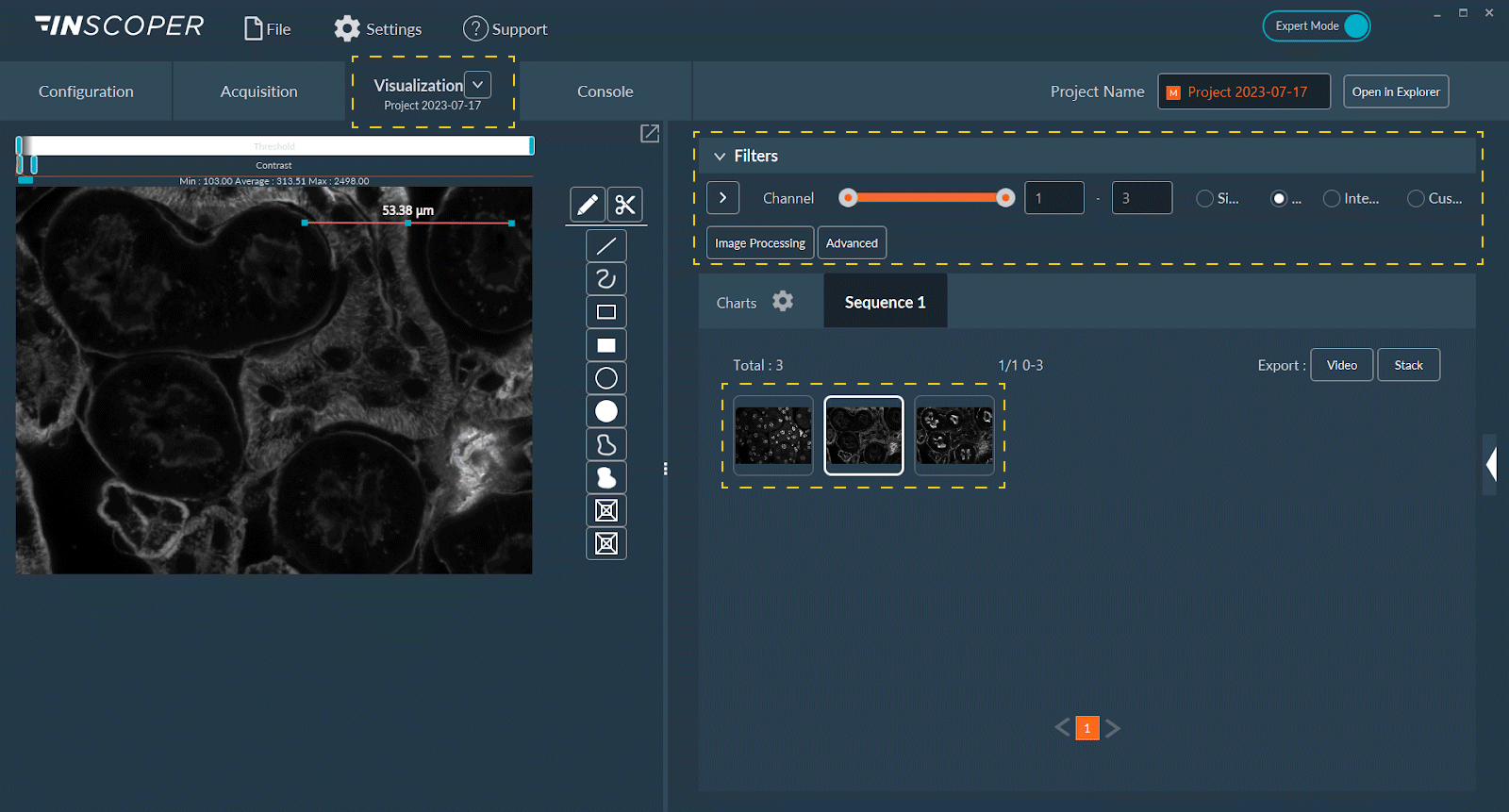
Immediately following the acquisition, the Visualization Tab becomes active. You can browse, filter, and review your confocal image stacks by their assigned dimensions (e.g., Z, T, C).
Tip
If your system includes an active Microvolution license, you can perform advanced 3D deconvolution directly within Inscoper I.S. by clicking the Image Processing button.