Photomanipulation (ScanFRAP)
The scanFRAP add-on enables targeted laser-based photomanipulation (such as FRAP, photoactivation, or optogenetics) integrated into your imaging sequences.
Configuration & Calibration
Global Configuration
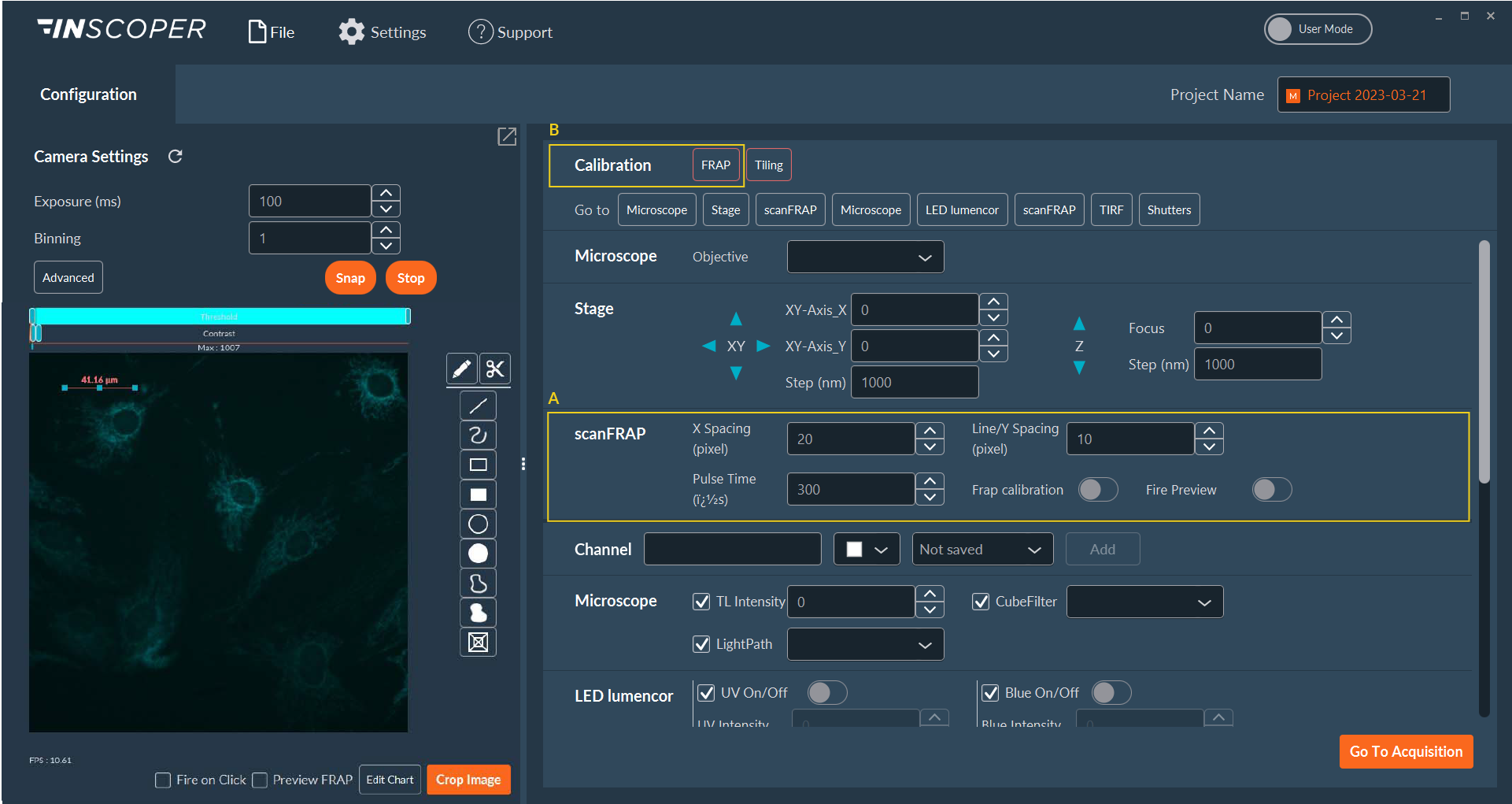
Section (A) of the scanFRAP Configuration tab controls the geometric point density during active photomanipulation sweeps.
- X and Y spacing: Defines the laser spot density used to fill solid geometric shapes (e.g., circles, rectangles).
- Line/Y spacing: Defines the laser spot density used exclusively for lines or unfilled shape boundaries.
- Fire Preview: Activates the manipulation laser within currently selected ROIs to allow safe, empirical testing of your power configurations.
Note
The Fire Preview function requires manually drawn ROIs and the correct manipulation channel to be actively selected.
Spatial Calibration
scanFRAP requires spatial calibration to ensure targeting accuracy. Recalibrate the galvanometer mirrors before each experimental session.
Navigate to the generic calibration menu (B) and click FRAP.
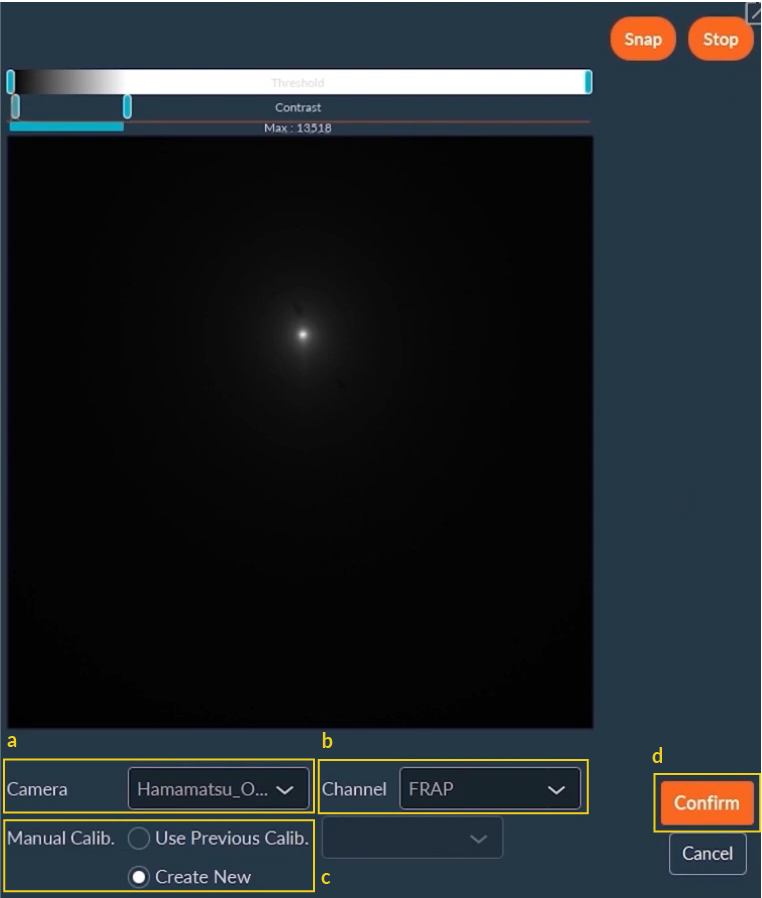
- a. Select the currently active imaging camera.
- b. Select the pre-configured laser channel designated for photomanipulation.
- c. Choose an existing archived calibration profile or initiate a new one.
- d. Click Confirm to route the optical settings.
Tip
Always perform your initial or routine spatial calibration utilizing a fluorescent reference slide (e.g., standard plastic/glass). This guarantees a strong, uniform signal matrix without risking irreversible photobleaching of your actual, sensitive biological sample.
Warning
Maintain optimal Z-focus throughout this process. Laser targeting accuracy depends on a sharp focal plane.
New calibration
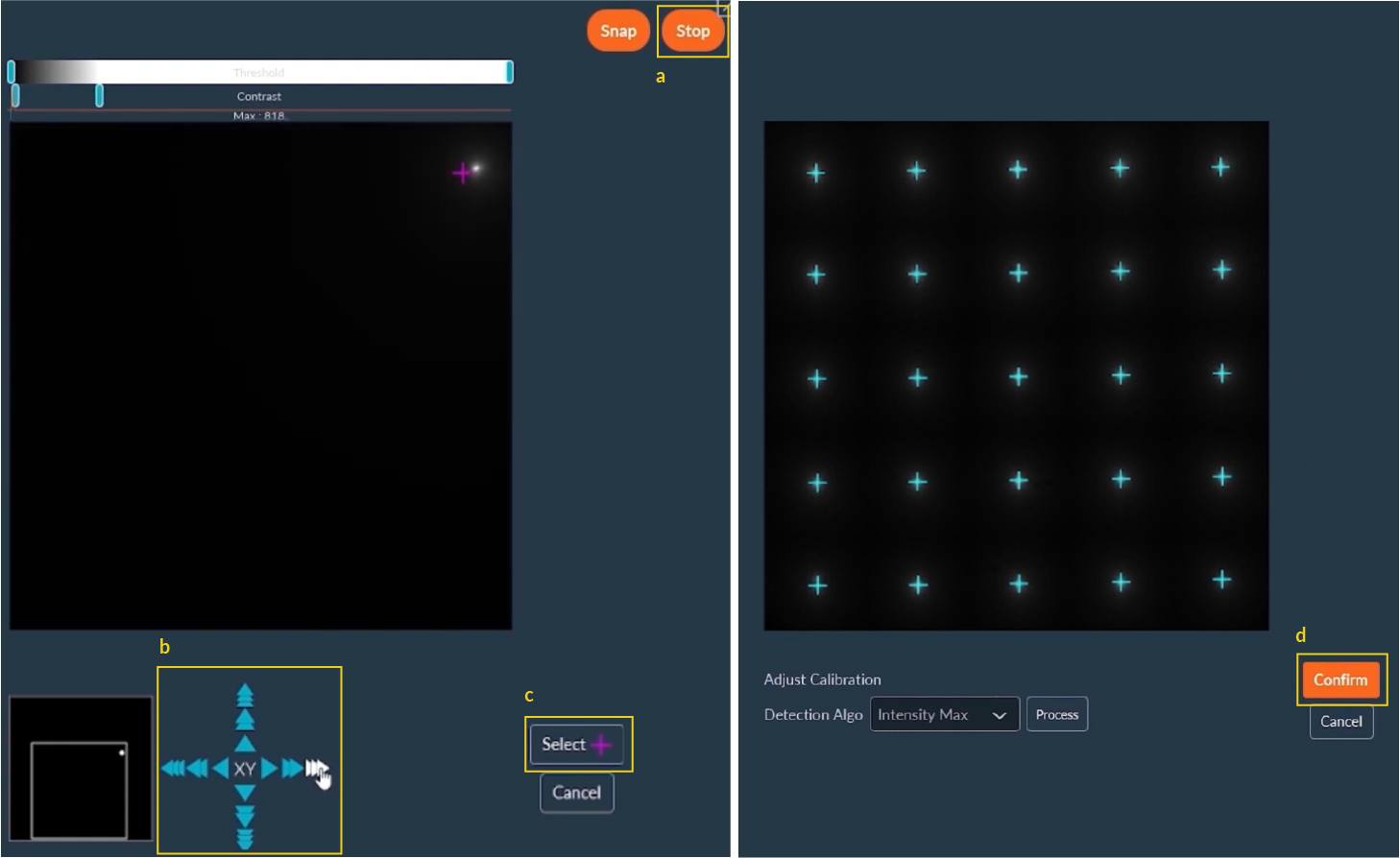
- a. Activate Live mode to visualize the reference slide.
- b. Use the virtual joystick to align the laser pointer with the software's virtual crosshair.
- c. Click Select. Repeat this alignment process three times at different XY coordinates across the field of view.
- d. The software will generate a verification pattern. Validate its geometric regularity (e.g., straight lines, sharp corners), then click Confirm to accept the calibration matrix.
Sequence Acquisition
scanFRAP procedures are incorporated into your sequence via the Photomanipulation dimension.
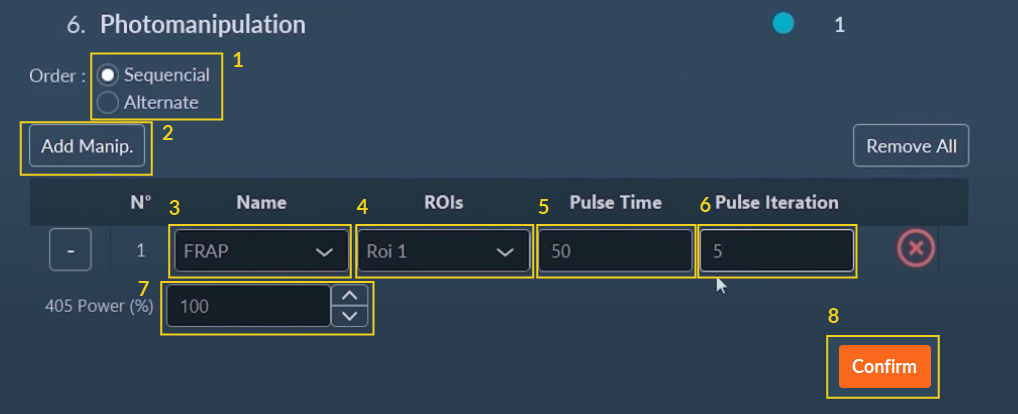
To configure the Photomanipulation dimension:
- Select the scanning mode: Scan assigned ROIs one at a time (Sequential) or interleave the scanning paths between them (Alternate).
- Click Add Manip. to instantiate a new photomanipulation event block.
- Select the pre-configured laser channel assigned to drive the photomanipulation.
- Select and activate all target ROIs on the sample preview.
- Adjust the total pulse time (the time required for the galvanometers to move from the previous coordinates plus the programmed exposure dwell time).
- Define the total number of consecutive exposure iterations.
- Adjust the laser output power (percentage).
- Click Confirm to save the sequence parameters.
Note
Before initiating a complex photomanipulation experiment, empirically ensure that the scanFRAP galvo module is acutely calibrated.
Live Acquisition Overrides
During an actively running time-lapse acquisition sequence, you can monitor experimental progress in real-time, reviewing both live images and plotted raw intensity data for each designated ROI. The unique Fire On Click feature allows you to selectively photomanipulate entirely new, spontaneous areas on the fly without interrupting the sequence timeline.
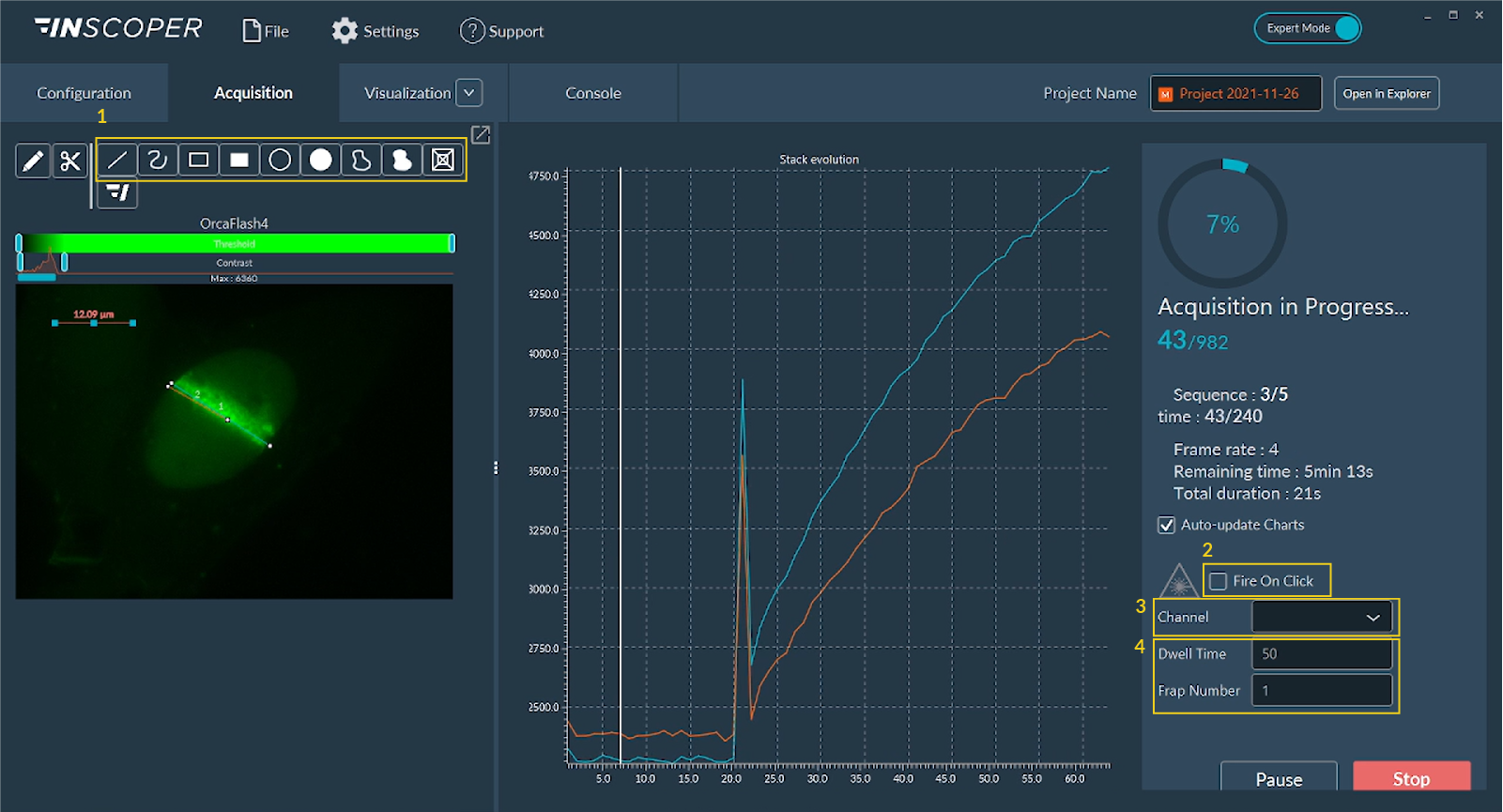
To deploy Fire On Click:
- Draw a new target ROI on the live, incoming image stream.
- Check the Fire On Click enablement box.
- Verify the accurately calibrated manipulation channel is actively selected.
- Adjust the temporal Dwell Time (pulse duration per pixel) and the FRAP number (total physical iterations).
- Click directly on the newly active ROI in the viewer to immediately demand and execute the photomanipulation sweep.
Data Visualization
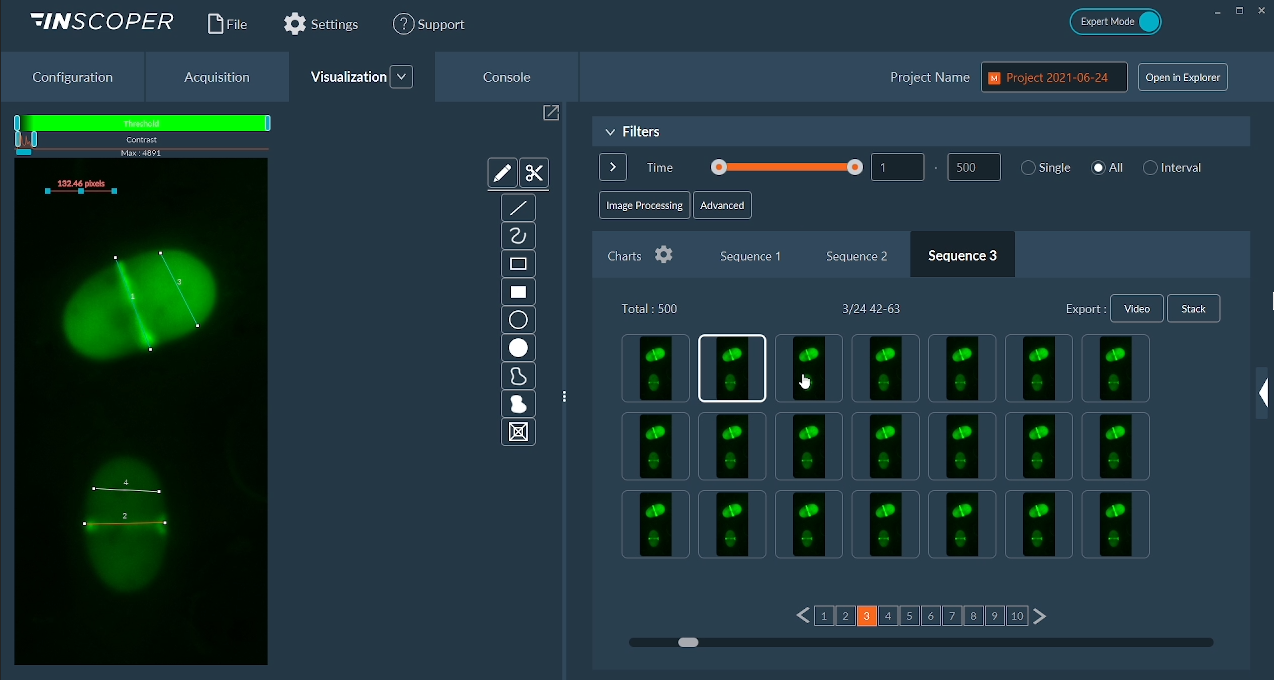
The Visualization tab displays the sequence imaging results alongside graphs tracking the fluorescence intensity over time within all defined ROIs.