Display Settings
Access interface preferences by navigating to Settings > Display Settings.
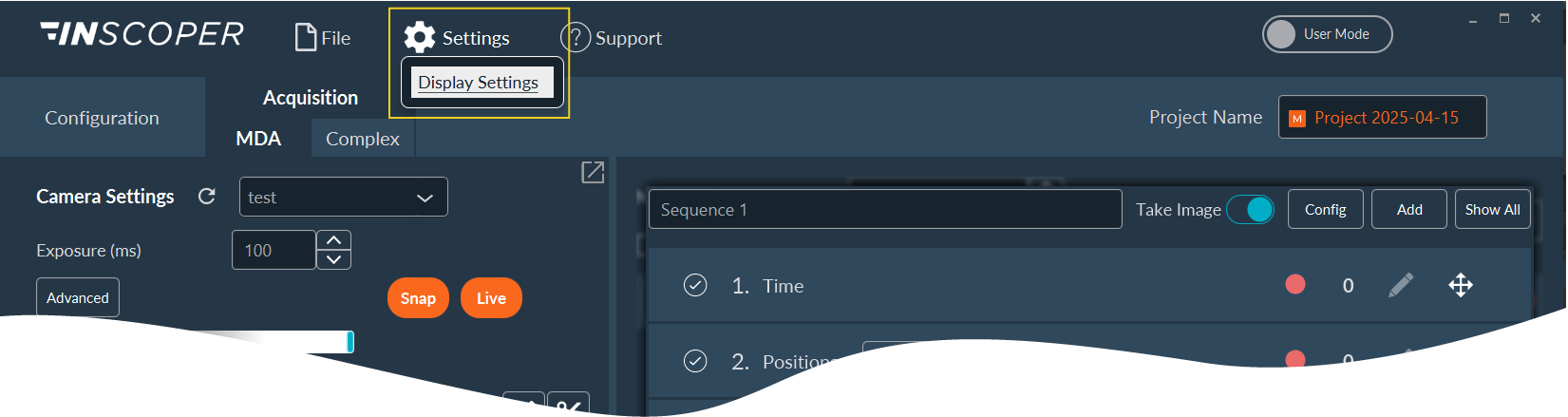
This configuration menu allows you to customize software behavior, storage paths, and interface elements.
- Well Plate Template Editor
- Snap & Live Defaults
- System Security: Change Password
- Default Project Naming
- Tiff Export Naming Conventions
- Metadata Export
- System Logs
- Diagnostic Crash Dump
- Multi-Camera Management
- FRAP Sensitivity Parameterization
- System Memory Allocation Engine
- Primary Image Display Engine
- Objectives Database
- Source Wavelength Database
- Global System Preferences
Well Plate Template Editor
Construct and edit multi-well plate configurations used during acquisition:
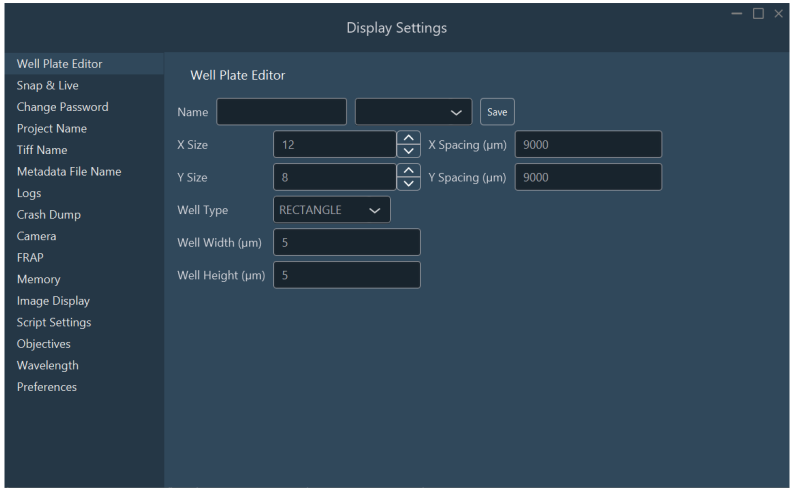
- Name: Assign a name to the template.
- Edit: Select an existing well plate configuration from the drop-down menu to modify and save its parameters.
- Grid: Define the number of horizontal (columns) and vertical (rows) wells, labeled X Size and Y Size respectively.
- Spacing: Define the distance (pitch) between the wells (in µm).
- Type: Select the well shape from the drop-down menu (e.g., circle, square, or rectangle).
- Well Width/Height: Define the internal dimensions of the individual wells (in µm).
- Save: Save this well plate configuration to the database.
Multi-Slide Engineering
Define a custom multi-slide holder by configuring individual glass slides as large rectangular "wells" within a 1×4 or 1×8 grid format.
Snap & Live Defaults
Configure default parameters for the Snap and Live imaging modes:
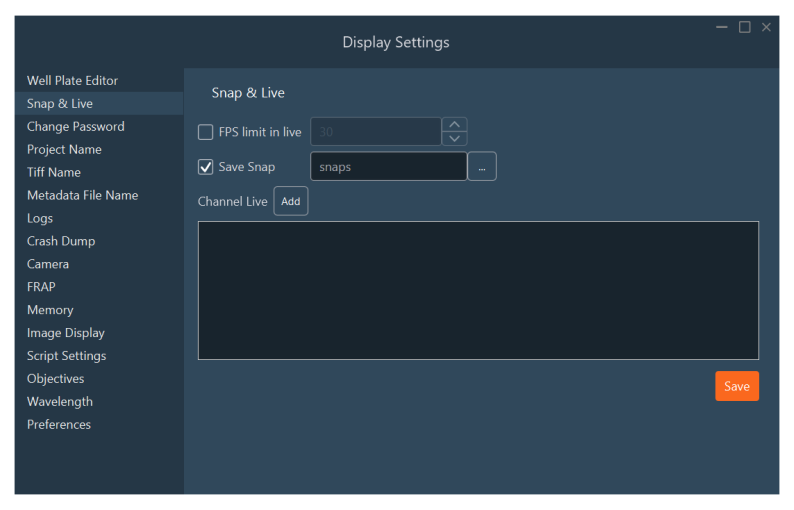
Available parameters:
- Maximum frame rate (FPS): Sets an upper limit on the frame rate during Live streaming.
- Default save directory: Specifies the output directory for Snapshots.
- Default startup channel: Selects the channel that automatically engages when Live mode is toggled.
System Security: Change Password
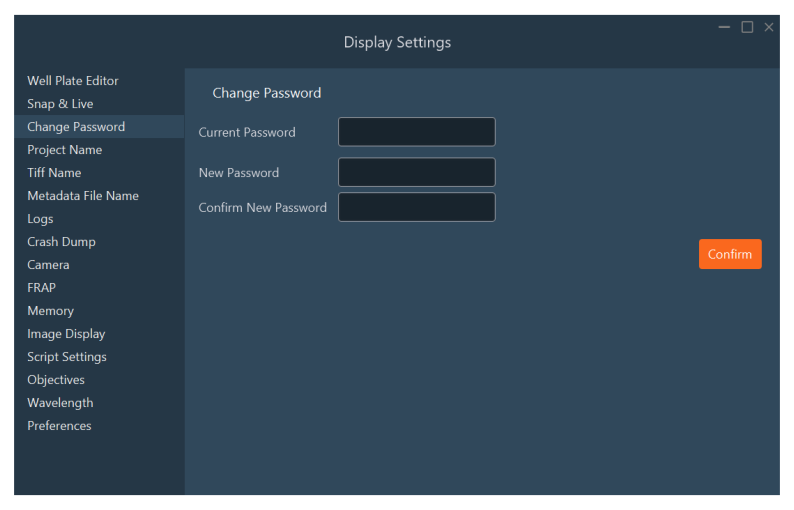
Define or update the password required to access Expert Mode.
Default Project Naming
Establish a standardized naming pattern for new projects.
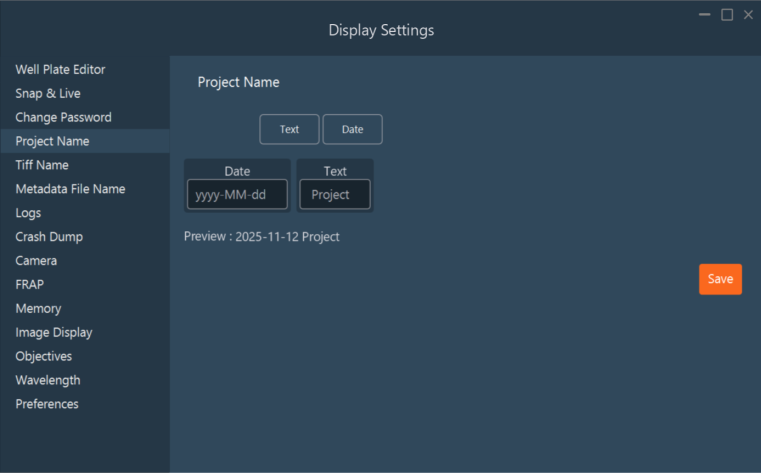
- Select the Project Name tab.
- Click the tags to add.
- Modify the text and format of the selected tags in the line below.
- Organize the tags through drag and drop, or remove them with a right-click.
- Verify in the Preview that the result matches the desired format.
- Click Save to apply the settings.
Tiff Export Naming Conventions
Customize how TIFF image files are named and exported.
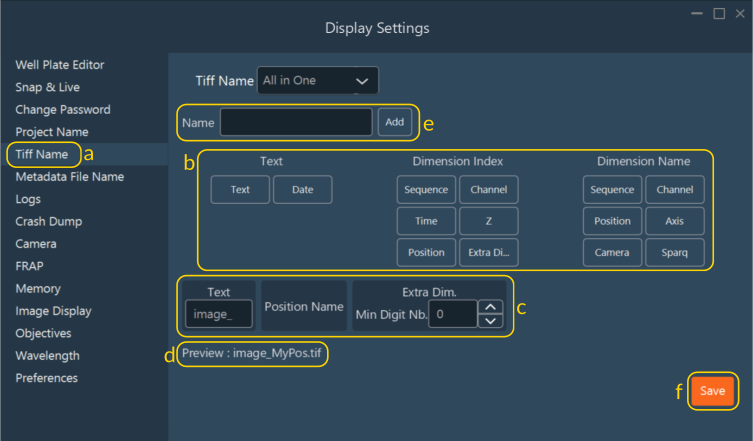
By default, the software bundles all channels for a given position into a single multidimensional OME-TIFF file. Override this behavior to save each channel as a separate file.
- a. Select the Tiff Name tab.
-
b. Drag and drop metadata tags into the central construction area to build your naming convention (e.g., text block + dimension name + dimension index).
Index Zero-Padding
The Min Digit Nb. field determines the zero-padding length for the dimension index value (e.g., a value of 3 yields
001,002). -
c. Name Construction Tool: Displays a visual schematic of the filename structure. Move tags with drag and drop, or remove them with a right-click.
- d. Name Preview: Displays an example of the generated filename.
- e. Enter a preset name and click Add to save the convention.
- f. Click Save to apply the settings.
Metadata Export
Customize how metadata files are named and exported.
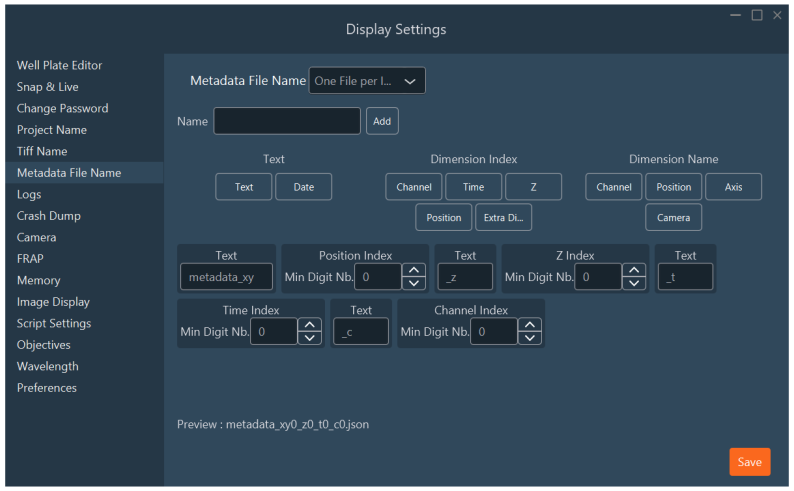
- Select the Metadata File Name tab.
- Click the tags to add.
- Modify the text and format of the selected tags in the line below.
- Organize the tags through drag and drop, or remove them with a right-click.
- Verify in the Preview that the result matches the desired format.
- Enter a preset name and click Add to save the convention.
- Click Save to apply the settings.
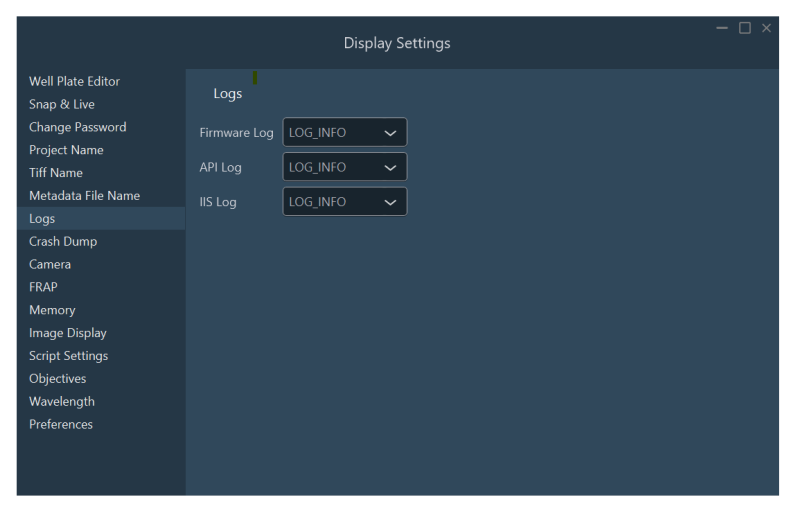
System Logs
Configure the log verbosity level (e.g., Error, Warning, Info, or Debug).
Diagnostic Crash Dump
Configure crash reporting formats and retention policies.
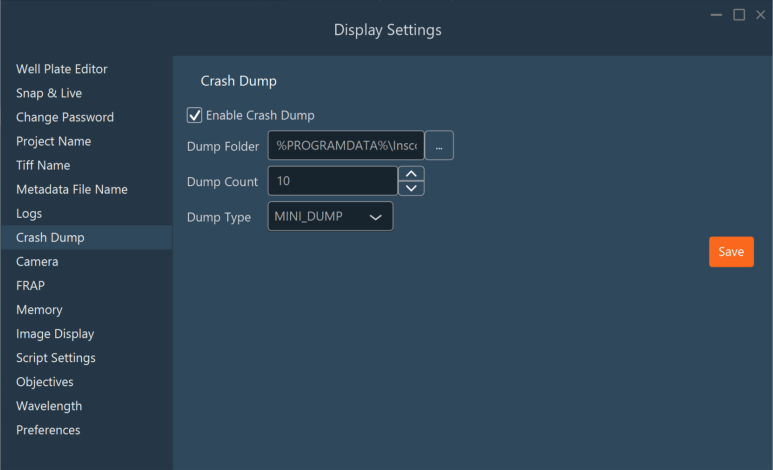
- Dump folder: Define the directory path where the system saves crash reports.
- Dump count: Set the maximum number of reports retained (defaults to 10; the system deletes older files automatically).
- Dump Type:
MINI_DUMP(Standard Default): Saves essential crash stack information, sufficient for most debugging.FULL_DUMP: Saves the complete memory state. Takes longer and consumes significant disk space.
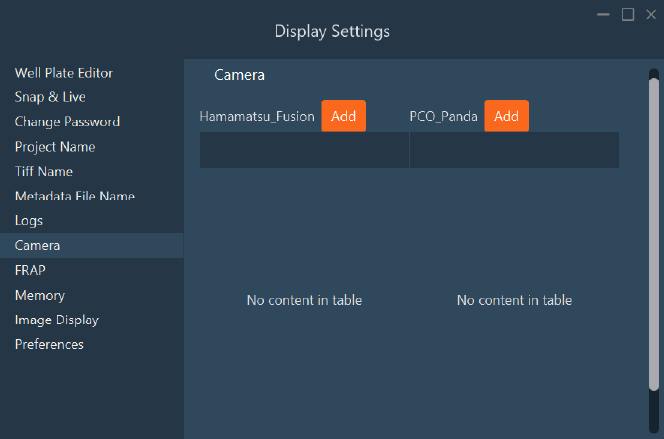
Multi-Camera Management
Manage connected cameras. For multi-camera setups requiring precise field-of-view alignment, use the Add button to apply geometric image rotation vectors.
FRAP Sensitivity Parameterization
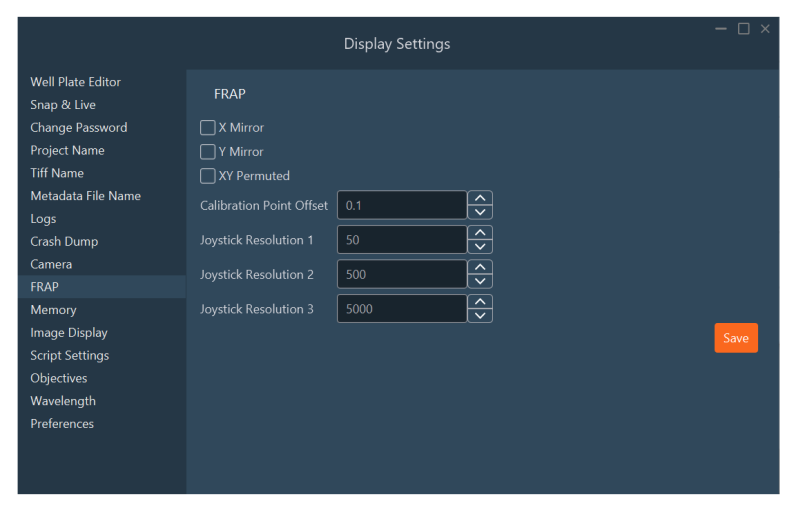
Review FRAP hardware limits and tune the virtual joystick sensitivity for FRAP optical calibration.
System Memory Allocation Engine
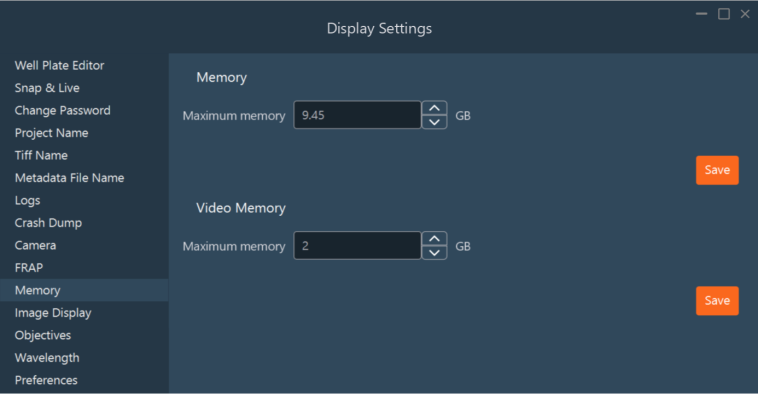
Manage memory allocation for Inscoper I.S. By default, the system reserves 2 GB for video buffer memory (VRAM) and allocates 60% of available system RAM to the application.
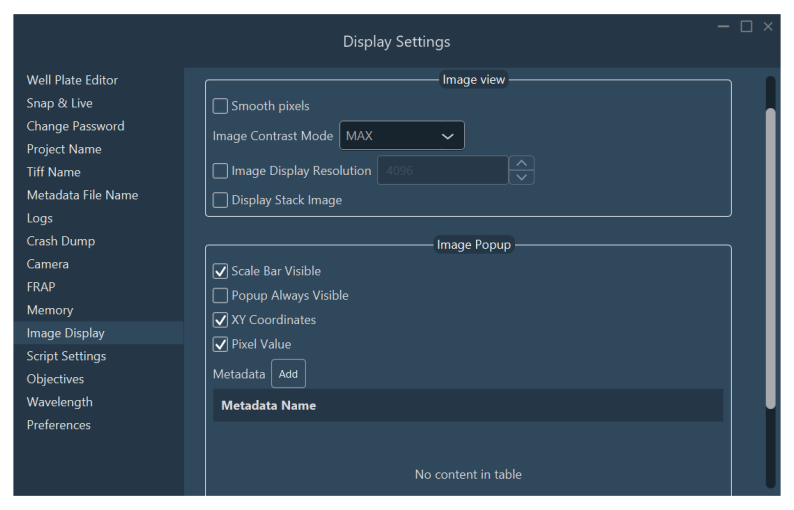
Primary Image Display Engine
Configure global visual rendering and display preferences.
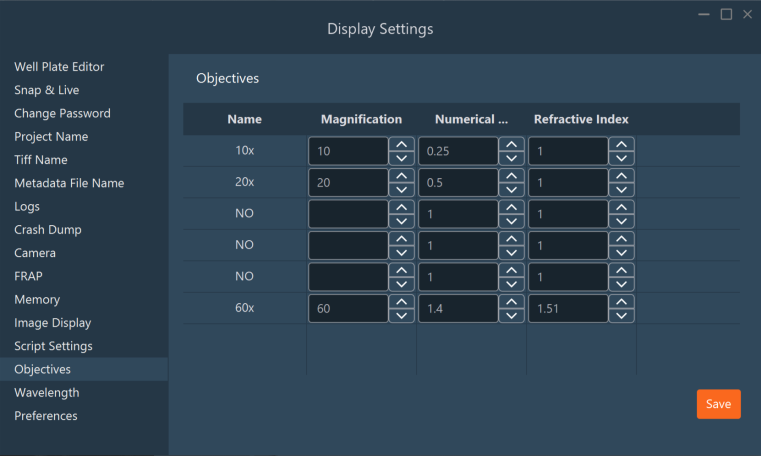
Objectives Database
Define the Numerical Aperture (NA) and the immersion Refractive Index parameters for your objectives. These values are critical for Nyquist sampling limit calculations and optical data processing.
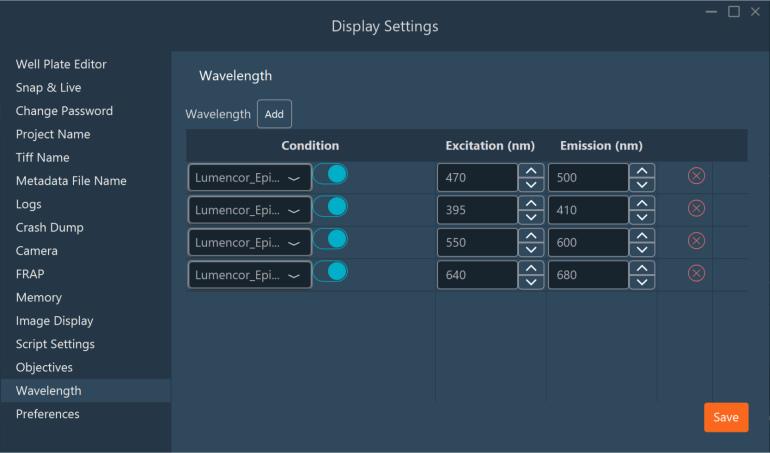
Source Wavelength Database
Define the excitation and emission wavelengths for your connected light sources, lasers, and filter cubes. The software uses this data for shading corrections, Nyquist sampling limits, and processing algorithms, and embeds it into the image OME-TIFF metadata.
Global System Preferences
Configure global preferences, including measurement units, system timing delays, and warning-prompt behavior.
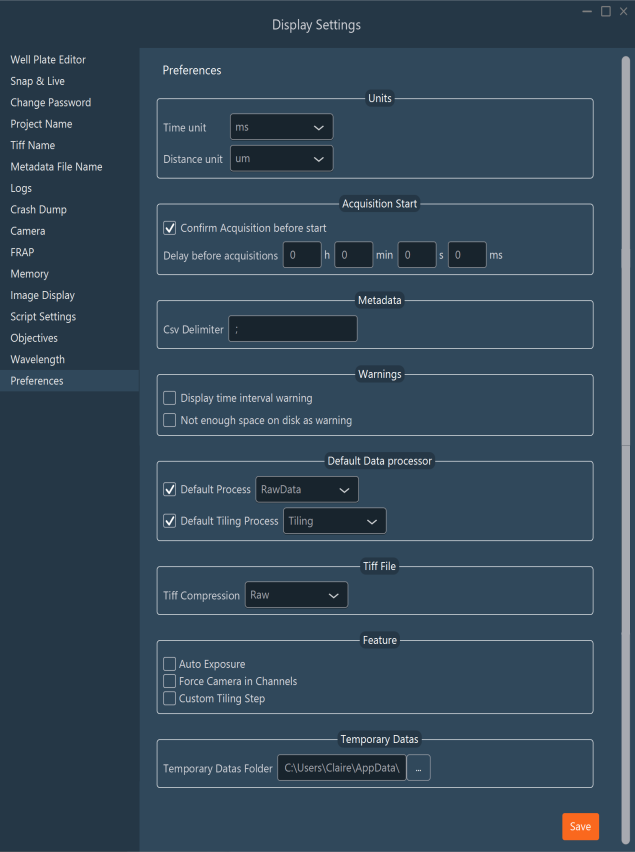
- Auto exposure: Enables the auto-exposure UI button on the primary dashboard.
- Force camera in channels: Associates specific cameras with specific channels, recommended for multi-camera or MAICO configurations.
- Custom tiling step: Define a translational overlap distance (in µm) rather than relying on a relative percentage for sequential tiling acquisitions.