Z-stack
Use the Z-Stack dimension to capture volumetric data by acquiring a series of slices along the Z-axis.
Configuring a Z-Stack
Configure the volumetric boundaries using one of two primary methods:
Define Top and Bottom Limits
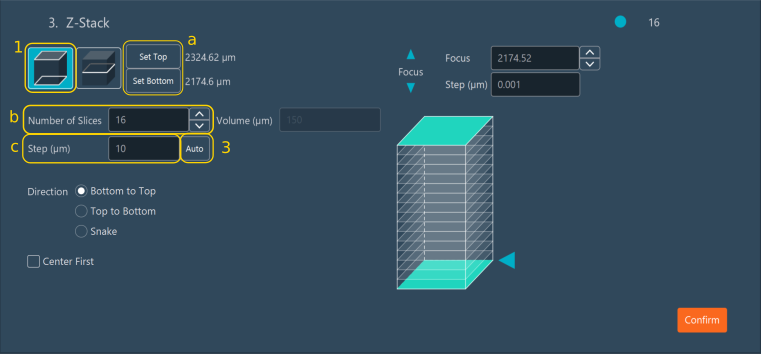
Move the focus to the desired upper and lower focal limits (1):
- a. click Set Top and Set Bottom to establish the boundaries.
- b. Specify the number of slices (focal planes) within this volume.
- c. Set the step size (in µm) between adjacent focal planes. Enter your own value or click Auto (3) to use Nyquist Calculation.
Define via a Reference Plane
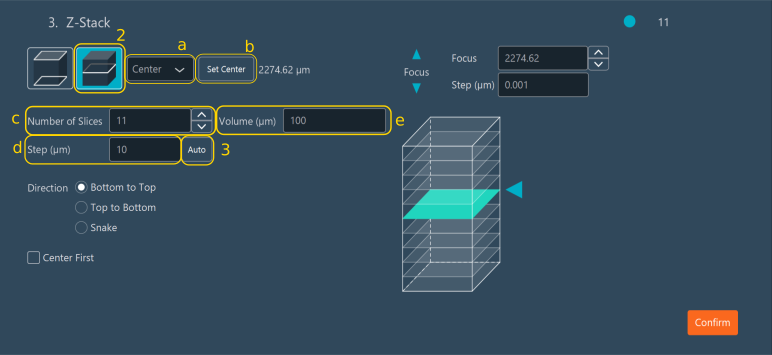
Move the focus to the desired center focal plan (2):
-
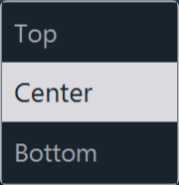
a. Select whether the current live focal point represents the center, top, or bottom of the intended Z-stack.
-
b. Click the corresponding registration button (Set Center, Set Top, or Set Bottom) to log the current focal plane as the anchor.
- c. Specify the total number of slices.
- d. Set the step size (in µm). Enter your own value or click Auto (3) to use Nyquist Calculation.
- e. Alternatively, define the volume depth of the Z-stack (in µm). The software computes the remaining variables automatically.
Nyquist Calculation
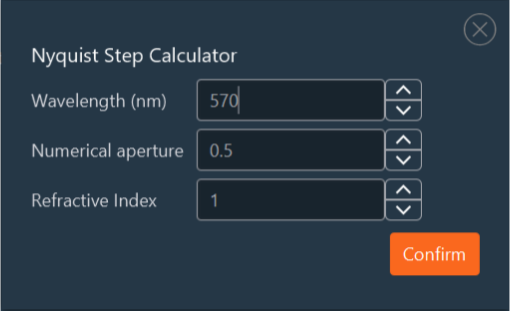
Use this method to automatically compute the optimal step size for maximum 3D optical resolution without oversampling the volumetric data. Click Auto to generate the ideal Nyquist Z-sampling rate.
- The software calculates the ideal physical step size based on the longest emission wavelength configured in the multi-channel parameters.
- These values remain editable. Manually override the calculated step size or tune the inputs, such as the emission wavelength, the objective's numerical aperture (NA), and the refractive index (RI) of the immersion medium.
-
Click Confirm to save the computational settings.
Execution settings
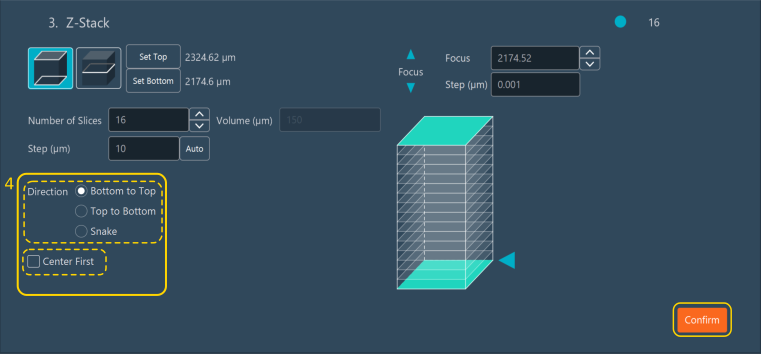
Once the geometric volume is defined, set the execution parameters (4):
- Select the acquisition direction: either Top to Bottom, Bottom to Top, or Snake (bidirectional alternating)
-
Enable Center First to force the sequence to begin acquisition at the central focal plane.
Tip
This setting is required with hardware autofocus systems (e.g., PFS, Definite Focus), which must anchor before the volume is swept.
Click Confirm to save the Z-stack configuration block.
Tip
Use the interactive Z-stack diagram to verify the setup — drag the blue arrow or click the diagram to drive the stage and preview the stack bounds.
Important
When configuring a Z-stack from a center reference plane, the Volume, Step, and Number of Slices fields are linked. Adjusting one recalculates the others. If the Positions dimension is active and the Z-axis override is enabled for a position, the local focus value of that position overrides the center coordinate of the Z-stack.