Opening OME-TIFF Files
Inscoper I.S. writes each acquisition as an .ome.tiff image file accompanied by a metadata.companion file. This section explains how to open both in common image analysis software.
- The
.ome.tifffile contains the image data only. - The
metadata.companionfile opens the images together with their associated metadata.
ImageJ
Download and install the Bio-Formats plugin in ImageJ before opening .ome.tiff and metadata.companion files. No further configuration is required.
Imaris
Imaris does not read .ome.tiff and metadata.companion files directly. Convert them first with the Imaris File Converter.
Install the Bio-Formats converter plugin
-
Download and install the Imaris File Converter.
-
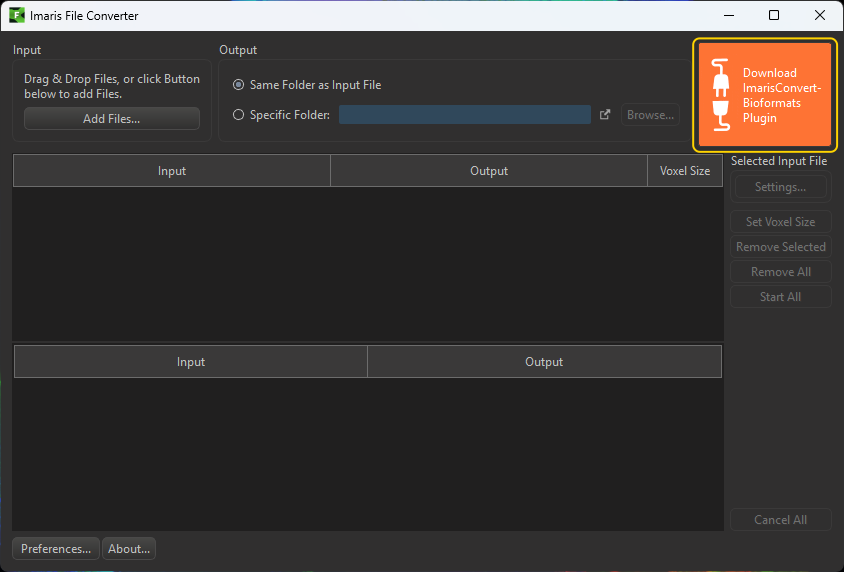
Open the Imaris File Converter and click Download ImarisConvertBioformats Plugin. The Preferences... > Bio-Formats panel opens.
-
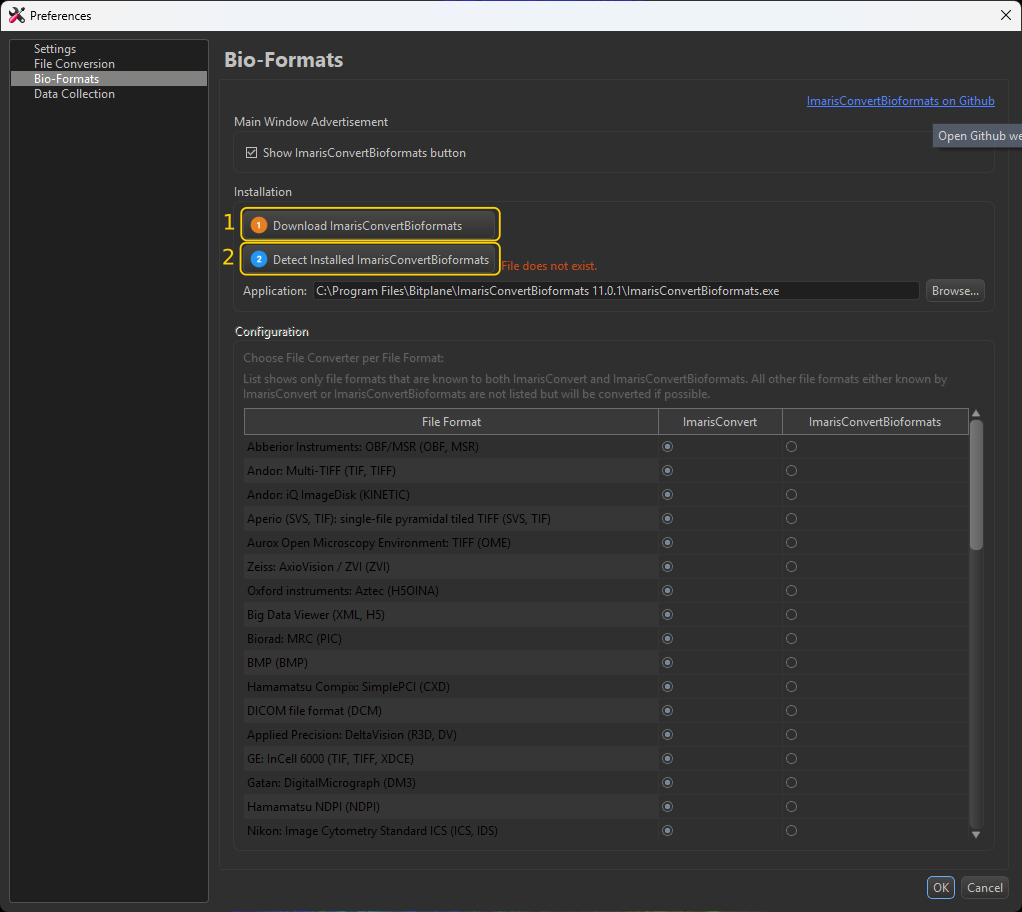
In the Installation section, click Download ImarisConvertBioformats (1), then click Detect Installed ImarisConvertBioformats (2). The panel then reports the Bio-Formats JAR version and the plugin path.
Assign the converter to the OME file formats
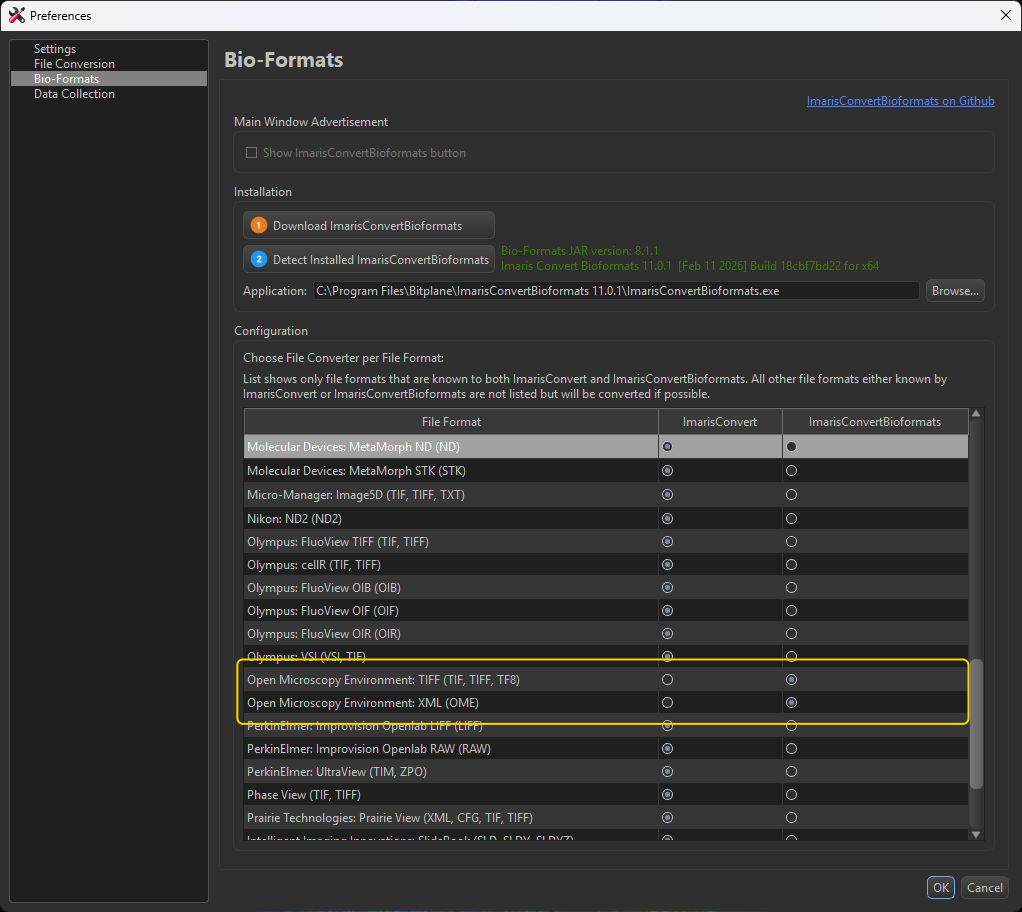
In the Configuration list of the same Bio-Formats panel, set both Open Microscopy Environment: TIFF (TIF, TIFF, TF8) and Open Microscopy Environment: XML (OME) to ImarisConvertBioformats instead of ImarisConvert, then click OK.
Convert the file
-
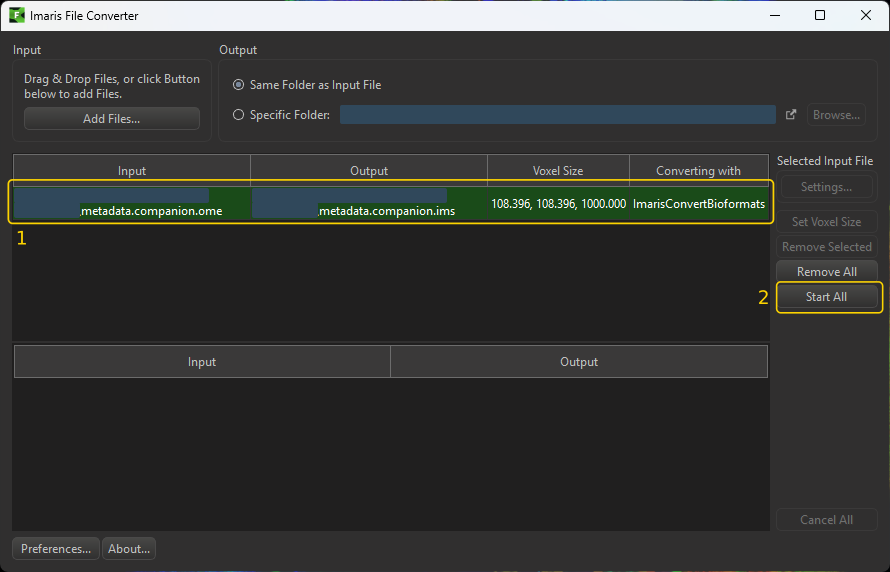
Drag and drop the file into the input list, or click Add Files... (1).
-
Click Start All (2).
-
When the conversion completes, the file moves to the lower list and is ready to use (3).
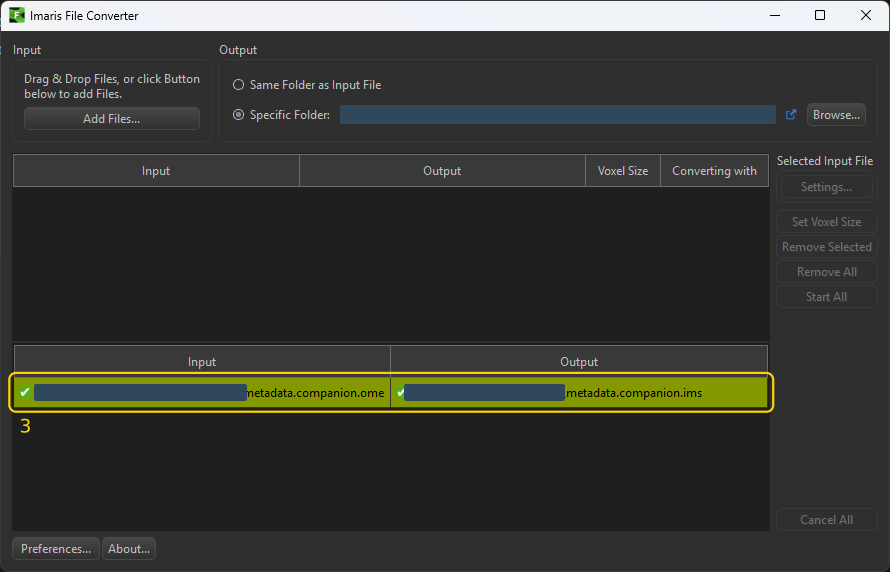
Open the converted .ims file in Imaris or Imaris Viewer.
Other compatible software
These files are also compatible with other image analysis software, including Huygens, Aivia, and arivis Pro.