Stitching Images in napari
A tiling acquisition writes one image file per stage position. Assembling those tiles into a single mosaic is called stitching. This page explains how to do it with napari and the napari-stitcher plugin, both of which are free and open source.
napari does not read Inscoper tiling metadata on its own. Dragging the acquisition folder into the viewer opens the tiles stacked on top of each other, with no positions. The loader script below reads the acquisition metadata and places every tile where the stage recorded it, so the plugin starts from an already correct mosaic and only refines it.
The script loads and places the tiles. Stitching and saving are done by you, in the napari window.
Download the loader script
| File | Description |
|---|---|
| stitch_napari.py | Loads an Inscoper tiling acquisition into napari at its stage positions |
Requirements
With the default saving settings, Inscoper I.S. writes a tiling acquisition in the form the script expects, and nothing has to be renamed, moved, or converted beforehand:
<project folder>/
├── <project name>.cbf                acquisition settings, not used here
├── <project name>.json               acquisition settings, not used here
└── images/
    └── RAW_DATA/                     this is the folder that matters
        ├── image_Pos0.ome.tif        one image file per stage position
        ├── image_Pos1.ome.tif
        ├── ...
        ├── image_Pos15.ome.tif
        ├── metadata.companion.ome    OME companion file, not used here
        └── metadata.json             required: tile positions and pixel size
Only two entries are required: one image file per stage position, and the metadata.json beside them. The rest is ignored. The number of image files is the number of tiles, and each file holds every plane recorded at that position: time, z, and channels all live inside the file.
Saving settings that matter
Several saving settings are configurable in I.S., and some of them produce a layout the script cannot read. Check these before the acquisition, or re-save afterwards.
| Setting | Where | Required value |
|---|---|---|
| Image saving format | Saving Images and Metadata | All in one file. One TIFF per image writes every plane as its own file, which the script refuses |
| Channel bundling | Display Settings, Tiff Name tab | Keep the default, which bundles all channels of a position into one file. The override that saves each channel separately is refused for the same reason |
| Metadata file name | Display Settings, Metadata File Name tab | Must remain metadata.json. The script looks for that name |
Two settings are free:
- TIFF file names. The script takes the file names from
metadata.jsonand never interprets them, so any naming convention built in the Tiff Name tab works.image_Pos0.ome.tifabove is only the default. - .bigTiff. Read like any other TIFF, and recommended for large mosaics as elsewhere.
If the acquisition was saved as one TIFF per image, or with one file per channel, the script stops with a message naming two of the files that share a stage position. Re-save the acquisition with All in one file rather than trying to load it.
Install napari
Install napari and the plugins in a dedicated environment, so that they do not interfere with other Python tools on the computer. The commands below use Miniconda, and are the same on Windows, macOS, and Linux.
conda create -n stitch python=3.11
conda activate stitch
pip install "napari[all]" napari-stitcher multiview-stitcher tifffile dask zarr
Check the installation by starting napari on its own:
The viewer window opens. Close it before continuing.
Load the mosaic
Save stitch_napari.py anywhere you like, then run it on your acquisition:
The path can be the RAW_DATA folder itself or any folder above it. The script searches downward for the acquisition metadata. Called without a path, it searches below the current folder.
Before the viewer opens, the script prints a summary of what it found:
RAW_DATA: ...\images\RAW_DATA
  tiles       : 16  (SnakeMode)
  axes/shape  : YX (2304, 2304)
  pixel size  : 0.6492 um
  tile size   : 1495.8 x 1495.8 um
  overlap     : 30% x / 30% y
  stage axes  : NikonTi2-xAxis (x) / NikonTi2-yAxis (y)
  stage->image: [[-0.0007 -1. ] [-1. 0.0007]]
Read this summary before looking at the image. The number of tiles, the pixel size, and the overlap must match what you requested at acquisition. The last two lines report which stage axes were used and which orientation the system calibration produced, which is the information to check if the mosaic comes out wrong.
napari then opens on the loaded mosaic.
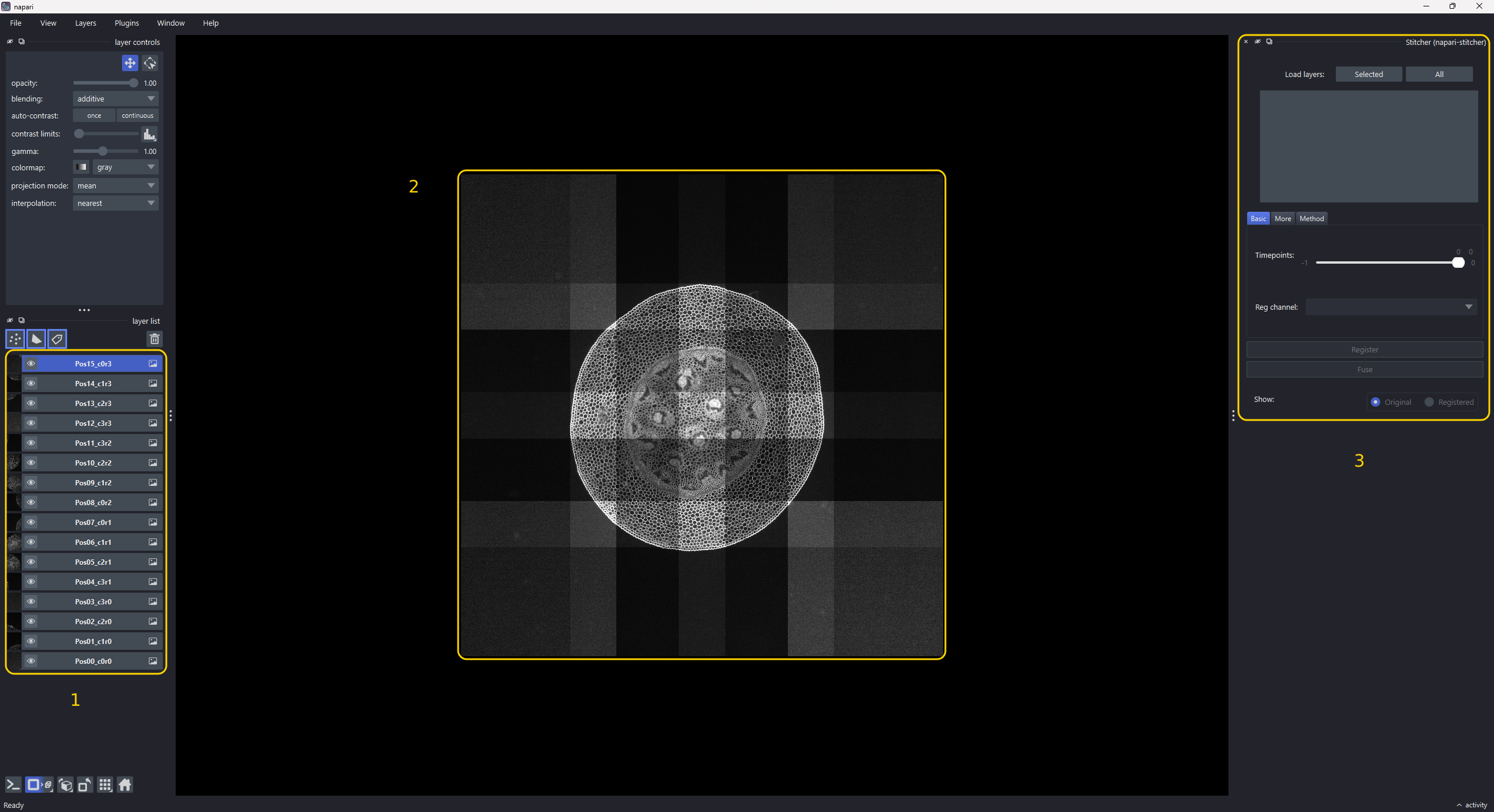
Layer list (1). One layer per tile, named Pos<NN>_c<column>r<row>: the acquisition order first, then the column and row in the mosaic. The two do not agree in snake mode, which is why Pos04 sits at column 3, row 1 rather than at column 0, row 1.
Mosaic (2). The tiles, already placed from the acquisition metadata. The layers use additive blending, so the overlapping strips are drawn twice and appear brighter. That bright cross-hatch is the quickest way to confirm the placement: it must form a regular lattice. A staircase, a mirrored layout, or a diagonal smear means the placement is wrong, and registering it wastes time. See Troubleshooting.
Stitcher panel (3). Docked and empty. The script stops here.
Loading part of a dataset
For a large time-lapse or z-stack, load a single plane first to check the mosaic before committing to a full stitch.
| Option | Effect |
|---|---|
--t N or --t A:B |
Load only these timepoints |
--z N or --z A:B |
Load only these z slices |
--c N |
Load only this channel. Required on multi-channel data, see below |
--source index |
Ignore the stage positions and rebuild an ideal grid from the row, column, and overlap |
A single index removes the axis, and a range keeps it. --t 0 --z 5 turns a time-lapse z-stack into plain two-dimensional tiles, while --z 4:7 keeps a three-slice stack.
Multi-channel acquisitions
napari-stitcher stitches one channel at a time, and it names the axes of an image from their count alone. A channel axis left in place is therefore mistaken for a z or a time axis, and the mosaic is registered and fused as if the channels were slices.
Select a single channel with --c, which removes the axis entirely:
Then stitch the channels one after another, in separate runs. Channel numbering starts at 0, in the order the channels appear in the acquisition.
Tile placement itself does not depend on the channel, so every channel is fused on the same grid. To keep the results aligned exactly, note the registered positions from the first channel rather than re-registering each one independently.
If you omit --c on multi-channel data, the script loads it anyway but prints a warning:
  ! the channel axis is still present (2 channels). napari-stitcher
    names axes from their count alone, so it will be mistaken for
    another axis. Pass a single index to --c to pick one channel.
--source index is a diagnostic option. If the stage-placed mosaic looks wrong, compare it against the ideal grid: if the ideal grid is correct and the stage-placed one is not, the problem lies in the system calibration rather than in the acquisition.
Stitch the mosaic
The script docks the Stitcher panel automatically. If it does not appear, open it from Plugins > napari-stitcher > Stitcher.
Step 1: Load the tiles into the plugin
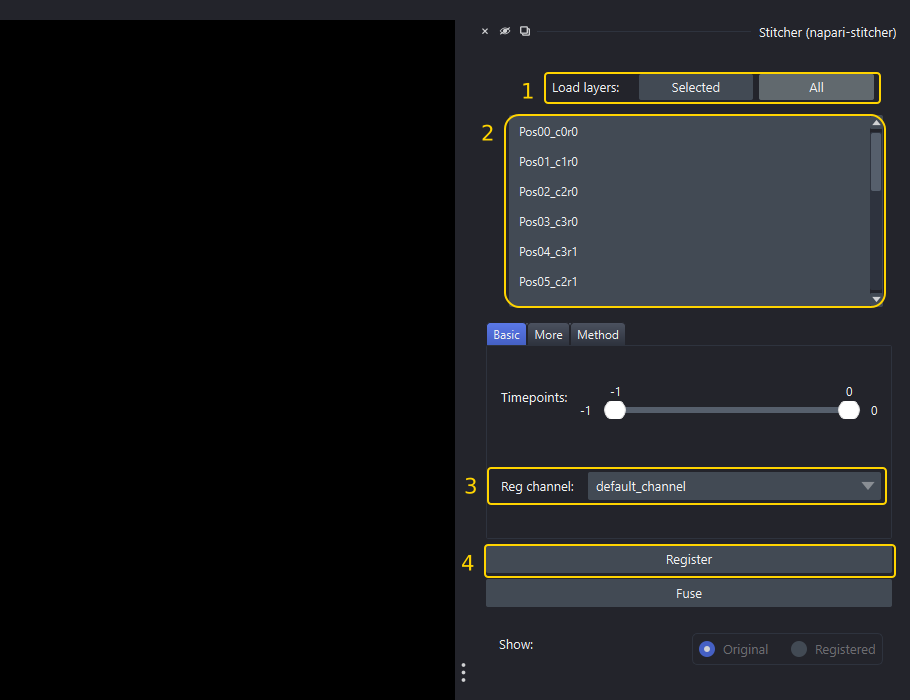
- Click All (1), next to
Load layers. Every image layer is loaded into the plugin with the positions the script set. To stitch only part of the mosaic, select those layers in the layer list first, then click Selected. - Check the tile list (2). It must fill with the tile names. If it stays empty, nothing was loaded: the plugin refuses layers that still carry a channel axis. Right-click such a layer in the layer list and choose
Split Stack, then load again. - Confirm Reg channel (3). It shows
default_channel, and there is nothing to choose: the script loads one channel at a time, so the channel was already selected on the command line with--c. - Register (4) is now enabled.
Step 2: Register
Registration measures the real shift between neighboring tiles from the image content, and refines the positions the script read from the metadata.
Two settings are worth reviewing before you click:
- On the
Methodtab, keepPhase correlation. It is the correct choice for a mosaic in which the tiles differ only by a translation, which is the normal case.ITK Elastixis needed only when the tiles also differ by a rotation. - On the
Moretab, raising the registration binning to 2 or 4 shortens the computation considerably. The transform is still applied at full resolution, so the fused image loses no detail.
The Timepoints slider restricts what is registered and fused. On a time-lapse, start with a single timepoint.
Click Register and wait. A 16-tile single-plane mosaic takes roughly 30 seconds. The tiles then move to their refined positions.
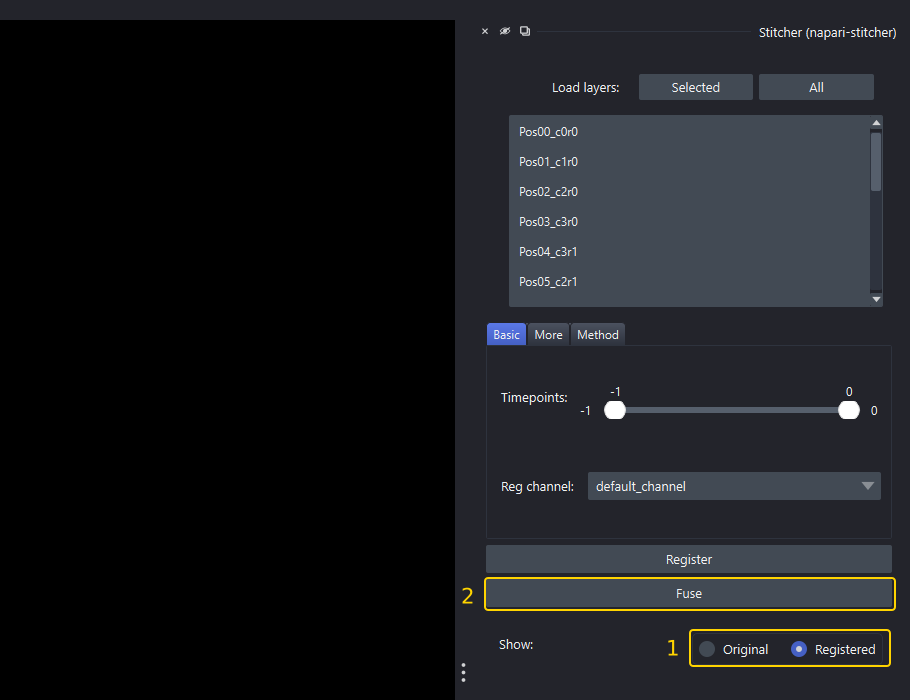
- Use Show: Original / Registered (1) to switch the viewer between the metadata placement and the registered one. Alternating between the two is the most direct way to judge what registration changed.
- Fuse (2) is now enabled.
On a calibrated system, registration changes very little
The metadata placement is already accurate to about half a pixel. Registration is still worth running: it is inexpensive, it prevents small errors from accumulating over large mosaics, and it is the only step that detects a position the stage failed to reach.
Mosaics acquired without overlap
Registration compares the overlapping strips between neighboring tiles. With no overlap it has nothing to compare and fails with zero-size array to reduction operation minimum. Skip this step and fuse directly on the metadata positions.
Step 3: Fuse
Click Fuse.
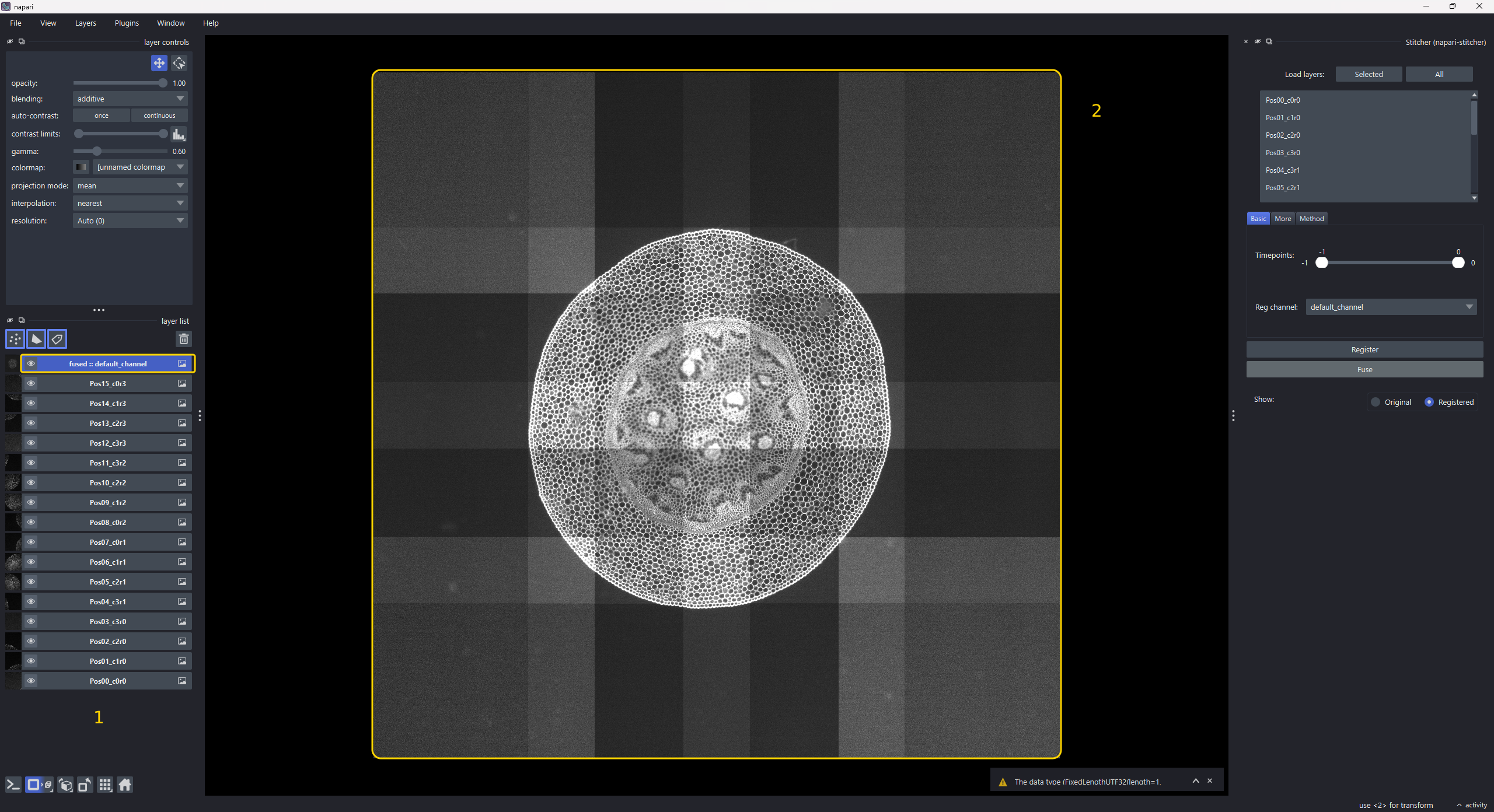
- A new layer,
fused :: default_channel(1), appears at the top of the layer list. It holds the assembled mosaic. - The fused mosaic (2) is displayed. It may still look tiled, as it does here, because the individual tile layers are still visible underneath it with additive blending. Alt-click the eye icon of the fused layer to hide every other layer and see the fused result on its own. Alt-click it a second time to restore the others.
Fusion covers every timepoint and every z slice allowed through by the Timepoints setting. On a four-dimensional dataset this is where the computation time goes, so restrict the selection before clicking Fuse.
Step 4: Save
Select the fused layer, then choose File > Save selected layer.
Choose the format by size. A single-plane mosaic is written as TIFF without difficulty. For anything with a real time or z extent, save to .zarr instead: a five-timepoint, eleven-slice fusion of a 4 x 4 mosaic is about 5.6 GB, and a TIFF writer holds the whole array in memory before writing it.
Troubleshooting
The script stops with N files share stage position ....
The acquisition was saved as one file per plane, or as one file per channel, rather than one file per stage position. Re-save it with the All in one file image format and the default channel bundling. See Saving settings that matter.
The script stops with No RAW_DATA/metadata.json found under ....
Either the path holds no acquisition, or the metadata file was renamed in the Metadata File Name tab of the Display Settings. The script looks for metadata.json.
The script prints no MosaicCalibration in metadata -- stage axes used as-is.
The acquisition carries no calibration data, so the script falls back to using the stage axes directly. This is rarely correct on a real stage. The mosaic may still be usable if the plugin can register it, but the system should be recalibrated.
The tile list stays empty after clicking Load layers.
The plugin refuses layers that still carry a channel axis. Right-click the layer in the layer list, choose Split Stack, then load again.
The fused layer still looks tiled. The individual tile layers are still visible underneath it. Alt-click the eye icon of the fused layer to hide them.