Creating a Configuration
A configuration describes an entire Inscoper system. It lists the devices present and the functions of each device that are in use. For each function, it records the startup values the function requires and its connection to the Inscoper Device Controller. It also defines the layout of the controls presented in the Inscoper Imaging Software.
A microscopy system must have a configuration before Inscoper software can drive it.
Creating a new configuration
From the Welcome screen:
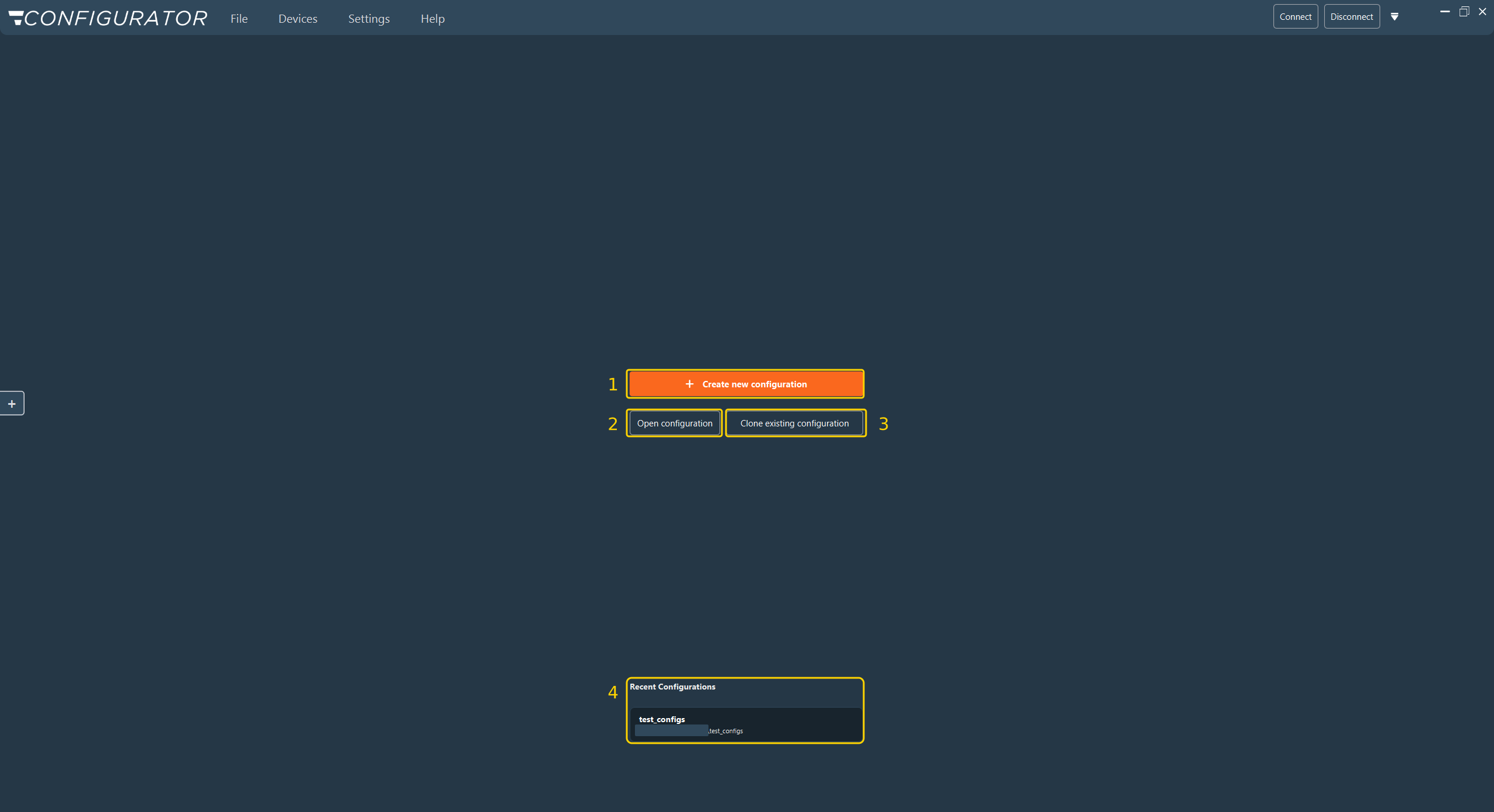
- Click Create new configuration (1) to start an empty configuration.
- Click Open configuration (2) to load an existing configuration folder.
- Click Clone existing configuration (3) to work on a copy of an existing configuration, leaving the original untouched. See Cloning a configuration.
- Click an entry under Recent Configurations (4) to reopen one of the last three configurations.
With a configuration already open, use the File menu instead:
- File > New Config, or Ctrl+N.
- File > Open Config, or Ctrl+O.
Each loaded configuration occupies its own tab at the bottom of the main workspace. Several configurations can be open at the same time. Click a tab to switch between them.
Cloning a configuration
Clone a configuration to adapt it for a similar instrument, or to test modifications without altering the configuration in use.
- Click Clone existing configuration on the Welcome screen. The Clone Configuration window opens.
- In Configuration to Clone, select the folder of the configuration to copy. This field is mandatory.
- In New Save Location (Optional), select the folder that will hold the copy, or leave the field empty.
- Click Confirm.
The result depends on the second field:
| New Save Location | Result |
|---|---|
| A folder is selected | The Configurator copies the configuration into the selected folder, then opens the copy. The copy takes the name of that folder. |
| Left empty | The Configurator opens the copy as a new, unsaved configuration that is not linked to any folder. Nothing is written to disk until you save; File > Save then asks for a folder. |
In both cases, the original configuration is not modified.
Warning
Select an empty folder as the save location. Files of the cloned configuration replace any file of the same name already present in that folder.
The configuration tab
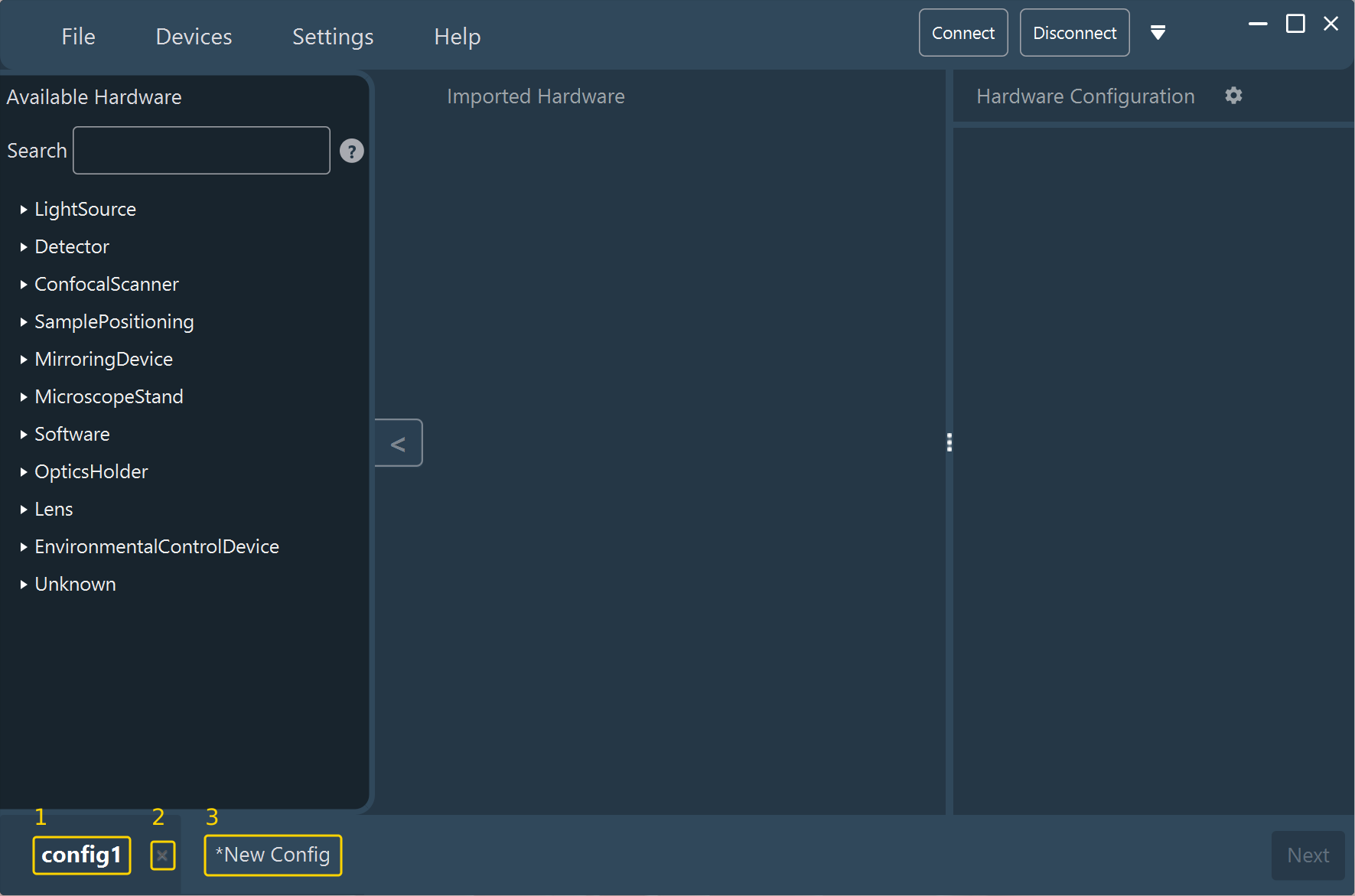
- Tab name (1): the folder name of the configuration. The active tab is shown in bold.
- Close (2): closes the configuration. The Configurator asks for confirmation if the configuration has unsaved changes.
- Unsaved changes (3): a leading asterisk marks a configuration with unsaved changes. A configuration that has never been saved is named New Config.
Saving a configuration
| Method | Behavior |
|---|---|
| File > Save, or Ctrl+S | Writes to the assigned folder. If no folder is assigned yet, a file browser opens first. |
| File > Save As | Writes to a folder you select, and makes that folder the new target of the configuration. |
| Save at the bottom right of the Imaging Software layout stage | Writes the whole configuration, including the layout. |
Folder name
The configuration adopts the name of the folder you select. Choose a folder name that identifies the instrument, because this name appears in the tab and in the recent configurations list.
Once saved, the configuration appears under Recent Configurations on the Welcome screen. This list retains a maximum of three entries.
What a saved configuration contains
The saved folder holds the complete description of the instrument: the imported devices and their selected functions, the startup values, the Device Controller connections, the acquisition recipes generated from those choices, and the Imaging Software layout. The Imaging Software and the standalone Inscoper API read this folder directly.
Opening a configuration built with an earlier hardware library
The hardware library is supplied by the Device Controller firmware and evolves with it. When the description of a device stored in a configuration no longer matches the description in the current hardware library, the Configurator rebuilds that device from the current description and reports the change on opening:
Incompatibility detected for hardware <manufacturer>-<model>. The hardware has been reloaded from a newer version.
After such a message, review the affected device: check its selected functions and startup values, and re-enter any that were not carried over.
Next step: Proceed to Importing hardware.