Troubleshooting
This page collects the messages and situations most often encountered during an installation, with the action to take for each.
Starting the application
"No valid license file (inscoper.lic) was found."
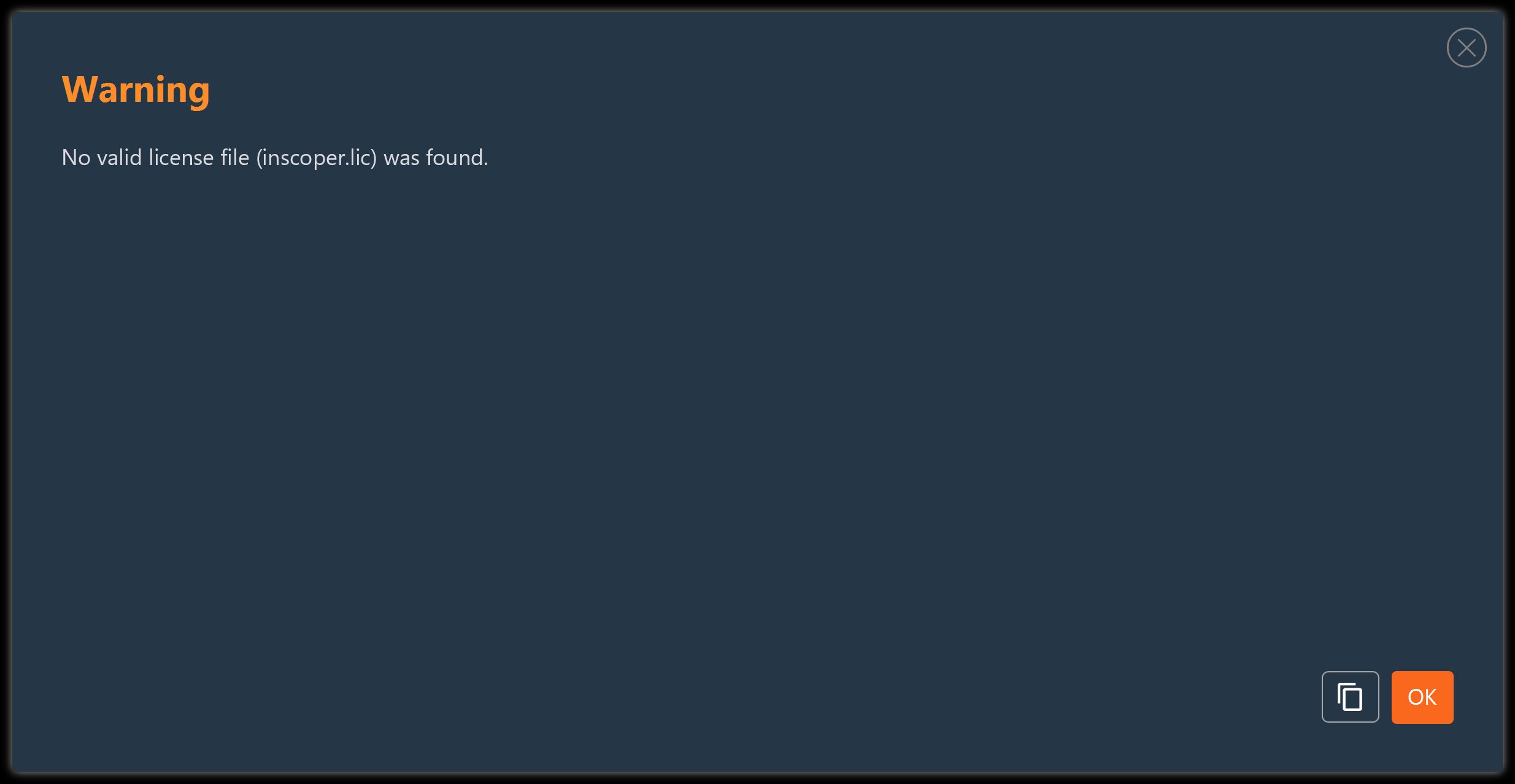
The Configurator checks for a valid license at startup. The license is required only to read hardware parameters from the Device Controller, for example to scan a device or read its default values; the rest of the application remains usable without one.
Place inscoper.lic in the installation folder, next to the Configurator executable, then restart the application. This is the same license file as the one at the root of the Inscoper Imaging Software installation.
Hardware library
The importation panel is empty, or a model is missing
The hardware library is supplied by the Device Controller firmware.
- Verify that the Device Controller is connected. If it is not, click Connect in the title bar.
- Reload the library with Devices > Reload Devices.
- If the model is driven by an external library, declare its directory under Settings > Edit Settings > Add External Resources, then reload again.
- If the model is still missing, import a device of the same series and adjust it, or contact Inscoper Support to have the model added.
Working without a Device Controller
Load a stored library with Devices > Load Devices From File. Export one from a connected system beforehand with Devices > Save Devices To File.
Opening a configuration
"Incompatibility detected for hardware model. The hardware has been reloaded from a newer version."
The stored description of that device no longer matches the description currently available, usually because the firmware was updated since the configuration was written. The Configurator rebuilds the device from the current description.
Review the affected device: its selected functions and startup values may need to be entered again. Save the configuration afterwards.
Importing hardware
"The file 'preconf.json' was not found."
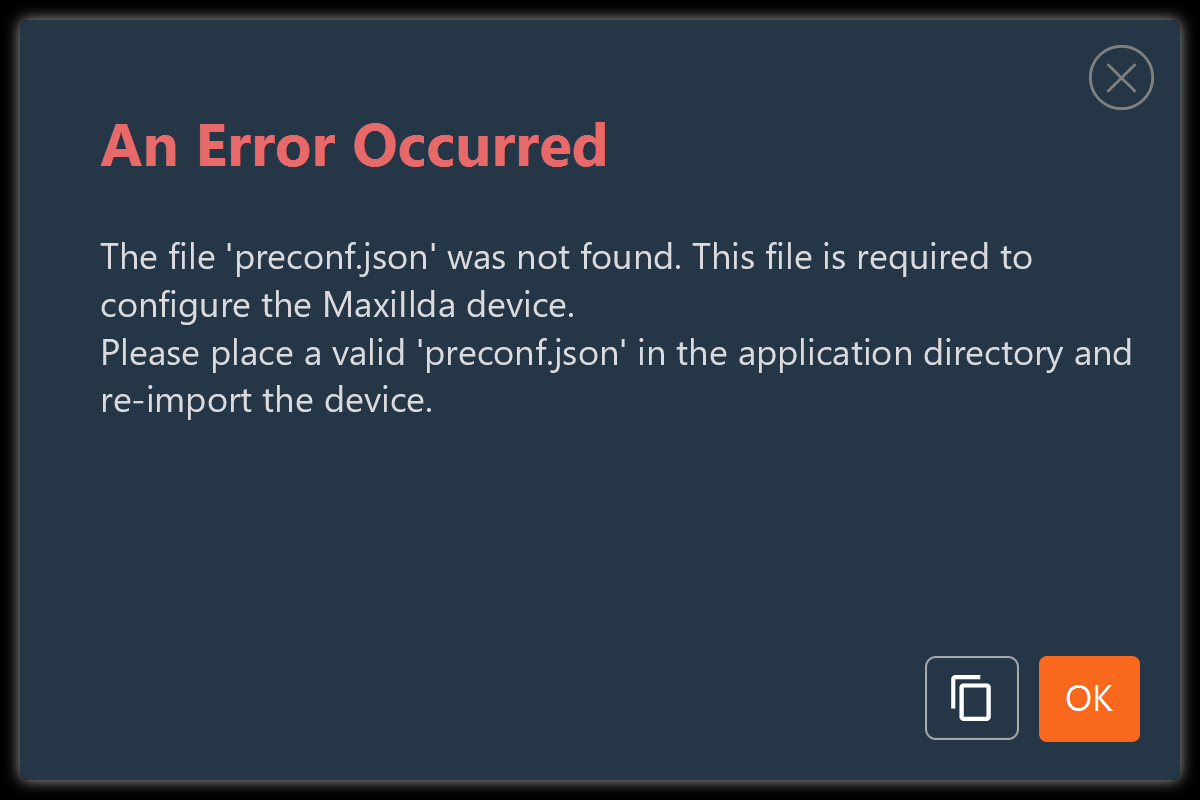
A MaxiIlda device was imported, but preconf.json is missing from the application directory. The Configurator uses this file to fill in the ILDA functions and modes automatically from the parameters of the device. Restore the file supplied with the installation, then import the device again.
Configuring devices
An orange dot remains beside a device or group
A mandatory startup value is missing, a turret group still has an unnamed slot, or an ambiguous element has no role assigned. Open the group that carries the dot. For a startup value, enable it as described in Group parameters and startup values; For a turret group, fill in the missing slot as described in Turrets and filter wheels. For an ambiguous element, select its role as described in Handling Ambiguous Devices.
The connection icon stays red
At least one function of the device is not mapped to a Device Controller port. Open the connection view with Set Connection, and link every cell outlined in red. See Connections.
A connection cell reports NOT_ENOUGH_OUTPUT
The function requires more Device Controller lines than are currently assigned to it. The tooltip of the cell gives the expected and actual counts. Assign the missing lines, or clear the function in the device view if it is not used.
The related codes NOT_ENOUGH_INPUT, TOO_MANY_OUTPUTS, and TOO_MANY_INPUTS report the same kind of mismatch for inputs, or for an excess of lines.
The USB configuration table is empty
The Device Controller does not currently see any USB device.
- Verify that the instrument is powered and cabled.
- Click Reset Usb View, then wait for the delay set by Seconds To Wait After USB Reset (5 s by default).
Re-Scan is unavailable
Re-Scan interrogates the physical device. It requires a connected Device Controller and a device that responds. Verify the connection state and the cabling.
Advancing to the layout stage
The validation warning lists outstanding items
Clicking Next in the main workspace does not open the layout stage immediately. The Configurator first checks the configuration and reports every outstanding item, device by device.
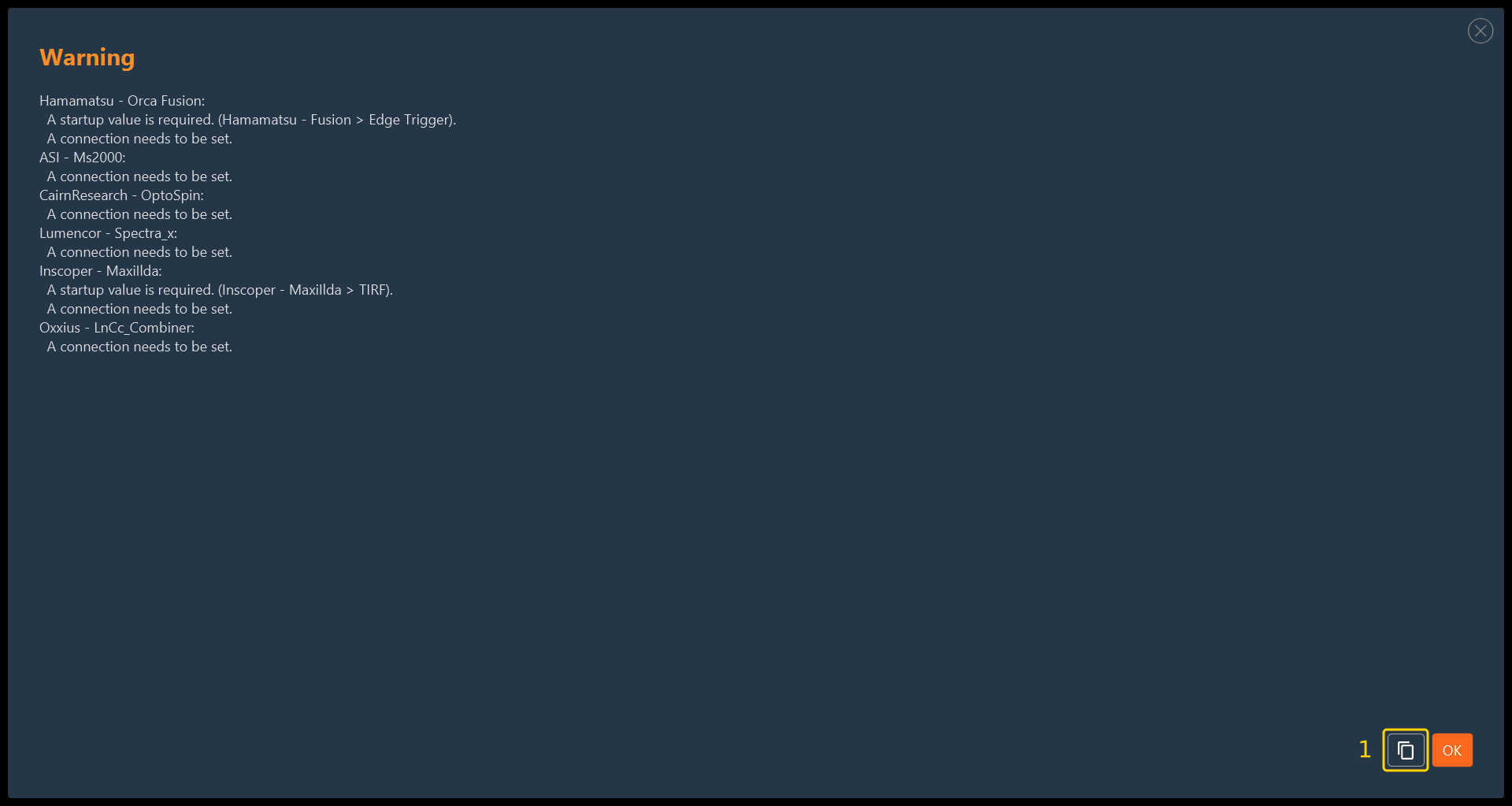
The report contains two kinds of item:
- A startup value is required. The named group has a mandatory parameter with no value. Open that group and supply it; see Startup values.
- A connection needs to be set. At least one function of the device is not mapped to a Device Controller port; see Connections.
The report does not block the workflow: you can continue to the layout stage and return later. However, a configuration saved with outstanding items does not drive the corresponding hardware. Resolve each item, then click Next again.
To report an installation problem to Inscoper Support, click the copy icon (1) beside OK to copy the whole report to the clipboard.
Diagnostics
Raise API Log Level and Configurator Log Level in Settings > Edit Settings before reproducing a fault, so that the logs contain the detail Inscoper Support needs. Restore the usual levels afterwards, because verbose logging slows the application.
If a problem persists, contact Inscoper Support with the configuration folder, the logs, and the version information from Help > About.