Turrets and Filter Wheels
When the selected group holds a turret, the standard parameters table is replaced by an editable slot table. Use it to record what is physically mounted in each slot, so that the Imaging Software can offer objectives, filter cubes, and filters by name rather than by position index.
Supported turret types
| Turret type | Description |
|---|---|
| Objective turret | A motorized turret holding objective lenses. |
| Filter cube turret | A turret holding complete optical filter cube assemblies. |
| Filter wheel | A rotating wheel holding individual optical filters. |
The slot table
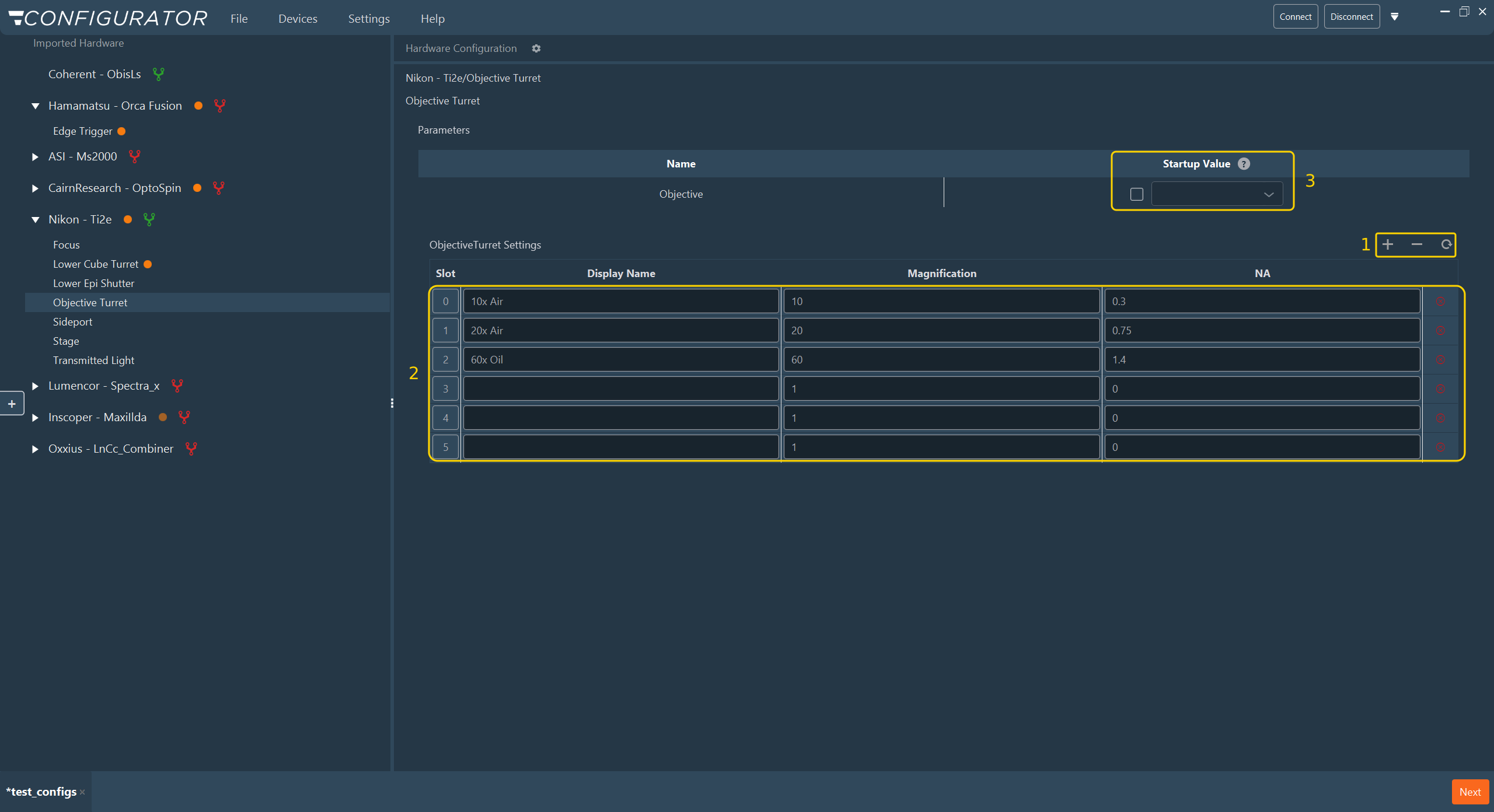
- Row buttons (1): + adds a slot, − removes the last slot, and the circular arrow reloads the slot list from the device when the Device Controller is connected. + and − are hidden when the device declares its positions, unless the configuration already holds a slot added manually.
- Slot table (2): One row per position on the turret. Double-click a cell to edit it.
- Enter a Display Name for every occupied slot.
- Enter the optical parameters for that turret type.
- Leave unoccupied slots empty, so that the Imaging Software does not offer them.
- Startup Value (3): The slot the turret moves to when the system initializes. Select the checkbox to enable the value, then choose a slot from the drop-down menu.
Columns common to all turret types
| Column | Description |
|---|---|
| Slot | The position index on the turret. This is the value sent to the hardware. |
| Display Name | The label shown to the user in the Imaging Software. Leave it empty for an unoccupied slot. |
Objective turret
| Column | Description |
|---|---|
| Magnification | The magnification factor of the objective, for example 60 for a 60× objective. |
| NA | The numerical aperture of the objective. |
The Imaging Software uses these two values to compute the pixel size and the scale bar. Enter them for every occupied slot.
Tip
Every configuration must contain at least one objective device. If the objective turret is not motorized, or if the instrument has a single fixed objective, import the Virtual Objective so that the objectives can still be described and used by the Imaging Software.
The Magnification and NA columns fill in automatically when the Display Name is formatted as <magnification>x/<NA> <immersion>, for example 10x/0.3 Air.
Display Name and Magnification update each other. A magnification entered for an unnamed slot names it (10 gives 10x), and a new magnification replaces the one stated in the name (Plan-Apo 63x/1.4 becomes Plan-Apo 40x/1.4). A decimal comma is accepted, as in 1,25x.
Filter cube turret and filter wheel
| Column | Description |
|---|---|
| Excitation Filter | The excitation filter of the cube. |
| Emission Filter | The emission filter of the cube. |
Filters are chosen from the filter library. Each filter list also offers two entries that are not library elements:
- Empty for an empty position;
- Block for a position that lets no light through.
To add a filter, record its transmittance ranges, or inspect it in the light spectrum visualizer, click Manage Filters in the header of the filter column. The Filter Manager opens on a new element of the kind the column lists, for example a dichroic for a dichroic wheel. The Filter Manager is also available from Settings > Filter Manager.
Tip
The excitation and emission filter columns of a cube fill in automatically when the Display Name names the cube (e.g., GFP).
In a filter wheel, the filter of a slot is suggested from its Display Name, in this order: the name of a library element, the <cube> Excitation and <cube> Emission convention, the library filter whose passband best fits a stated wavelength (e.g., GFP 525/50), then the only element that matches the name. The suggestion follows the name while it is edited and is withdrawn when nothing matches. A filter selected manually is kept, unless the name is changed to a wavelength that this filter does not pass. Default names such as 0, Pos 3, or Empty suggest nothing. Selecting a filter for an unnamed slot names the slot after it.
Note
Numerical columns accept decimal values. Values are stored with the precision required by the recipe generator, and the table applies a consistent display format.
Tip
A turret group carrying an orange dot in the Imported Hardware tree still has a slot without a name, or is missing a mandatory startup value. See Status markers in the tree.
Next step: Proceed to Connections.