Virtual Objective
The Virtual Objective is a software-only device supplied by Inscoper. It declares an objective turret to the system when the physical turret is not motorized. The Imaging Software then knows which objective is in use and takes it into account.
When to use it
Every configuration must contain at least one objective device, so that the Imaging Software has at least one magnifying device from which to compute the pixel size at the sample. When the objective turret is motorized, the microscope stand or its dedicated controller already provides that device.
Import a Virtual Objective when:
- the microscope has a manual objective turret;
- the microscope has a single fixed objective;
- an objective must appear in the configuration so that it can be used as a calibration discriminant.
Do not import it when the turret is already driven through the microscope stand or a dedicated controller: that device already provides its own objective turret group.
Warning
The value stored by the Virtual Objective is a declaration, not a measurement. Nothing verifies that the objective in the light path matches the selected slot. Every value derived from it (pixel size, scale bar, measurements, and objective-dependent calibrations) is correct only as long as the operator keeps the selection in step with the hardware.
Importing it
Import the Virtual Objective like any other model, from the hardware importation panel:
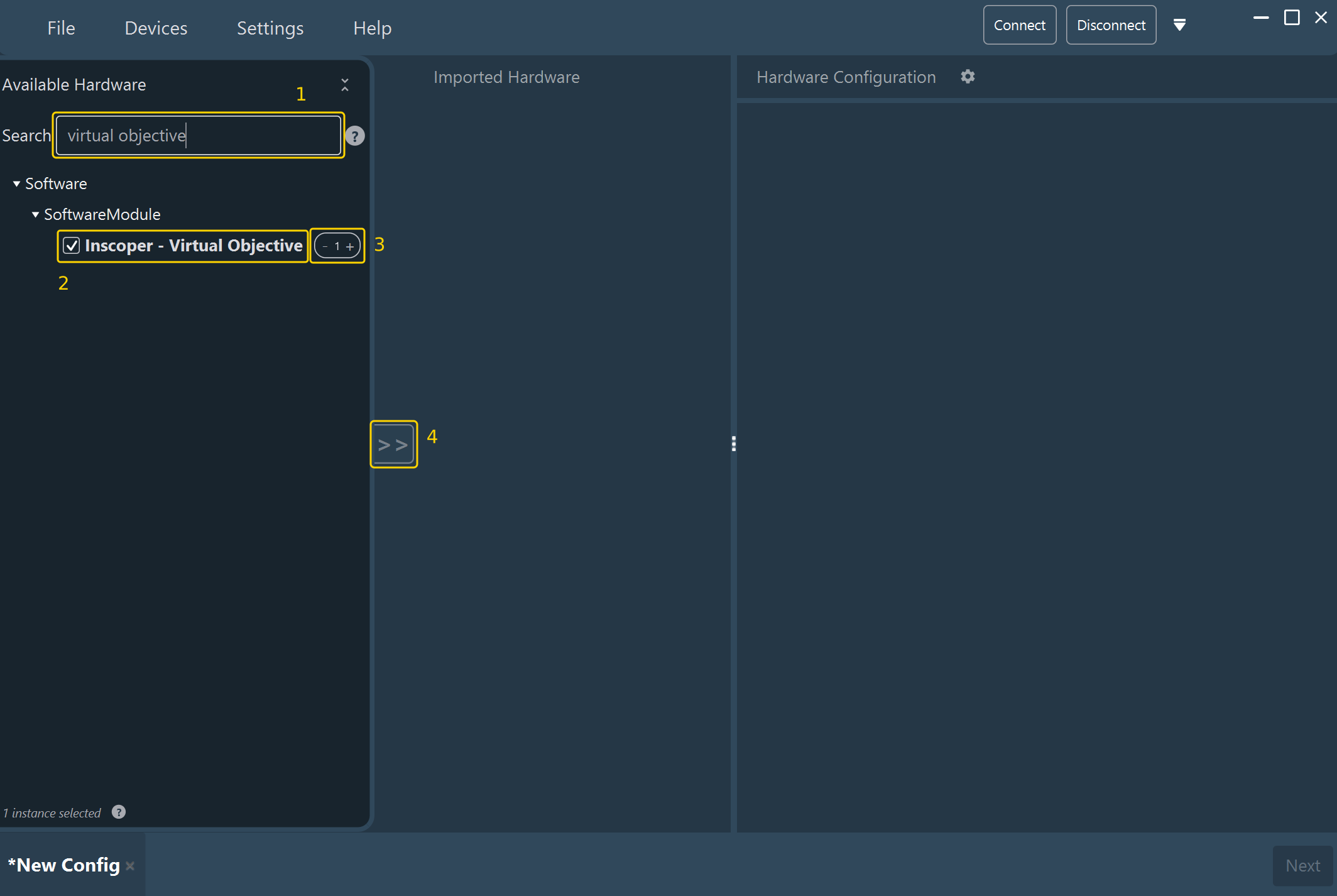
- Type
Virtual Objectivein the Search field (1). - Select the Inscoper - Virtual Objective checkbox (2), listed under Software > SoftwareModule. It carries no physical hardware type.
- Set the instance counter (3) to the number of manual objective turrets. A stand with two objective turrets needs two instances.
- Click >> (4) to move the selection to Imported Hardware.
The device has no connection of any kind: no serial port, no TTL line, and no USB link. It never appears in the Connections step, and no cable has to be declared for it.
Setting it up
The device exposes one group, Objective Turret, described as an objective turret. Its configuration therefore uses the slot table documented in Turrets and filter wheels.
Slot table
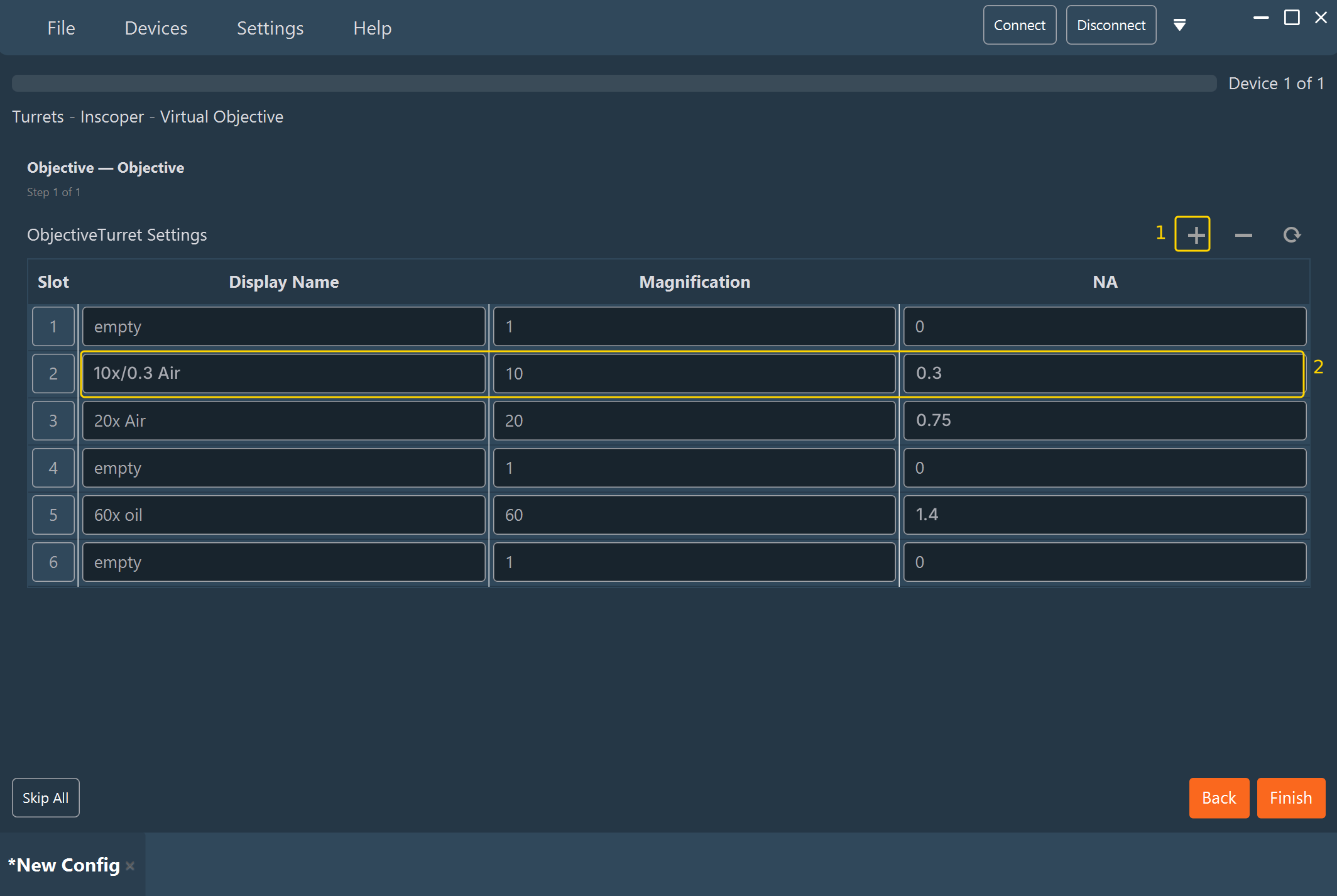
- Click + (1) until the number of rows matches the number of positions on the physical turret.
- For every occupied slot, type the objective in the Display Name field as
<magnification>x/<NA> <immersion>, for example10x/0.3 Air(2). The Magnification and NA columns of that row fill in automatically. - Check the Magnification of every occupied slot, and correct it if needed. The Imaging Software divides the camera pixel size by the magnification to compute the pixel size at the sample, which is the reason the device exists.
- Leave unoccupied slots empty.
Startup value
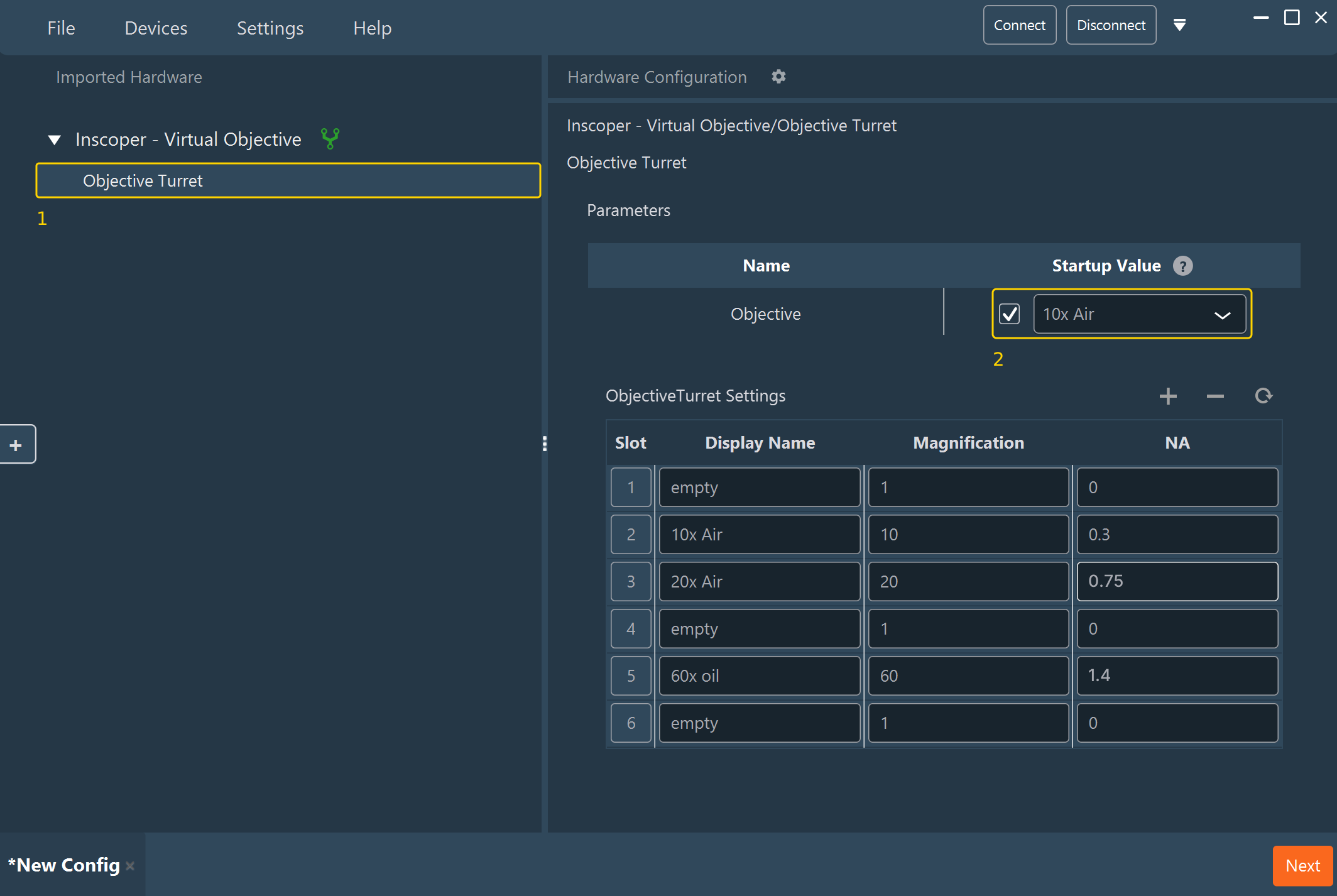
- In the Imported Hardware tree, select Objective Turret (1) under the imported Virtual Objective device.
- In the Startup Value column (2), select the checkbox and choose the objective that is normally in place when the instrument is switched on. The list shows the display names entered in the slot table.
The firmware selects slot 1 when it initializes, so a configuration with no startup value starts on the first slot.
No other setting is required. The device declares no diagnostic to run against hardware and is always reported as available.
In the Imaging Software
Once configured, the group behaves like a motorized objective turret in the Imaging Software layout. The objective appears as a selector listing the slot display names. Changing the selection updates the pixel size and the scale bar.

Because the rest of the system trusts this selection, place the selector where the operator sees it, not in an advanced section. An operator who turns the turret by hand can then correct the declared slot immediately.
See also: Turrets and filter wheels, Camera Trigger, Configuring a device, and Calibration.