Handling Ambiguous Devices
Why some devices are ambiguous
For most devices, the Configurator knows what each part of the device does (e.g., a shutter, a filter wheel, or a focus drive) and sets it up automatically.
Some hardware does not allow this. The same output or axis can serve different functions depending on how the hardware is mounted on the microscope. Typical examples:
- A multi-axis motion controller whose axes are numbered (Axis 1, Axis 2, ...) rather than named. Each axis can drive the X or Y axis of the stage, the focus, or a piezo, depending on the wiring.
- A controller output that can drive either a shutter or a filter wheel, depending on what is connected to it.
Only the installer knows the actual setup. The Configurator therefore marks these parts as ambiguous and asks the installer to assign their role.
What the installer must do
On the Configure step of the device, ambiguous elements are offered like any other function. On a Prior Proscan III, for example, Filter wheel 2 (1) and Axis A (4th axis) (2) can each drive several kinds of hardware.
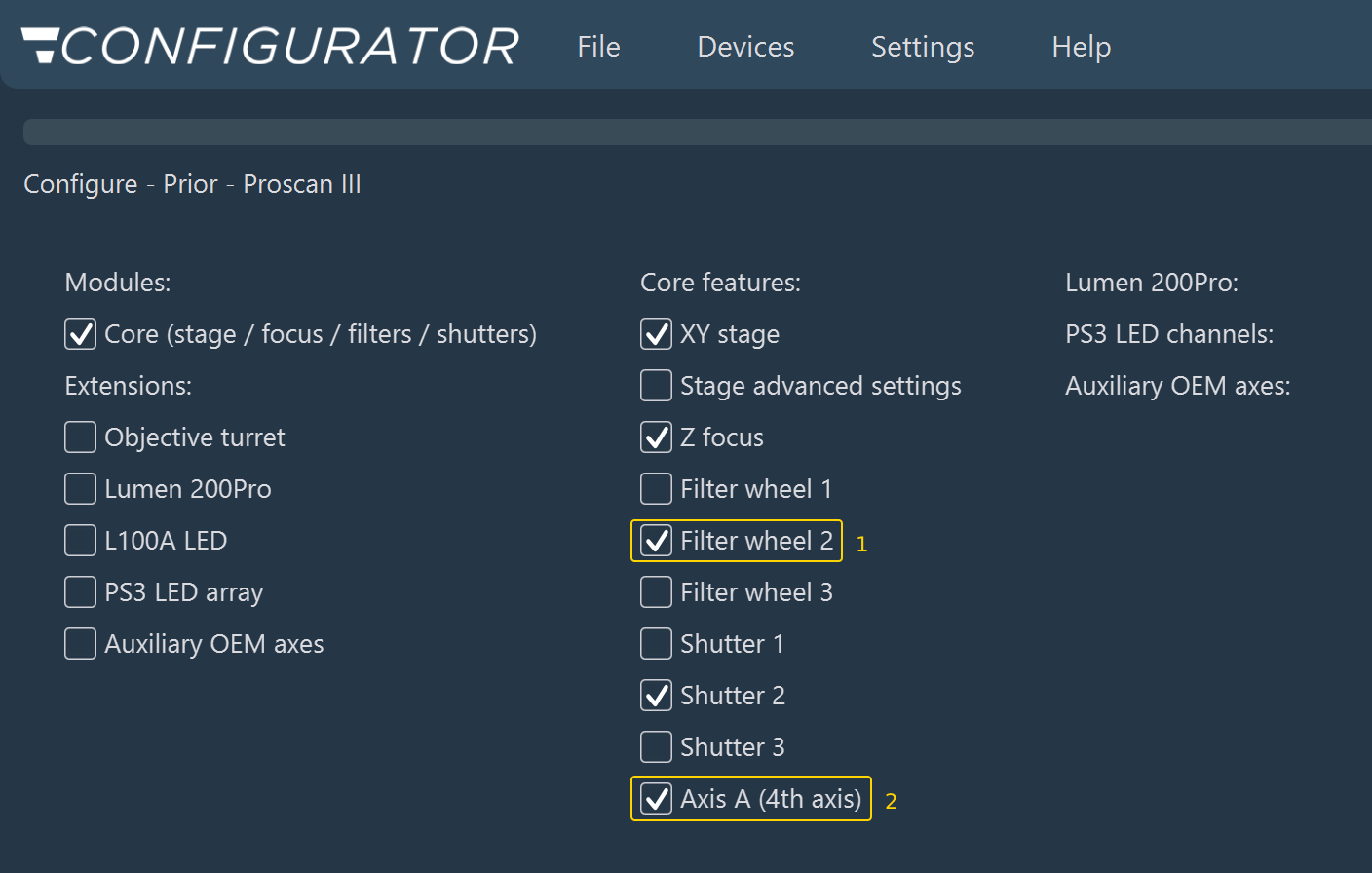
When at least one ambiguous element is selected, the wizard adds a step named Ambiguous - [Device Name], which lists the elements to define.
- In the Ambiguous Role Definition panel, locate each ambiguous element (1). Each element has its own drop-down list.
- Open the drop-down list (2) and select the role that matches the hardware (e.g., X axis, Y axis, Focus, Piezo, Shutter, Objective turret, Filter cube, or Filter wheel). The list only offers the roles possible for that element.
- Select None if the element is not used as any of the listed roles. It then remains available as a plain settings element.
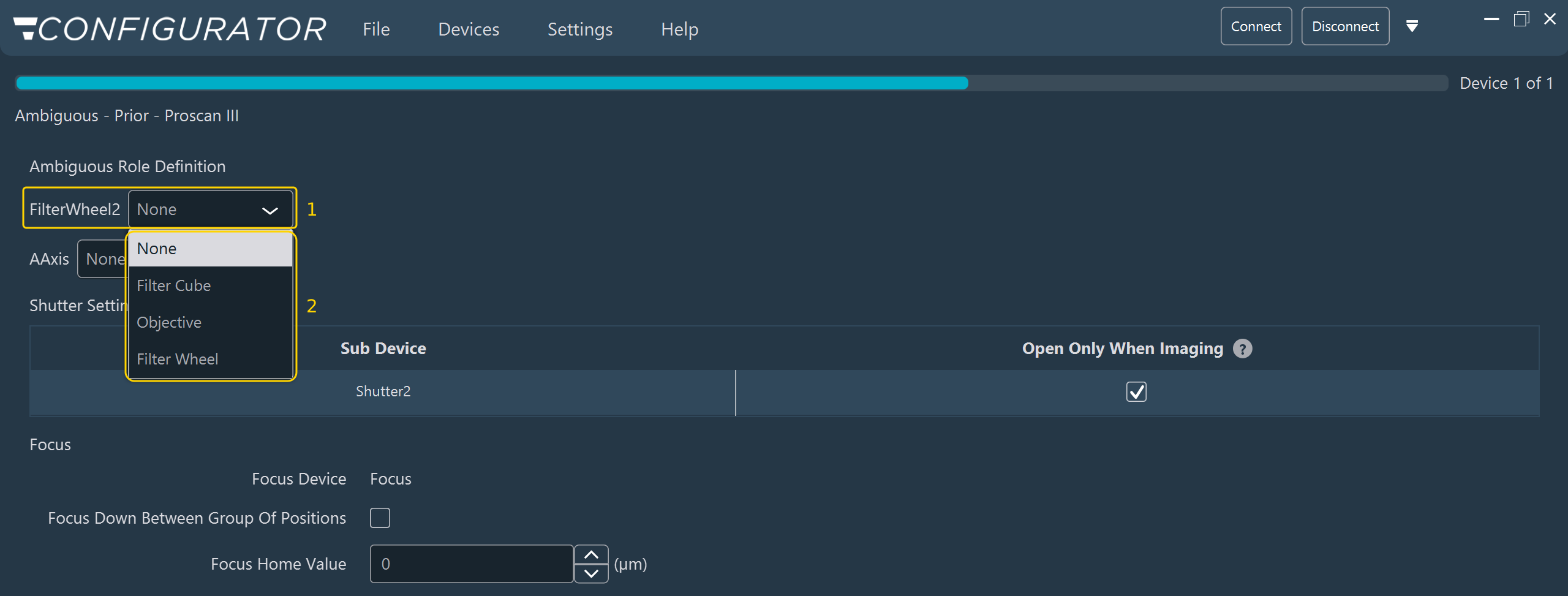
The drop-down list stays empty until a role is chosen. None is a valid choice and must also be selected explicitly.
Note: Assign each role to one element only. If two axes are both defined as Focus, only the first one is used.
Turrets
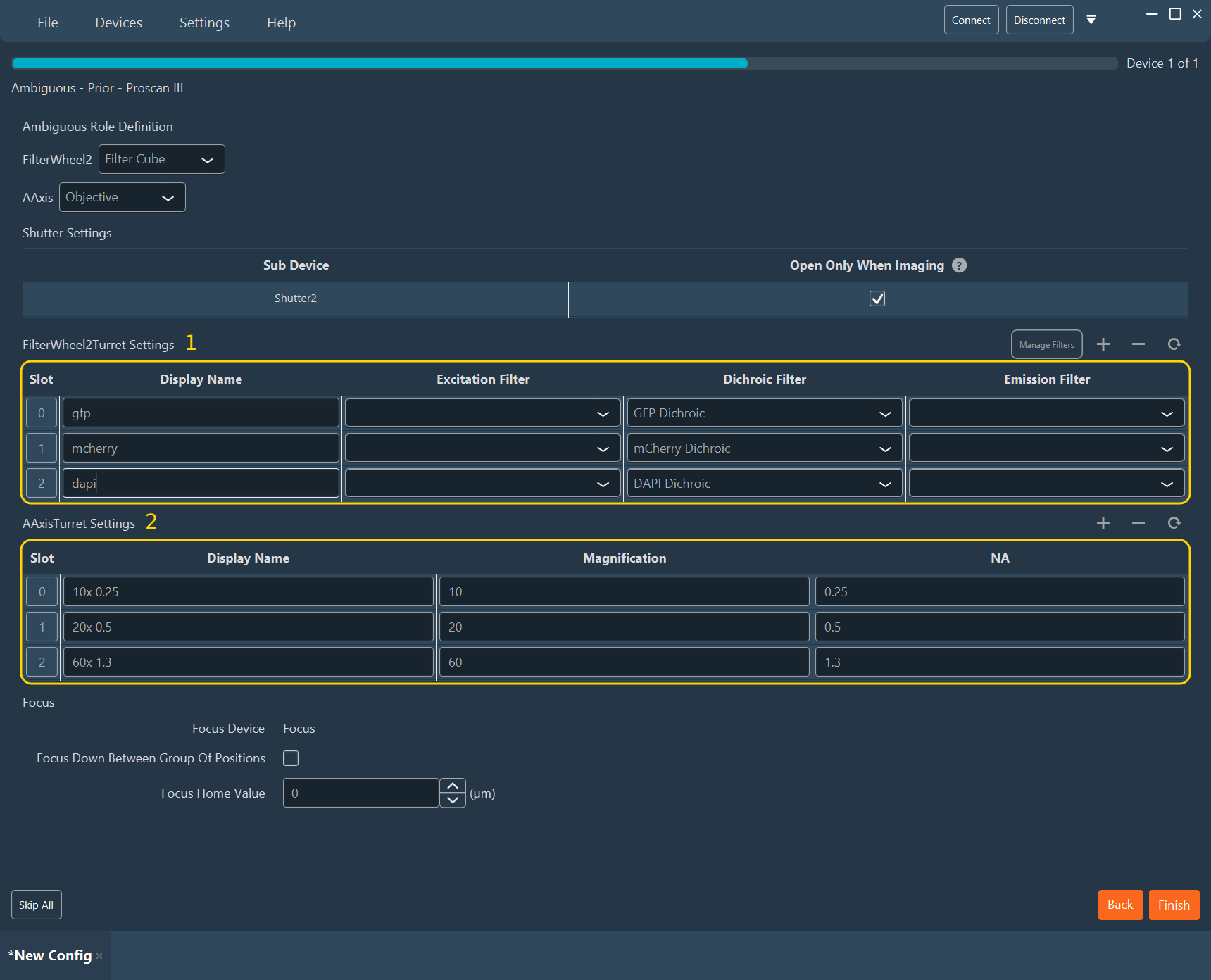
If an element is defined as an objective turret, a filter cube turret, or a filter wheel, a slot table appears. Fill in the objective or filter mounted at each position, as described in Turrets and Filter Wheels.
In the example below, FilterWheel2 is defined as a filter cube turret, which adds a slot table with excitation, dichroic, and emission filters (1). AAxis is defined as an objective turret, which adds a slot table with magnification and NA (2).
Generic axes
A generic axis of a multi-axis controller is an ambiguous element whose possible roles are X axis, Y axis, Focus, and Piezo. The stage of the controller takes its axes from these roles: the axes defined as X axis and Y axis, and the axis defined as Focus for Z. A generic axis set to None is driven as a plain setting.
A configuration saved by version 2.0.2 or earlier does not record the role of a generic axis. When it is opened, the role is taken from the stage axes that the configuration recorded. Check the role of each generic axis after opening such a configuration.
What the chosen role changes
The role defines how Inscoper Imaging Software uses the element during acquisition:
- Axes defined as X axis and Y axis form the motorized stage.
- An axis defined as Focus or Piezo moves for focusing, Z-stacks, and autofocus.
- A turret or filter wheel displays the names entered in its table.
An element left undefined is not used by the acquisition software for that role. For example, an axis that drives the focus but has no role assigned does not move during a Z-stack.
Pending definitions
Until a role is chosen for every ambiguous element, an orange dot appears next to the element, its group, and its device in the Imported Hardware tree. Hover over the dot to display the pending items. See Status markers in the tree.
Reviewing or editing a definition
The chosen roles are saved with the configuration. To review or edit them:
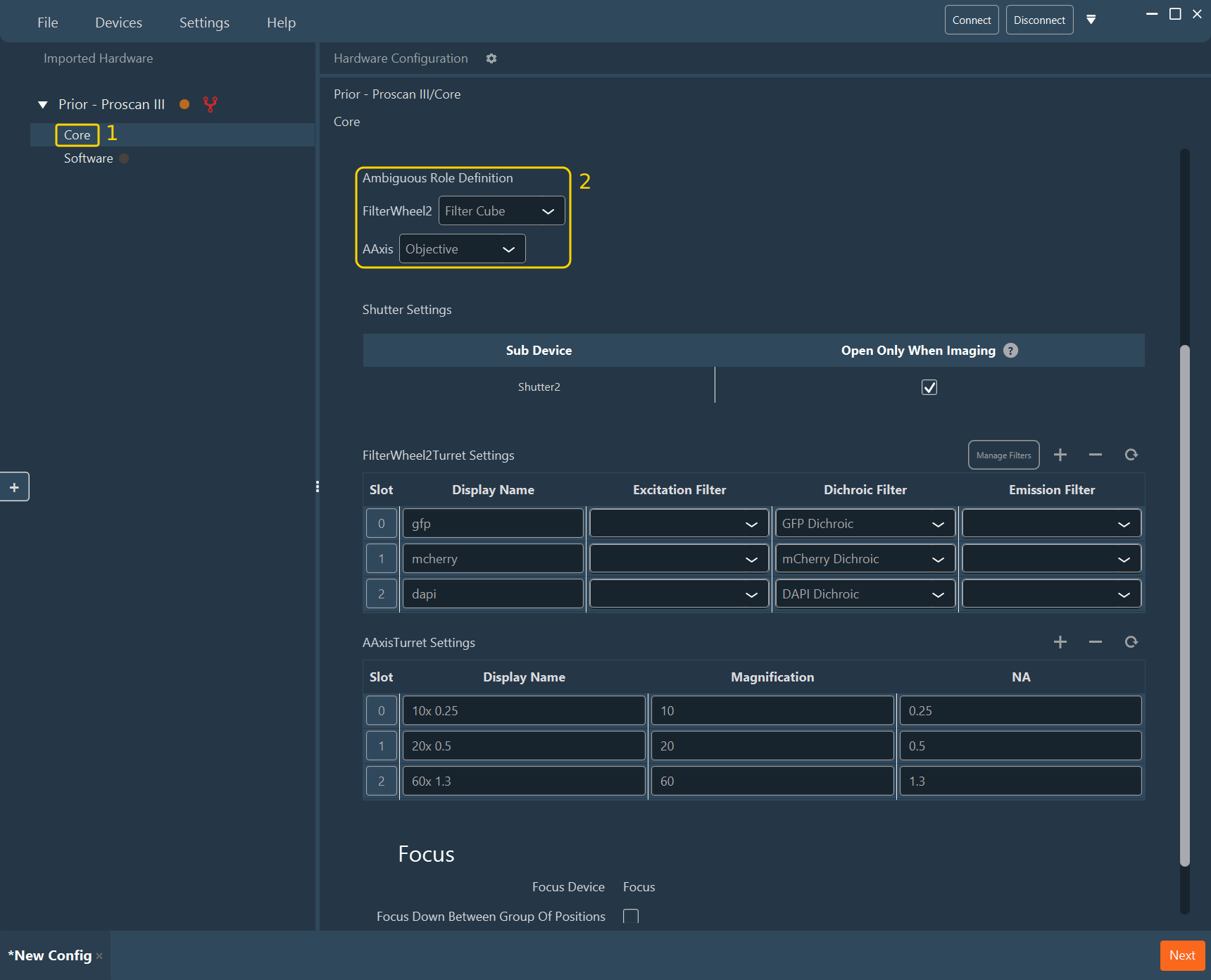
- In the Imported Hardware tree, expand the device and select the group that holds the ambiguous elements, for example Core (1).
- Change the roles in the Ambiguous Role Definition section (2) at the top of the group view.