Importing Hardware
The hardware importation panel lists every model the Configurator knows about and adds the selected models to the active configuration. Models come from the hardware library, which is read from the Device Controller firmware when it is connected, or from a stored file when it is not.
Opening the panel
Click + on the left edge of the main workspace, or select Devices > Import Device. The + button blinks while the configuration is still empty. While the panel is open and no model is selected, the button reads <; click it to close the panel.
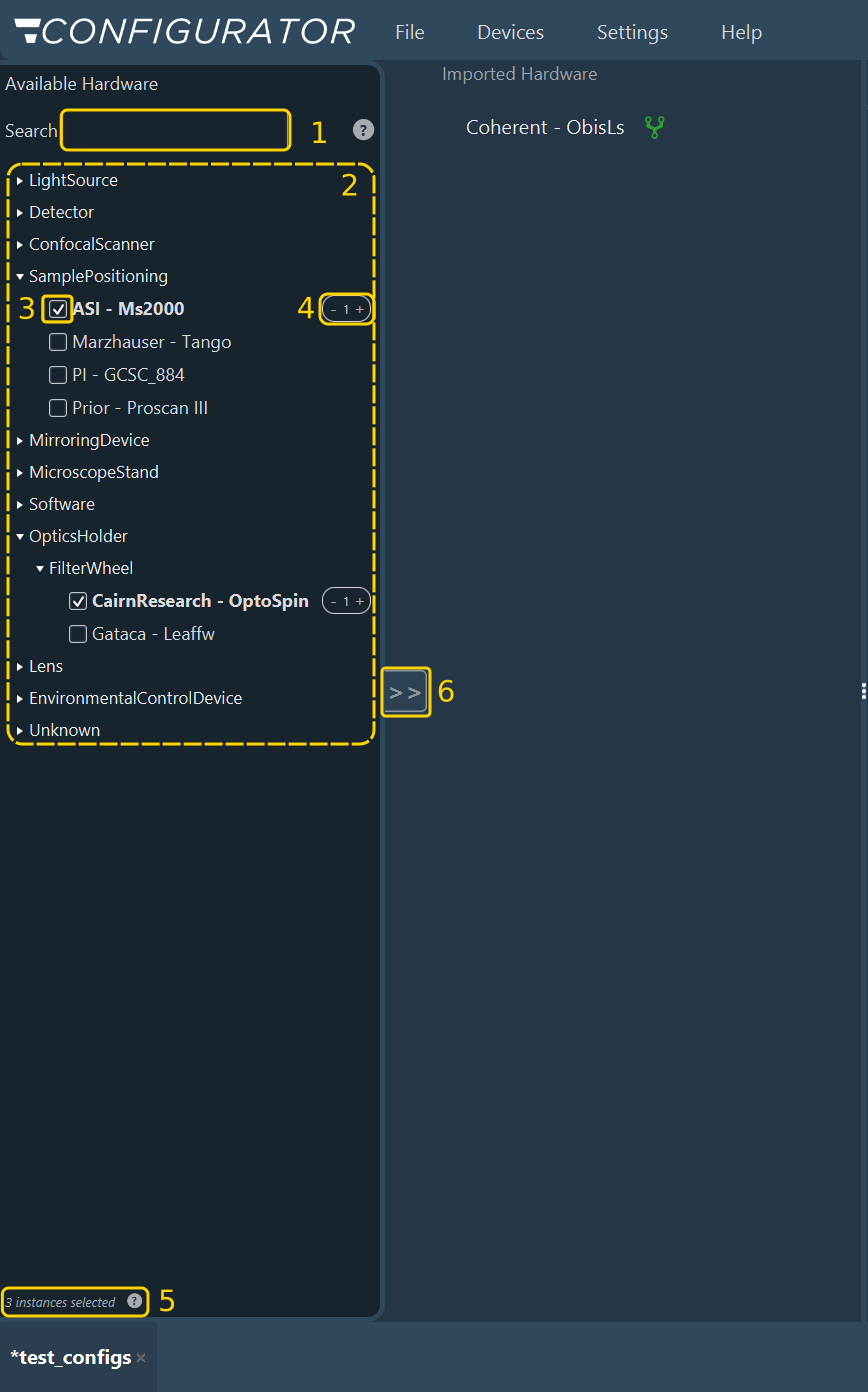
Selecting models
- Search (1): Filters the tree as you type and expands the parent categories of the matching entries. The help icon beside the field explains what to do when a model is absent.
- Category tree (2): Groups the available models by device type: LightSource, Detector, ConfocalScanner, SamplePositioning, MirroringDevice, MicroscopeStand, Software, OpticsHolder, Lens, and EnvironmentalControlDevice. Models not yet assigned a type are grouped under Unknown.
- Model checkbox (3): Selects a model for import. Select as many models as the instrument requires before importing; the Configurator keeps the selection while you search for the next one.
- Instance stepper (4): Appears once a model is selected. Use + and − to set the number of identical units, for example two cameras of the same model.
- Selection counter (5): Reports the number of instances currently selected. The help icon beside it lists them.
- Import (6): As soon as a selection exists, the panel button changes from < to >> and blinks. Click it to add every selected instance to the configuration and close the panel.
Note
The device types come from the Light Microscopy (LiMi)-Model, the community metadata model curated by QUAREP-LiMi. Inscoper does not define these types. It assigns each model in the hardware library the LiMi-Model type that best matches what the device physically is. When no type matches, the model is classified as a SoftwareModule and listed under Software; the MaxiILDA is one example. The Inscoper LiMi Library documents the model and its types.
Note
Every configuration must contain at least one objective device, which the Imaging Software uses to compute the pixel size at the sample. If the objective turret is not motorized, or if the instrument has a single fixed objective, import the Virtual Objective, listed as Inscoper - Virtual Objective under Software.
Tip
If the exact model is absent from the tree, import a device of the same series and adjust its parameters afterward, or contact Inscoper Support to have the model added to the hardware library.
If the hardware has no communication protocol and is driven only by a TTL or analog line of the Device Controller (laser enable, fiber switch, analog-modulated laser, camera trigger), import the matching generic device, listed as Inscoper - … in the tree.
What happens on import
Importing adds each device to the Imported Hardware tree and opens the setup wizard, which presents the newly imported devices one at a time. Click Skip All to leave the wizard at any point; the devices remain imported, and you can configure them from the tree.
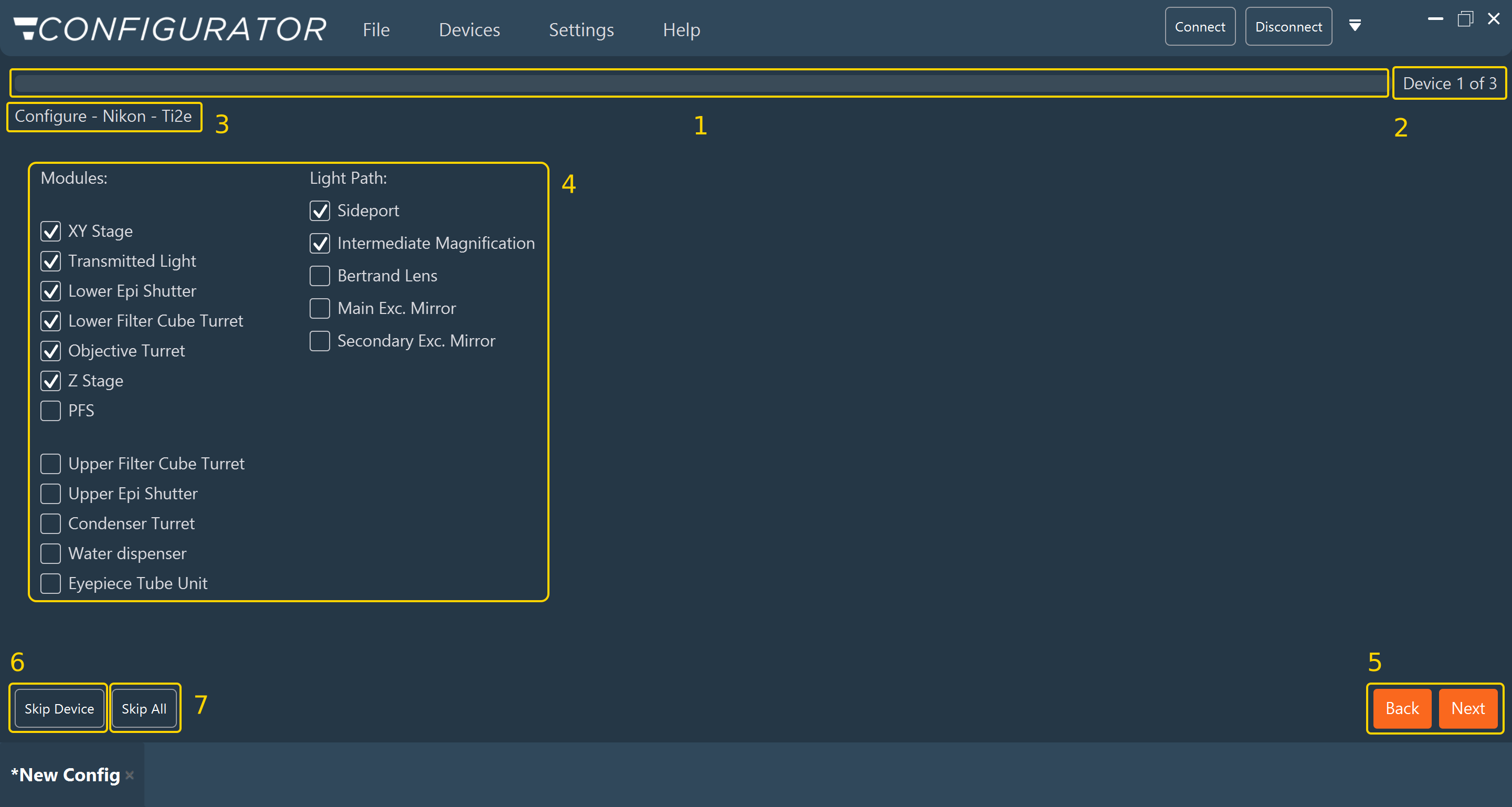
The wizard shell describes the numbered elements of the wizard (1–7).
Devices driven through an external driver
Some models are not driven entirely by the Device Controller. A camera, for example, is usually triggered by the Device Controller, while its sensor settings (exposure, binning, and readout speed) are driven by the vendor driver installed on the computer. Such a model still appears as a single entry in the tree, and importing it brings in both parts at once.
For these models, declare the directory holding the vendor libraries under Settings > Edit Settings > Add External Resources before importing. If the driver is absent, the model is still imported, but the controls it provides are missing from the device view.
Removing a device
Select the device in the Imported Hardware tree and press Del, or right-click it and select Delete. The Configurator asks for confirmation. Removing a device also removes its connections and its entries in the Imaging Software layout.
Next step: Proceed to Configuring a device.