External Parameters
The External Parameters tab holds instrument-wide settings that the Imaging Software reads at startup and that belong to no single device: the default mosaic overlap, the devices that key focus maps and compression calibrations, startup behavior, and the device assignments of the FLIM and Sparq modules.
Opening the tab
- Click the gear icon in the Hardware Configuration header of the main workspace. The Advanced Parameters window opens on the Calibration tab.
- Click External Parameters (1).
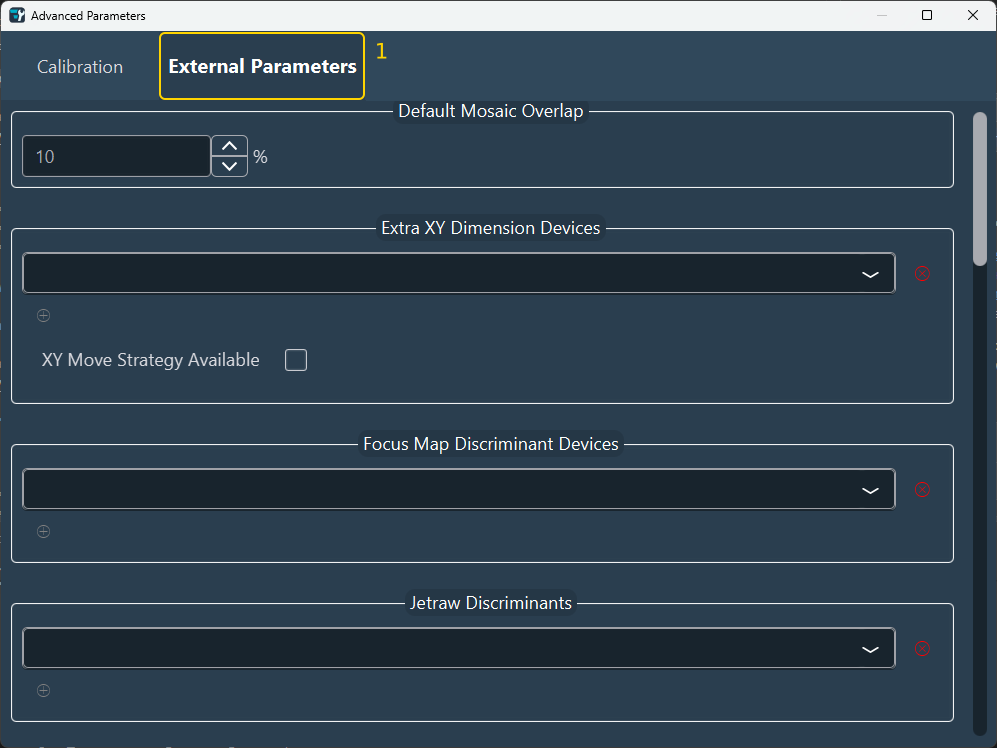
Every section is always displayed, whether or not the matching hardware or license is present. Scroll down to reach the sections below Jetraw Discriminants.
Device lists
Most sections hold a list of device parameters, entered one per row:
- Choose a parameter in the drop-down list of a row. The list offers every parameter of every imported device, without filtering by type, so check that the parameter chosen matches the purpose of the section.
- Click + below the list to add a row, and the red × beside a row to remove it.
- Empty rows are ignored when the configuration is saved.
- Removing a device from the configuration also removes its parameters from every list of this tab.
Mosaic and positions
| Setting | Description |
|---|---|
| Default Mosaic Overlap | The overlap between adjacent tiles, in percent, applied to every new mosaic area created in the Imaging Software. Existing mosaic areas keep their own overlap. |
| Extra XY Dimension Devices | Device parameters displayed next to the stage X, Y, and Z fields in the header of the XY, positions, and mosaic dimension editors of the Imaging Software. Each field shows the current value of the parameter and can be edited there. The value is not stored with the positions. |
| XY Move Strategy Available | Shows the Move Strategy selector in the positions and tiling editors of the Imaging Software's complex acquisitions. XY Split breaks each stage move between two positions into X steps, then Y steps, none longer than the set Step; Fastest moves directly. |
Focus maps
| Setting | Description |
|---|---|
| Focus Map Discriminant Devices | Device parameters for which the Imaging Software keeps a separate focus map per value. With the objective turret in this list, for example, each objective keeps its own focus surface, and changing the objective displays the focus map recorded for it. |
Jetraw compression
| Setting | Description |
|---|---|
| Jetraw Discriminants | Device parameters that key the Jetraw calibration. Jetraw is a lossless compression for sCMOS images that requires a noise calibration of each camera. With a parameter in this list, for example a camera gain or readout mode, the Imaging Software stores one calibration per camera and per value of that parameter, and applies the matching one to each image. Jetraw requires a license. |
Startup and maintenance
| Setting | Description |
|---|---|
| Reset USB At Startup | Resets the USB link to the Device Controller when the Imaging Software starts, before the configuration is loaded. |
| Seconds Before Reconnection | The delay, in seconds, between the USB reset and the reconnection. Available only when Reset USB At Startup is selected. |
| Emulation Available | Allows devices to be emulated. When a device fails to initialize at startup, the Imaging Software offers to emulate it, and the device manager shows an Emulate button for each driver and device. |
| White Balance Available | Adds the camera white balance calibration to the camera settings of the Imaging Software. |
FLIM and Sparq modules
These sections assign device parameters to the roles of optional acquisition modules. Leave them empty when the module is absent. Each module also requires a license.
| Setting | Description |
|---|---|
| PCO FLIM Camera | The camera used for PCO FLIM acquisitions. Selecting it enables the darkfield and referencing calibrations of the module. |
| PCO FLIM Bracketing Discriminants | Device parameters that key the PCO FLIM referencing calibration. |
| PCO FLIM Darkfield Discriminants | Device parameters that key the PCO FLIM darkfield calibration. |
| Flim | The parameters that drive gated (fast) FLIM acquisition: Add Delay, Reset Delay, Delay Generator, Gate Width, Delay Number, and Scan Mode, with the Scan Mode ON Value and Scan Mode OFF Value sent to the scan mode parameter. Flim Discriminants key the FLIM calibration. |
| Sparq | Speckle Mode: the parameter toggled by the Sparq acquisition and locked during Sparq live. Target Thickness: the parameter read as a processing input. Sparq Live Discriminants: parameters whose change restarts the Sparq live display. |
See also: Calibration, Focus and Autofocus, Virtual Objective, and Interface reference.