Expert Mode
The Configurator has two operating modes, which set how much detail the interface exposes.
- User Mode (default): hides the settings that a standard installation does not need.
- Expert Mode: exposes the additional columns, buttons, and settings required for commissioning and troubleshooting.
Switching modes
- Open Settings > Edit Settings.
- In the Configurator Settings section, set the Expert Mode (1) toggle. Its label reads either User Mode or Expert Mode.
- Click Confirm (2).
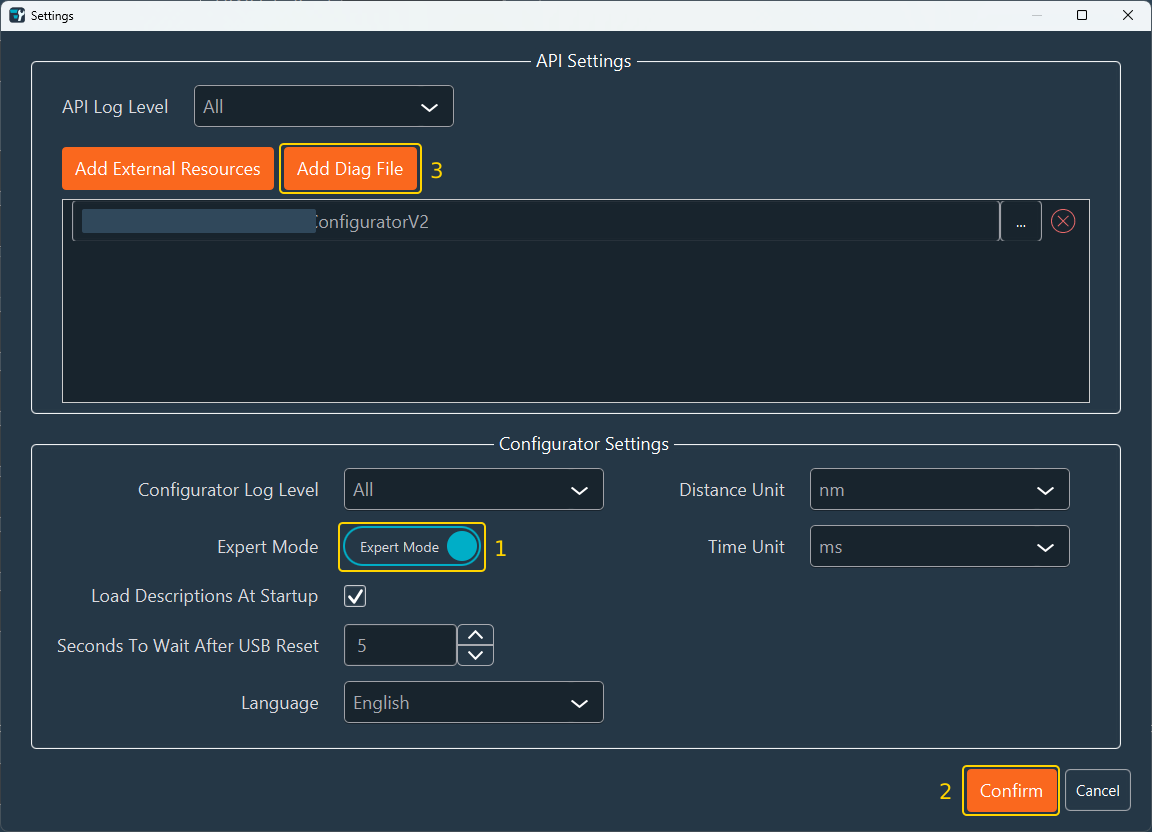
In Expert Mode, the Add Diag File (3) button appears in the API Settings section. The mode is stored with the application settings and is retained between sessions.
What Expert Mode adds
| Location | Addition |
|---|---|
| Settings window | Add Diag File, which loads a stored diagnostic file into the API resources. Use it to simulate the response of a device that is not physically connected: load a diagnostic file saved earlier from that device, and the Configurator behaves as if it had just interrogated it. |
| Hardware importation panel | The virtual devices (Inscoper - Virtual …). |
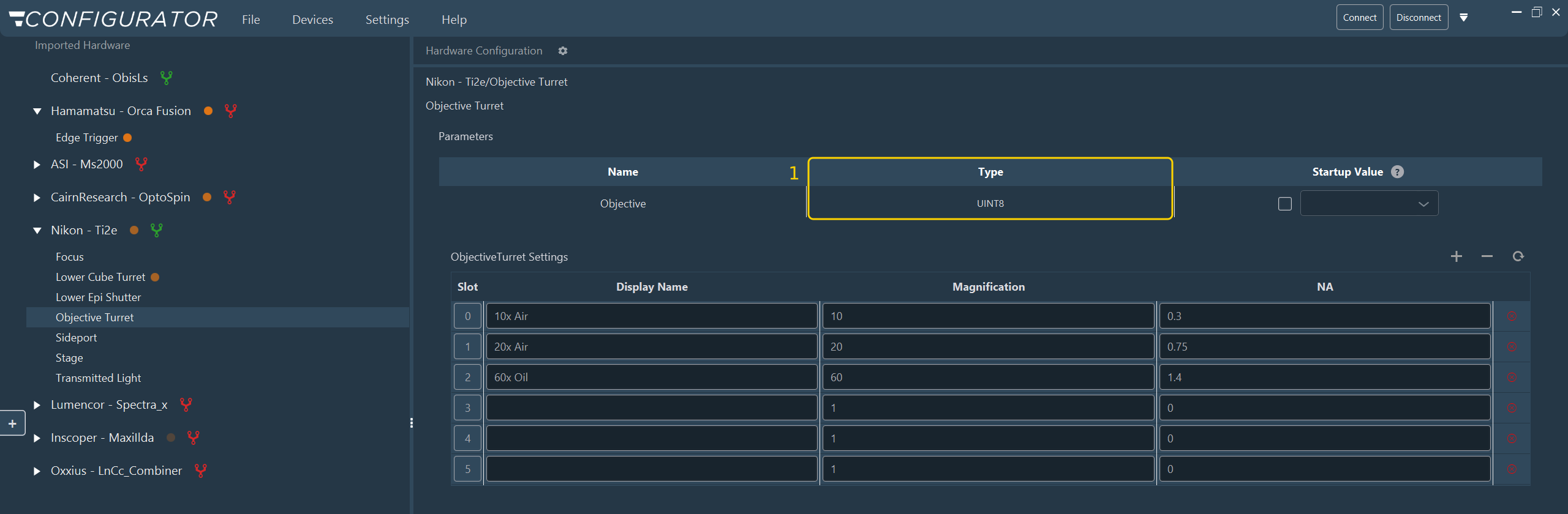
| Group parameters table | The Type column, which reports the data type of each parameter. |
| Camera groups | The Advanced Camera Parameters button. |
| Focus groups | The piezo settings. |
| Autofocus groups | The autofocus settings, hidden entirely in User Mode. |
| Shutter groups | The Open Value and Close Value columns. |
| Connection view and Set Connection wizard step | The Box Type selector, when the Device Controller model has been read from the hardware. Otherwise the selector is shown in both modes. |
| USB configuration table | The VID, PID, Num Interface, and Driver columns. |
The Special cases pages describe these device categories in detail.
The figure below shows an objective turret group in Expert Mode. The Type (1) column is absent from the same group in User Mode.
When to use each mode
Use Expert Mode during initial installation, when adding hardware, and when investigating a fault with Inscoper Support.
Return to User Mode for routine work. The reduced interface lowers the risk of changing a setting that should remain fixed once the instrument is commissioned.
Warning
The parameters exposed in Expert Mode change how the Device Controller drives the hardware. Modify them only when instructed by Inscoper Support or by the documentation of the hardware vendor.