Filter Manager
The Filter Manager holds the optics library — the filters and dichroic mirrors available to filter cube turrets and filter wheels across every configuration. An element defined here is not tied to a single configuration: pick the same catalog reference in any turret slot table and it points back to this one shared definition.
Open it from Settings > Filter Manager, or click Manage Filters in the header of a filter column of the turret editor. Opened from a turret, the Filter Manager starts on a new element of the kind that column lists.
The editor layout
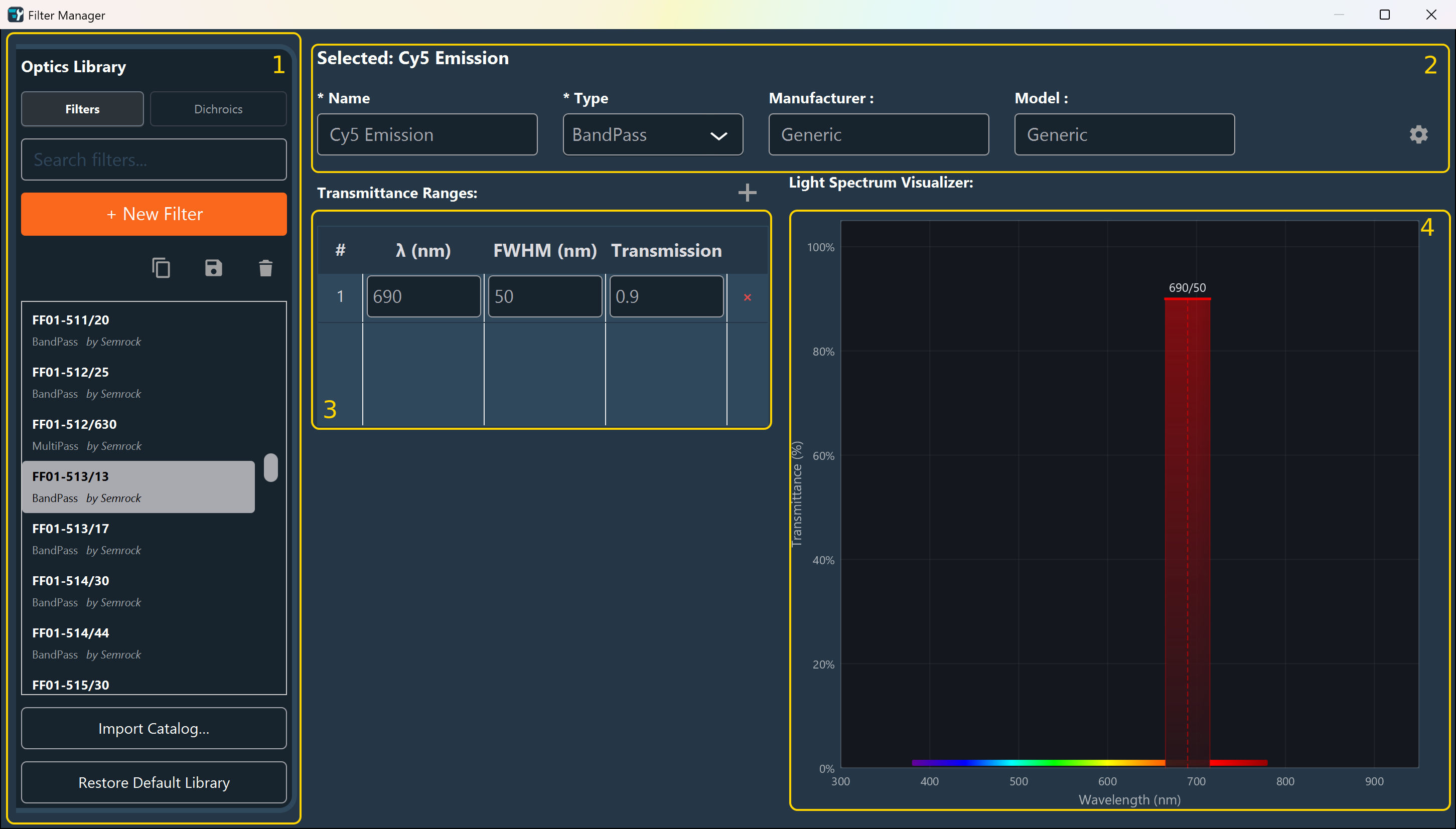
- Optics Library (1): Filters and Dichroics switch which of the two libraries the sidebar lists. The search box filters that list. + New Filter (or + New Dichroic) creates a blank entry; the copy, save, and trash icons above the list duplicate, save, or delete the selected entry. Import Catalog… merges a vendor XML file into the library, and Restore Default Library resets it to the shipped set.
- Identification (2): Name, Type, Manufacturer, and Model for the selected entry. Manufacturer lists Semrock and Chroma, then every manufacturer already named in the library; another name can be typed. The gear icon opens Advanced parameters — the read-only Identifier, the Catalog Number, the Lot Number, and any other optional attribute that applies to that element's type.
- Range tables (3): Transmittance Ranges, present for both filters and dichroics. Editing a Dichroic adds a second Reflectance Ranges table next to it, since a dichroic mirror both transmits and reflects.
- Light Spectrum Visualizer (4): Plots the ranges from the tables across the visible spectrum, so a band's position and width can be checked at a glance.
Filters and dichroics
| Kind | Represents | Range tables |
|---|---|---|
| Filter | A single optical filter — bandpass, longpass, shortpass, notch, multipass, bandstop, or other. | Transmittance only. |
| Dichroic | A dichroic mirror, which splits light by reflecting one band and transmitting another. | Transmittance and Reflectance. |
Both are stored and searched separately: switching the toggle switches the list, the + New… button label, and which range tables are shown.
Recording a range
| Column | Description |
|---|---|
| # | The row's position; purely informational. |
| λ (nm) | The center wavelength of the band. |
| FWHM (nm) | The full width at half maximum — the band's width. Leave the row alone for a longpass or shortpass edge, where the cut is a single wavelength rather than a band. |
| Transmission (or Reflectance) | The fraction of light passed (or reflected) at the peak, from 0 to 1. |
Click + above a table to add a row, or the × at the end of a row to remove it.
A new filter starts as a BandPass filter with one Transmittance range of 500 nm and 20 nm FWHM; a new dichroic starts with one range at 500 nm without FWHM.
Naming shortcut
Typing a wavelength into Name — for example Cy5 Emission 690/50, or just 690/50 — reshapes the starting range with that center and width, and a name without a wavelength restores the starting values. A wavelength is read only as a three-digit center between 300 nm and 900 nm, optionally followed by a width (525, 525/50, FF01-525/50); catalog numbers such as 49002 are ignored. The turret slot table reads names with the same rule. This only ever touches the starting row: editing that range by hand, or adding a second one, stops the name from overwriting it. A LongPass or ShortPass type, or a name the editor reads as a dichroic, fills in the wavelength alone, since FWHM does not apply to a cut edge.
Name and Identifier
Name is a free-text label you can change at any time. The Identifier shown in Advanced parameters is generated once, when the entry is first saved, and never changes afterward — it is what a turret slot table actually stores when you assign a filter. Renaming an entry later cannot orphan a configuration that already references it.
Importing a vendor catalog
Import Catalog… reads an NBOList XML file — the same format the library itself is stored in — and adds any filter or dichroic it does not already have. A summary reports how many elements were added, how many were already present, how many were renamed to avoid a collision, and how many were rejected.
Keyboard shortcuts
| Shortcut | Action |
|---|---|
| Ctrl+S | Save the selected entry. |
| Delete | Delete the selected entry (outside a text field). |
| Ctrl+C | Copy the selected entry. |
| Ctrl+V | Paste the copied entry as a new duplicate. |
Required to save
An entry needs a Name, a Type, and at least one Transmittance range before it can be saved. Leaving the editor with unsaved changes — by switching Filters/Dichroics, selecting another entry, or closing the window — prompts to save or discard them.
Next step: Proceed to Connections.