Setup Wizard
The setup wizard opens automatically after importing hardware. It presents the newly imported devices one at a time and, for each device, only the steps that device still needs.
The wizard is optional. Every step it presents is also reachable from the Imported Hardware tree, and leaving the wizard never discards an imported device.
The wizard shell
While active, the wizard replaces the central part of the main window.
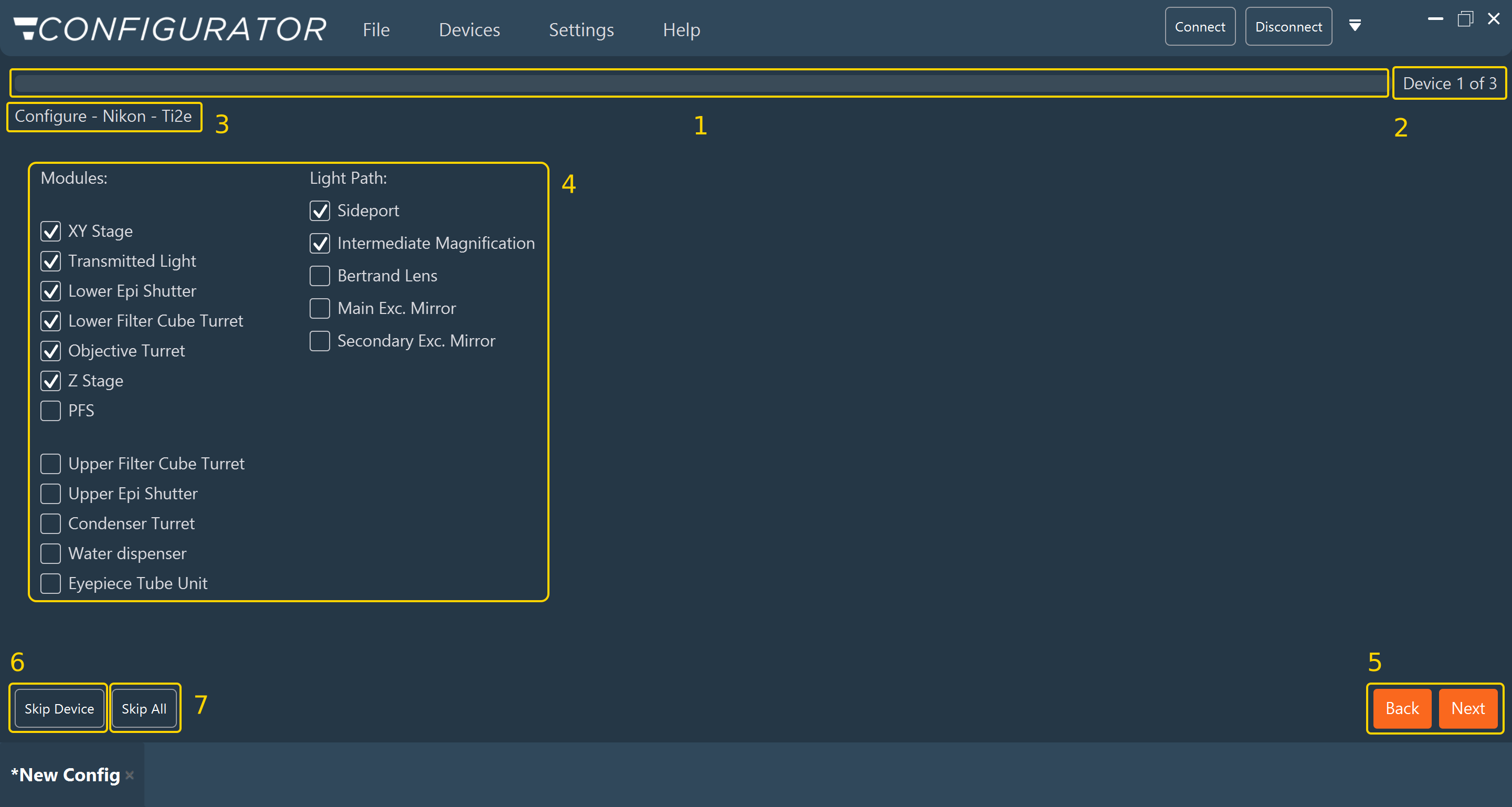
| Element | Purpose |
|---|---|
| Progress bar (1) | Position within the whole sequence, across all devices. |
| Device n of m (2) | Position within the list of imported devices. |
| Step title (3) | The current step and device, for example Configure - Nikon - Ti2e or Nikon - Ti2e - Set Connection. |
| Function list (4) | Functions the device provides. All are checked by default. Uncheck the functions that are not installed on the system. |
| Back / Next (5) | Move one step backward or forward. |
| Skip Device (6) | Abandon the remaining steps of the current device and move to the next device. |
| Skip All (7) | Close the wizard, leaving every remaining step unvisited. |
Steps
The steps presented depend on the functions the device supports and on the selections made in earlier steps. Each step displays the same view as the corresponding entry in the Imported Hardware tree.
| Step | Documented under |
|---|---|
| Configure device | Configuring a device |
| Set Connection | Connections |
| Turret configuration | Turrets and filter wheels |
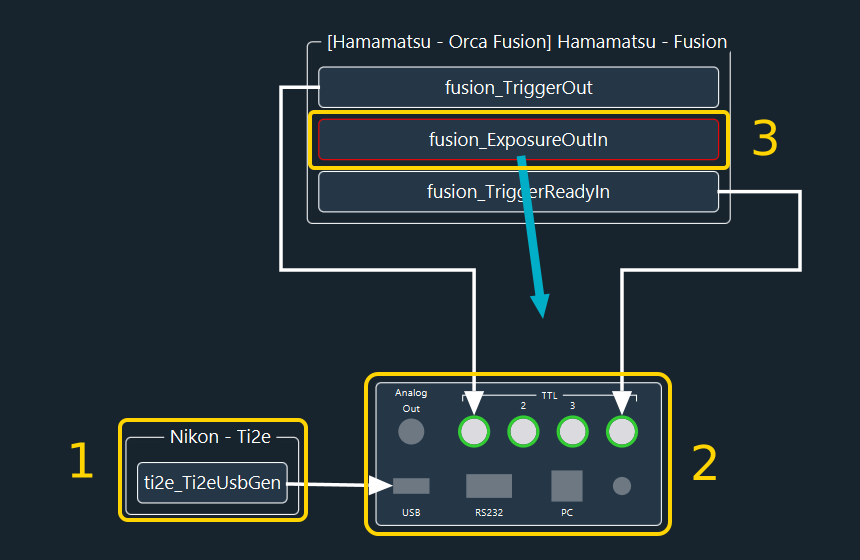
The Set Connection step embeds the connection view inside the wizard shell. It shows the connection cell of the current device (1), the Device Controller panel (2), and the cells of other devices that are still unconnected, outlined in red (3).
Note
Skipping a step does not apply default values. The configuration remains incomplete, and the validation check described below reports every skipped item.
Validation before the next stage
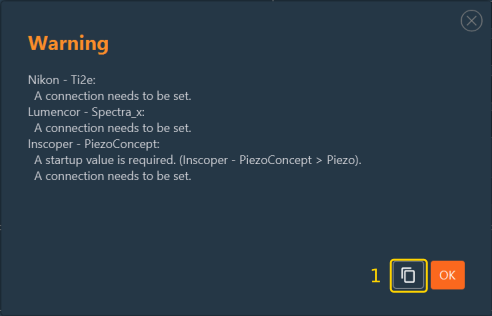
When you click Next on the last device, the Configurator lists every missing startup value and connection, grouped by device. The report opens in a popup. Click the copy icon (1) to copy the report to the clipboard, for example to send it to Inscoper Support.
The report is informational. It does not prevent moving on to the Imaging Software layout stage.
Next step: Proceed to Imaging Software layout.